This article was originally published on the Red Hat Customer Portal. The information may no longer be current.
Satellite 6.0 provisioning fully supports booting over the network (PXE) but it is not always possible to have DHCP and TFTP services under the control of the Satellite server. For these cases, Satellite ships with a plug-in called Bootdisk that allows you to create ISO files that can be written to CD or DVD, or to USB sticks or memory cards. There are two types of boot disk that you can create: per-host and generic images.
Two Types of Images
You can use the host and subnet data in Satellite to create per-host images with fully static networking. The behavior is dynamic, because the image chainloads from Satellite, so the current operating system and build state is provided by Satellite instead of being stored in the image.
Generic images, on the other hand, provide a single ISO that can be used by all registered hosts. But, because IP details cannot be stored within the image, it requires a DHCP pool on the network to bootstrap. The host will boot and contact Satellite for the template of a registered host matching a MAC address or the IP the host was assigned by DHCP. The installation then continues, using either the DHCP or static IP depending on how the operating system iPXE template is configured, and could configure the assigned IP address statically for the installed system using information from the kickstart file.
How to Prepare the Environment
The Bootdisk plug-in is installed by default. After you sign in to the Satellite 6 user interface, make sure that both Boot disk iPXE templates called host and generic host are assigned to the organization, as well as the Kickstart default iPXE template. Navigate to Infrastructure > Subnets and make sure that the target subnet includes sufficient information: Address, Mask, Gateway and Primary DNS are all required fields for Bootdisk images to operate.
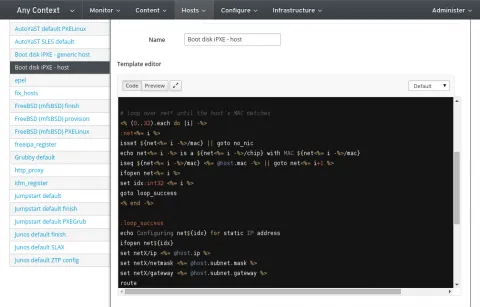
After the content has been synchronized and the operating systems created, check the Organization and Location settings for all the required resources (OS, Installation media, Subnet, Domain). Navigate to Hosts > Provisioning templates and associate both Boot disk iPXE templates with the operating system you want to provision. Review all the tabs on the Operating System page, including Templates, and make sure you have the iPXE template type set to Kickstart default iPXE and provision type set to Satellite Kickstart Default (or your own copies of the same types above).
Navigate to Administer > Settings and verify that the unattended_url value is set to the fully-qualified domain name of the Satellite main server. This works if there is a valid DNS entry in the provisioning network. If the DNS value is not set, you can set these to the IP address of the server. If DNS is not set, the nodes being provisioned will not be able to access the Satellite 6 node to download the chained template.
Provisioning Using the Image
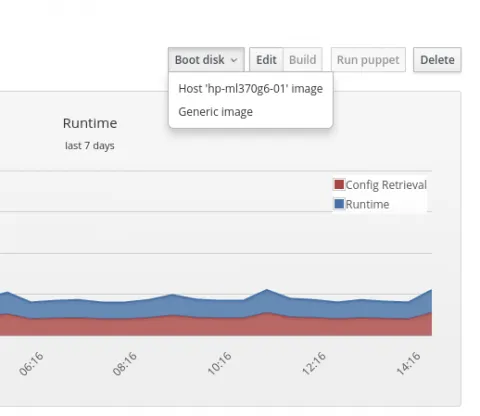
Create a new bare-metal host and make sure you enter the MAC address correctly. After you have created the host, click the Boot disk button in the Host details page to download either a Generic image or Host image. These are hybrid ISO files and so you can write them to a CD or DVD, or copy (using dd) to a USB stick or memory card.
This article shows that host provisioning on networks with limited functionality is easy with the Satellite 6 Bootdisk plug-in. Satellite 6 offers much more, however, and soon we will show you the exact opposite; the automated provisioning of newly-discovered hardware with a single mouse click. Stay with us.
Sull'autore

Lukáš Zapletal is a principal software engineer at Red Hat, and is involved in the Foreman and Fedora communities as well as working on Red Hat Satellite 6. He is also interested in security, SELinux, and performance monitoring with Performance Co-Pilot (PCP).
Altri risultati simili a questo
CVE-2026-31431: How Red Hat Advanced Cluster Security and Red Hat Advanced Cluster Management can help
Strengthening the enterprise foundation: Red Hat and Oracle’s expanding collaboration
Collaboration In Product Security | Compiler
Keeping Track Of Vulnerabilities With CVEs | Compiler
Ricerca per canale

Automazione
Novità sull'automazione IT di tecnologie, team e ambienti

Intelligenza artificiale
Aggiornamenti sulle piattaforme che consentono alle aziende di eseguire carichi di lavoro IA ovunque

Hybrid cloud open source
Scopri come affrontare il futuro in modo più agile grazie al cloud ibrido

Sicurezza
Le ultime novità sulle nostre soluzioni per ridurre i rischi nelle tecnologie e negli ambienti

Edge computing
Aggiornamenti sulle piattaforme che semplificano l'operatività edge

Infrastruttura
Le ultime novità sulla piattaforma Linux aziendale leader a livello mondiale

Applicazioni
Approfondimenti sulle nostre soluzioni alle sfide applicative più difficili

Virtualizzazione
Il futuro della virtualizzazione negli ambienti aziendali per i carichi di lavoro on premise o nel cloud
