
How many Linux commands do you know? How many do you need to know? You probably have a dozen or so that you use on a regular basis and a handful more that you use so sporadically that you have to Google them. This article makes it even worse because, in it, I explore five commands you might never have heard of or had a use for, but now you will.
I recently read that Shakespeare had a vocabulary of approximately 66,000 words. I've also read that the average English speaker's vocabulary consists of 10,000 to 20,000 words. And, although I've never heard an estimate, my best guess is that the average Linux system administrator knows 20 to 30 commands, and very few, if any sysadmins, know all of the possible switches and options for any single command. After all, that's what man pages are for, right?
[ You might also like: How to use the Linux mtr command ]
So, in the spirit of expanding your sysadmin vocabulary, here are those five obscure but useful commands that every sysadmin should know in alphabetical order.
nmtui
One of my all-time favorite programs to run was the old Red Hat Linux (text-based user interface) TUI application, setup. It was the best ever all-in-one program to perform configurations on your Linux system. It has been replaced by others such as NetworkManager TUI or nmtui. However, nmtui is specifically for setting up a network connection.
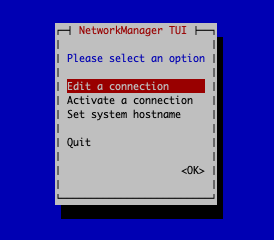
For servers, nmtui is your hero because you don't have the nice graphical NetworkManager GUI to click and fill in the fields with info. For purists, you can edit the /etc/sysconfig/network-scripts/ifcfg-eth0 or whatever your network device is called.
os-prober
The os-prober command is next up and is an awesome find for those of you who inherit systems from other sysadmins—especially laptops and "test" systems. The os-prober tells you if there are other operating systems (OSs) installed on a computer.
From repoquery: This package detects other OSs available on a system and outputs the results in a generic machine-readable format. Support for new OSs and Linux distributions can be added easily. While I don't have a system with multiple OSs installed on it, the following is an example of an os-prober scan where you have a foreign OS installed alongside your Linux one:
/dev/sda1:Windows 10:Windows:chain
shuf
The shuf command is a shortened term for shuffle. Formally, the shuf command generates random permutations from input. You can think of shuf as a dice rolling or a "pulling names out of a hat" program. An example provides a better illustration.
Create a file with numbers from 2 to 12, one number on each line (dice roll possibilities), and save it as dice.txt.
2
3
4
5
6
7
8
9
10
11
12
Then run the following shuf command to extract one random number from the list, as if you are rolling dice:
$ shuf -n 1 dice.txt
3
$ shuf -n 1 dice.txt
7
$ shuf -n 1 dice.txt
5
$ shuf -n 1 dice.txt
12
$ shuf -n 1 dice.txt
8
$ shuf -n 1 dice.txt
7
$ shuf -n 1 dice.txt
3
$ shuf -n 1 dice.txt
11
If you write shell scripts, your mind is now permutating all the possibilities for this one. You can use shuf with strings, numbers, or a combination of strings and numbers.
split
The split command would seem to be most useful for programmers. It's used to split a large file into smaller chunks, with 1000 lines being the default chunk size. Because 1000 lines are far too long to show in this article, here's what I did to demonstrate the split command for myself:
This listing is 5568 lines:
$ ls -lR /etc > listing.txt

$ split listing.txt

$ ls

listing.txt  xaa  xab  xac  xad  xae  xaf
If you don't specify a prefix with the command, those are the filenames you get for the 1000 line splits. Here's an example of the split command with a prefix (blah-):
$ split listing.txt blah-

$ ls

blah-aa  blah-ab  blah-ac  blah-ad  blah-ae  blah-af  listing.txt
If you want to limit the results to something other than 1000 lines per file, use the (-l #LINES) option. For example:
$ split -l 500 listing.txt file-

file-aa  file-ab  file-ac  file-ad  file-ae  file-af  file-ag
file-ah  file-ai  file-aj  file-ak  file-al  listing.txt
There are several other options for which you can search the man page, such as changing the suffix (aa, ab, ac, etc.) to a number. Splitting a file is handy because you can hand out chunks to other developers for debugging or for other testing. It's also a great way to examine source code from another project.
watch
For scripting, the watch command is one of my favorites. Using it, you can execute a command or script periodically to perform a task or to collect information. The following is a worthless but illustrative example. Create a new file named, createfile.sh, and make it executable (chmod u+x createfile.sh) with the following contents.
#!/bin/bash

# This script creates an empty file with the current time as the filename.

touch `date +%T`.txt
Issue the watch command to run the createfile.sh script every 10 seconds.
watch -n 10 /home/khess/createfiles.sh
Give the full path to the script so that the watch command can find it. Here, the path is /home/khess/createfile.sh. Allow the command to run for a minute or so and then stop its execution with CTRL-C and list the files it created.
$ ls
20:21:16.txt  20:21:36.txt  20:21:56.txt  20:22:16.txt  20:22:36.txt  20:22:56.txt
20:21:26.txt  20:21:46.txt  20:22:06.txt  20:22:26.txt  20:22:46.txt  createfiles.sh
Have you thought of some uses for the watch command yet?
[ Free cheat sheet: Get a list of Linux utilities and commands for managing servers and networks. ]
Wrap up
These five obscure commands won't make you a better sysadmin. I won't even promise that they'll make your life easier. What these five commands will do is help you creatively solve some of your nagging problems with pizzazz—especially when your coworkers see your handiwork and say, "Hey, how did you do that?" It's totally worth it. And, if nothing else, you've expanded your sysadmin vocabulary by five. Take that, Shakespeare.
Sull'autore
Ken has used Red Hat Linux since 1996 and has written ebooks, whitepapers, actual books, thousands of exam review questions, and hundreds of articles on open source and other topics. Ken also has 20+ years of experience as an enterprise sysadmin with Unix, Linux, Windows, and Virtualization.
Follow him on Twitter: @kenhess for a continuous feed of Sysadmin topics, film, and random rants.
In the evening after Ken replaces his red hat with his foil hat, he writes and makes films with varying degrees of success and acceptance. He is an award-winning filmmaker who constantly tries to convince everyone of his Renaissance Man status, also with varying degrees of success and acceptance.
Altri risultati simili a questo
Red Hat Enterprise Linux Long-Life Add-On: un percorso verso RHEL senza una scadenza predeterminata
Qual è il modo migliore per connettere la tua infrastruttura a Red Hat Lightspeed?
Infrastructure At The Edge | Compiler
Operating System Management | Compiler
Ricerca per canale

Automazione
Novità sull'automazione IT di tecnologie, team e ambienti

Intelligenza artificiale
Aggiornamenti sulle piattaforme che consentono alle aziende di eseguire carichi di lavoro IA ovunque

Hybrid cloud open source
Scopri come affrontare il futuro in modo più agile grazie al cloud ibrido

Sicurezza
Le ultime novità sulle nostre soluzioni per ridurre i rischi nelle tecnologie e negli ambienti

Edge computing
Aggiornamenti sulle piattaforme che semplificano l'operatività edge

Infrastruttura
Le ultime novità sulla piattaforma Linux aziendale leader a livello mondiale

Applicazioni
Approfondimenti sulle nostre soluzioni alle sfide applicative più difficili

Virtualizzazione
Il futuro della virtualizzazione negli ambienti aziendali per i carichi di lavoro on premise o nel cloud
