
Red Hat Enterprise Linux (RHEL) gets updates and support through a subscription service. There are different subscription levels, and which you choose depends on the purpose of a particular system. For a cluster of mission-critical servers, you'd obviously invest in Red Hat support, while for a test server you might choose self-support.
Regardless of what level of support you invest in, it's important to register the computer running RHEL so that you can manage it from your central Red Hat account and you receive important software updates.
[ Free download: Advanced Linux commands cheat sheet. ]
Register RHEL during installation
The first chance you get to register your RHEL operating system (OS) is during installation.
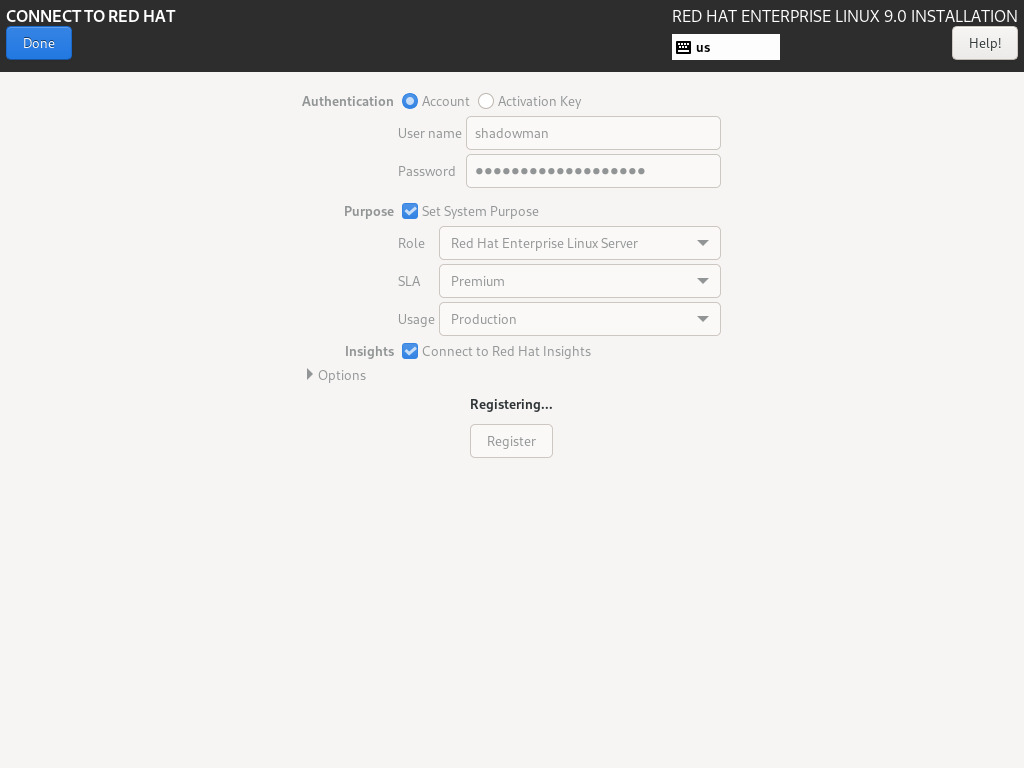
Once a system is attached to your account, you can set the system's purpose. This is a useful way to influence what kinds of software repositories are activated for you, and what kinds of updates are significant to that computer.
This is an easy way to get your system registered early, and it means some sensible defaults are set once you're ready to use your new OS for the first time.
Register in the terminal
Using the subscription-manager command, you can register a new RHEL system with the register subcommand along with your Red Hat account username:
$ sudo subscription-manager register --username shadowman
Define the system's purpose
Once you've attached a computer to your Red Hat account, you can also define that system's purpose. This can help you organize your own data about your active machines, but it also helps the OS make intelligent decisions about some system preferences. For instance, if you set a purpose of "Red Hat Enterprise Linux Server," then a subscription for that role is used when auto-attaching subscriptions.
First, look at your current settings. There may not be any, depending on who installed the OS and what information they configured during that process. My system was configured in advance, so my terminal returns this:
$ sudo subscription-manager syspurpose
[sudo] password for shadowman:
{
  "addons": [],
  "role": "Red Hat Enterprise Linux Workstation",
  "service_level_agreement": "Premium",
  "usage": "Production"
}
There are four attributes to a system's purpose: addons, role, service-level, and usage. You can use any of these key terms to see the options available for them. For instance, to see available options for the system's role:
$ sudo subscription-manager syspurpose role --list
[sudo] password for shadowman:
+-------------------------------------------+
               Available role
+-------------------------------------------+
 - Red Hat Enterprise Linux Workstation
 - Red Hat Enterprise Linux Server
 - Red Hat Enterprise Linux Compute Node
What's available depends, in part, on your service level agreement (SLA). If you're using RHEL with self-support only, then the only usage setting available is "Development/Test." If you want to increase your level of support, log into the Red Hat website or speak to sales.
[ Free online course: Red Hat Enterprise Linux technical overview. ]
To set a value for system purpose, use the --set option:
$ sudo subscription-manager syspurpose role --set \
"Red Hat Enterprise Linux Server"

[sudo] password for shadowman:
role set to "Red Hat Enterprise Linux Server".
Manage systems
When you're responsible for any number of computers, it's important to understand how they're being maintained and updated. Using the Subscription Manager ensures that your computers are visible to your team and that mission-critical machines are signed up for vital updates. Whether you interact with subscriptions at installation, from the terminal, or through Cockpit, Subscription Manager is an important component of a well-organized fleet.
Sull'autore
Seth Kenlon is a Linux geek, open source enthusiast, free culture advocate, and tabletop gamer. Between gigs in the film industry and the tech industry (not necessarily exclusive of one another), he likes to design games and hack on code (also not necessarily exclusive of one another).
Altri risultati simili a questo
Red Hat Enterprise Linux Long-Life Add-On: un percorso verso RHEL senza una scadenza predeterminata
Qual è il modo migliore per connettere la tua infrastruttura a Red Hat Lightspeed?
Infrastructure At The Edge | Compiler
Operating System Management | Compiler
Ricerca per canale

Automazione
Novità sull'automazione IT di tecnologie, team e ambienti

Intelligenza artificiale
Aggiornamenti sulle piattaforme che consentono alle aziende di eseguire carichi di lavoro IA ovunque

Hybrid cloud open source
Scopri come affrontare il futuro in modo più agile grazie al cloud ibrido

Sicurezza
Le ultime novità sulle nostre soluzioni per ridurre i rischi nelle tecnologie e negli ambienti

Edge computing
Aggiornamenti sulle piattaforme che semplificano l'operatività edge

Infrastruttura
Le ultime novità sulla piattaforma Linux aziendale leader a livello mondiale

Applicazioni
Approfondimenti sulle nostre soluzioni alle sfide applicative più difficili

Virtualizzazione
Il futuro della virtualizzazione negli ambienti aziendali per i carichi di lavoro on premise o nel cloud
