
I'm a believer in the basics, and as a former technical instructor, I have a soft spot for folks who are new to Linux (and other platforms). I've written articles on the fundamentals, and I thought it was time to cover some basic file-manipulation commands.
This article looks at day-to-day tasks such as copying, moving, renaming, creating, and deleting files and directories. Here are eight commands to make managing files easier.
What's there?
Before you can manage files, you must know what files are present. The ls command displays the contents of the current or specified directories.
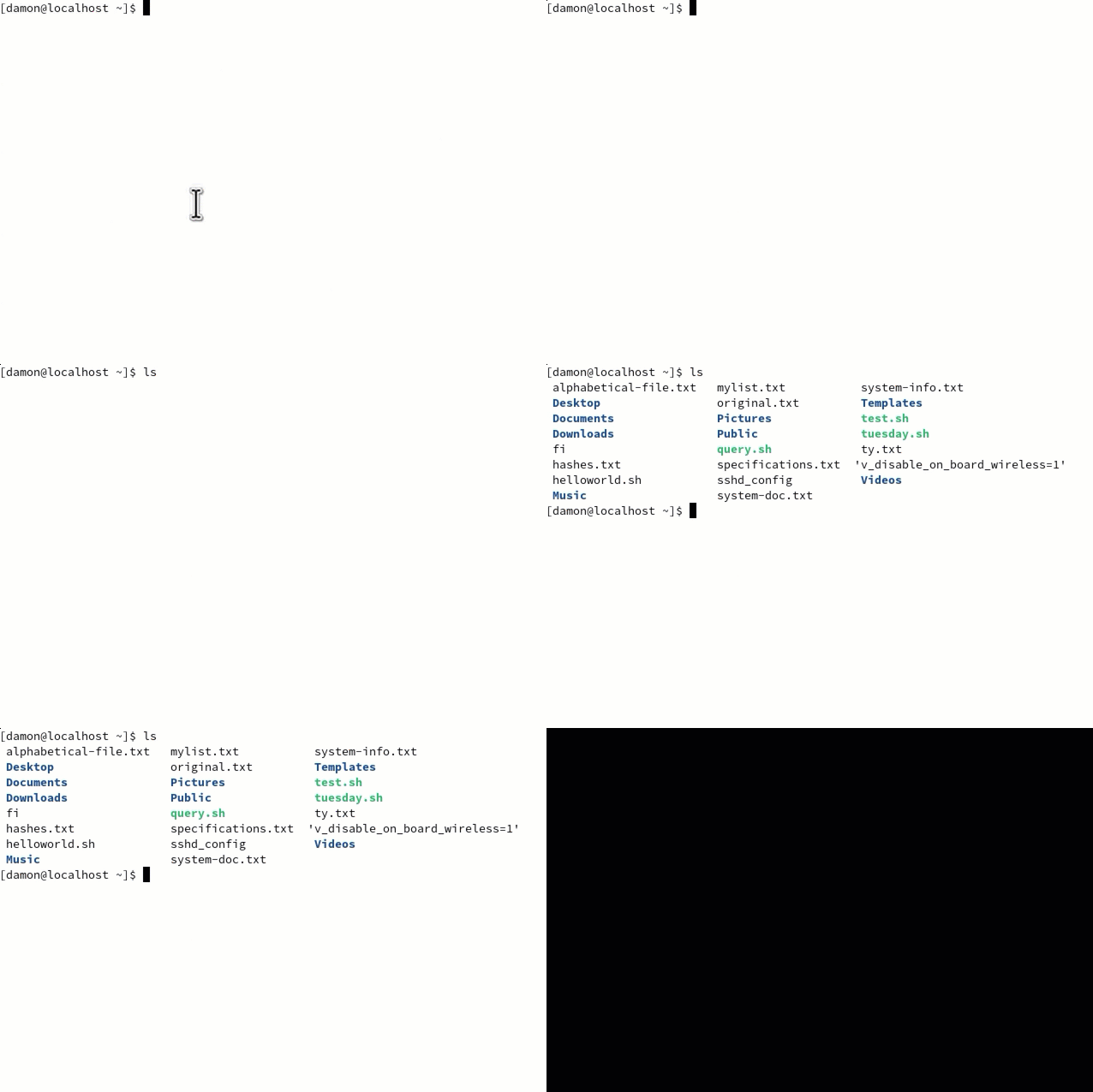
Of course, ls has many useful options. Here are three of my favorites:
-lLong format (to display permissions)-aAll files, including hidden files-ZSELinux context
It's certainly useful to view the contents of directories, but what about the contents of files? There are many ways of doing this, but I'll point out the cat command here. It's a quick way of seeing what's in a file.
The pipe character (that's the | symbol above the backslash on a US keyboard) is a signal to the terminal that you want to combine commands. It allows you to "pipe" the output of one command to the input of another.
For example, combine the cat command with | grep {string} to search the contents of the file for a specific string of characters.
Commands such as less, more, most, head, and tail are all useful for displaying file contents. For most of these commands, the syntax is simply the command name followed by the filename.
See Getting started with ls for lots more tricks using the ls command.
Manage directories
Displaying files and directories is one thing, but managing them is another. In an effort to organize your files better, you may want to create one or more new directories. You may also find directories you no longer need.
To create a new directory, simply type the mkdir command and specify the directory name (and, if necessary, the path to it). The rmdir removes any empty directories for you.
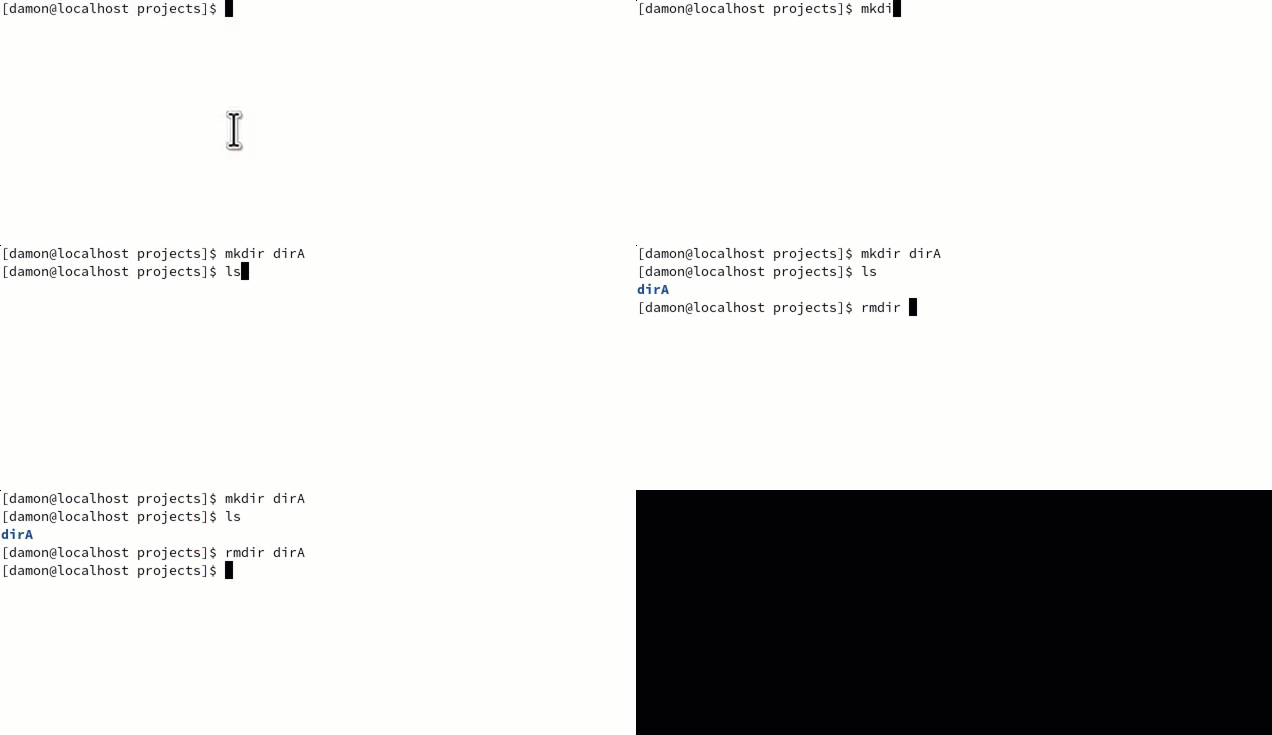
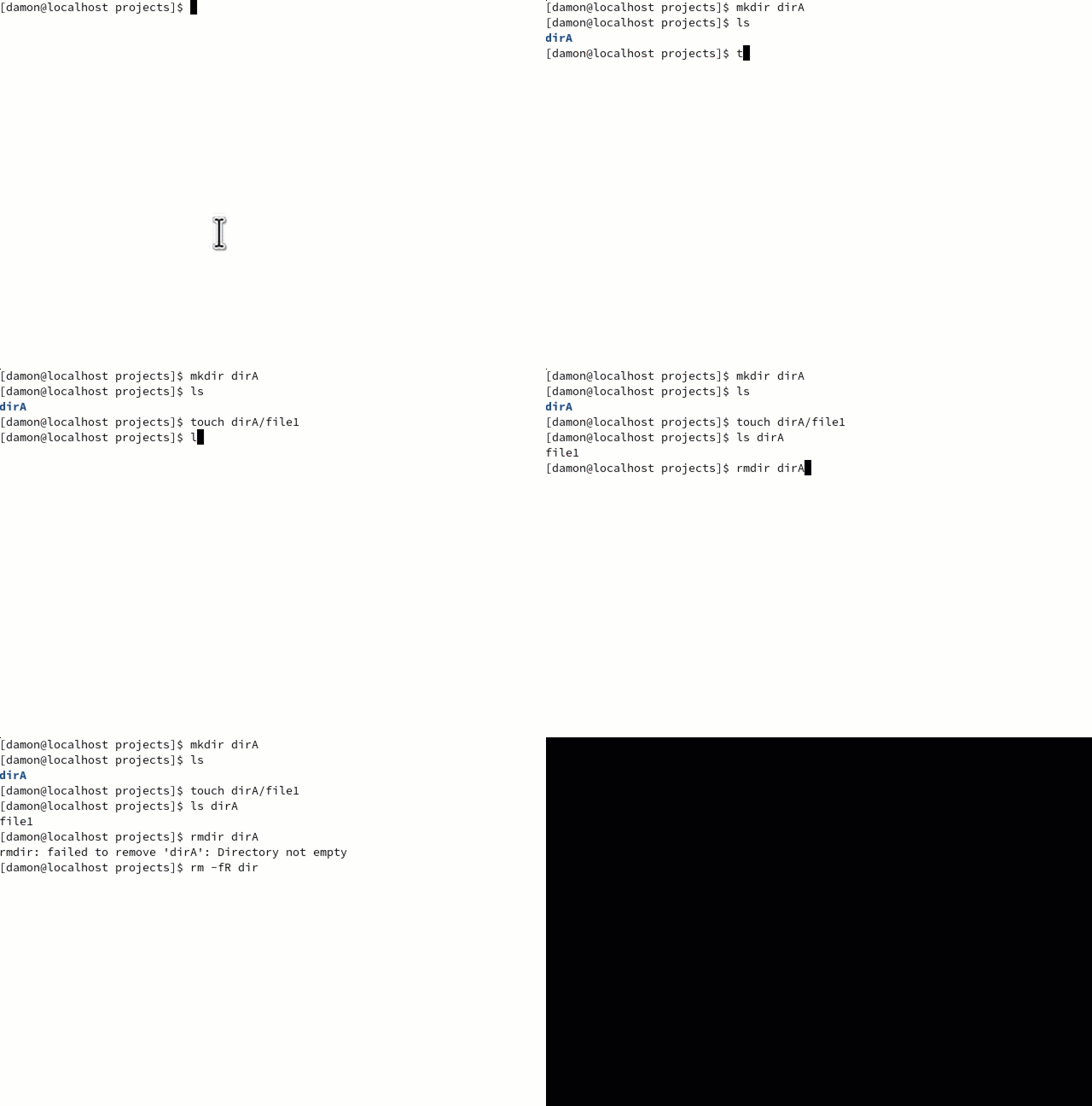
Unfortunately, directories you wish to delete in most cleanup scenarios are not empty. In that case, there are two tricks to help. The first is to delete the directory and its contents in one command, and the second is to disable the interactive confirmation prompt temporarily.
First, to delete a non-empty directory, use the file-deletion command rm and add the -R (recursive) option. To delete the non-empty directory projects, type
rm -R projects.
[ For more tips, download the Linux commands cheat sheet. ]
Many distributions, RHEL and Fedora among them, prompt users to confirm any deletions. Normally, this is a good thing, but if you're deleting a directory with 100 files in it, you certainly don't want to type y for each file. In that case, use the -f (force) option. This option overrides the prompt and deletes the specified files. This can be incredibly dangerous, so be very careful and aware before using this option. Make certain you understand what's in the directory you're deleting.
In fact, consider using a trash command to safeguard yourself from mistakes because, although there's an rm command, there's no un-rm, at least not without a great deal of filesystem forensics with a tool like Scalpel or TestDisk.
Manage files
Text editors such as Vim and Nano can create new files, but sometimes it's handy to create an empty file quickly. I used to use the touch command in classroom demonstrations to make files to work with tools such as tar, cp, mv, and others.
Officially, touch updates the timestamp on existing files, but one side effect of the command is that if the file doesn't exist, touch creates it.
To remove a file, use the rm command. This is the same command used above to delete a non-empty directory. Again, you can use the -f option to remove files without being prompted for confirmation, but this is dangerous.
Organize files
The cp command copies files. This is useful for backing up configuration files before making changes to them. The syntax of cp is simple: copy from here to there. To copy the /etc/ssh/sshd_config file to your home directory, type cp /etc/sshd_config ~. The path to the config file is the source, and your home directory is the destination.
Depending on whether the cp command is aliased to cp -i on your system, it may overwrite existing files without warning, or it may prompt you to confirm each copy action that may overwrite a file. As with the rm command, you must take care with regard to overwriting files.
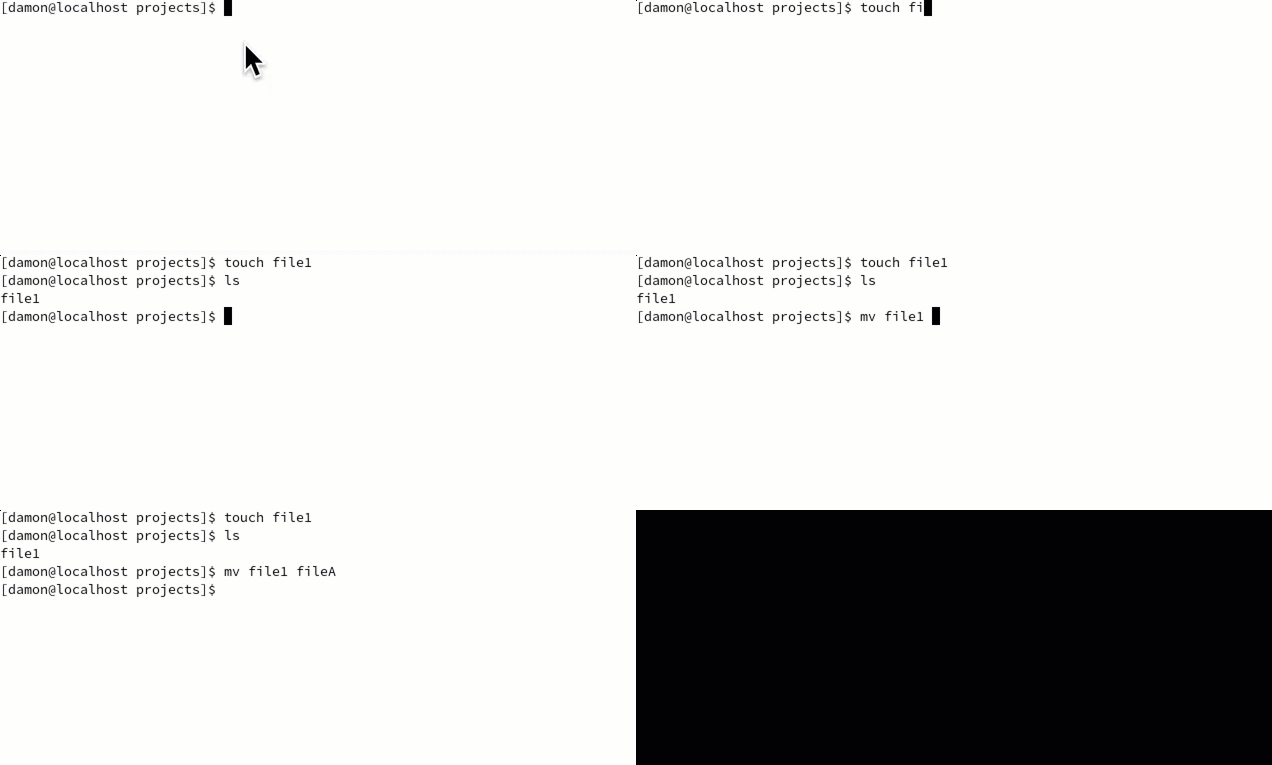
Moving files from one location to another uses the same syntax but with the mv command. Therefore, moving files is straightforward.
What's more interesting about the mv command is that it's also the rename command. The logic is that you're moving the file to the same location, just with a different name. So, to rename file1.txt to fileA.txt, type mv file1.txt fileA.txt. Keep in mind that mv can overwrite existing files, so be sure to check filenames before initiating mv.
Manage files carefully
Most users who have worked with Linux already know these commands, but with so many new users entering the open source and Linux worlds, a solid and practical review of some basic file-management commands is never bad. Be careful not to accidentally delete or overwrite files with these commands. Take a look at Seth Kenlon's file-management article, too. It includes information on working in a graphical user interface (GUI).
Sull'autore
Damon Garn owns Cogspinner Coaction, LLC, a technical writing, editing, and IT project company based in Colorado Springs, CO. Damon authored many CompTIA Official Instructor and Student Guides (Linux+, Cloud+, Cloud Essentials+, Server+) and developed a broad library of interactive, scored labs. He regularly contributes to Enable Sysadmin, SearchNetworking, and CompTIA article repositories. Damon has 20 years of experience as a technical trainer covering Linux, Windows Server, and security content. He is a former sysadmin for US Figure Skating. He lives in Colorado Springs with his family and is a writer, musician, and amateur genealogist.
Altri risultati simili a questo
Red Hat Enterprise Linux Long-Life Add-On: un percorso verso RHEL senza una scadenza predeterminata
Qual è il modo migliore per connettere la tua infrastruttura a Red Hat Lightspeed?
Infrastructure At The Edge | Compiler
Operating System Management | Compiler
Ricerca per canale

Automazione
Novità sull'automazione IT di tecnologie, team e ambienti

Intelligenza artificiale
Aggiornamenti sulle piattaforme che consentono alle aziende di eseguire carichi di lavoro IA ovunque

Hybrid cloud open source
Scopri come affrontare il futuro in modo più agile grazie al cloud ibrido

Sicurezza
Le ultime novità sulle nostre soluzioni per ridurre i rischi nelle tecnologie e negli ambienti

Edge computing
Aggiornamenti sulle piattaforme che semplificano l'operatività edge

Infrastruttura
Le ultime novità sulla piattaforma Linux aziendale leader a livello mondiale

Applicazioni
Approfondimenti sulle nostre soluzioni alle sfide applicative più difficili

Virtualizzazione
Il futuro della virtualizzazione negli ambienti aziendali per i carichi di lavoro on premise o nel cloud
