Running Windows workloads on Red Hat OpenShift has been a regular request from numerous customers over the years. Given Windows Server enjoys a significant presence in the server operating system market and C# is in the top 6 programming languages, we see there is an enormous opportunity to accelerate customer adoption of Windows Server applications to public cloud via containers. To make this happen, Red Hat partnered with Microsoft to announce a Developer Preview for running Windows Server Containers in OpenShift 4.4. The architecture involves letting Windows run Windows Server containers and Red Hat Enterprise Linux run Red Hat Enterprise Linux containers, with OpenShift orchestrating them both as building blocks to compose your next generation applications.
Today, we are pleased to announce the first community release of Windows Machine Config Operator (WMCO) that allows you to enable Windows Server workloads on OpenShift 4.6+ clusters on AWS and Azure. The Windows Machine Config Operator is the entry point for OpenShift customers who want to run Windows workloads on their clusters. The intent of this feature is to allow a cluster administrator to add a Windows worker node as a day 2 operation with a prescribed configuration to an installer provisioned OpenShift 4.6 cluster and enable scheduling of Windows workloads. The Prerequisite is an OpenShift 4.6+ cluster configured with hybrid OVN Kubernetes networking. The Windows community operator is now available on AWS and Azure, with support for other platforms such as vSphere and bare metal coming soon.
The Windows Machine Config Operator configures Windows Machines into nodes, enabling Windows container workloads to be run on OKD/OCP clusters. The operator is configured to watch for Machines with a machine.openshift.io/os-id: Windows label. The way a user will initiate the process is by creating a MachineSet which uses a Windows image with the Docker container runtime installed. The operator will do all the necessary steps to configure the underlying VM so that it can join the cluster as a worker node.

Using the Community Windows Machine Config Operator
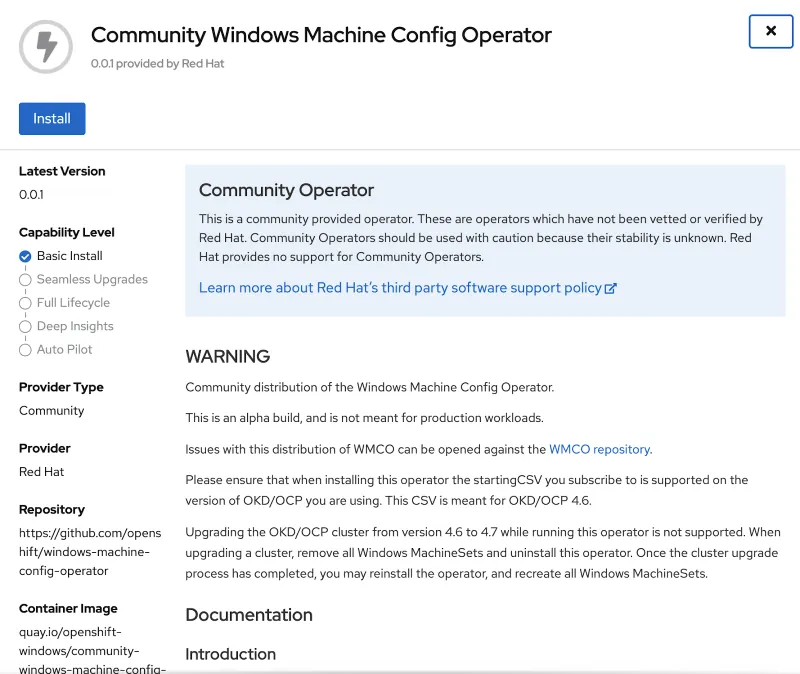
Navigate to the in-cluster OperatorHub and search for the Windows Operator and Click Install
Create a MachineSet. Once the MachineSet and the corresponding Machine are created, you should be able to view them in the console.


You can also retrieve the MachineSet status using the following command
oc get machineset -n openshift-machine-api

It usually takes about 15 minutes for the Windows Machine to be configured as a worker node. Ensure the Windows Node is in a Ready state before deploying a workload

Deploy a sample Windows workload and ensure the deployment is successful.


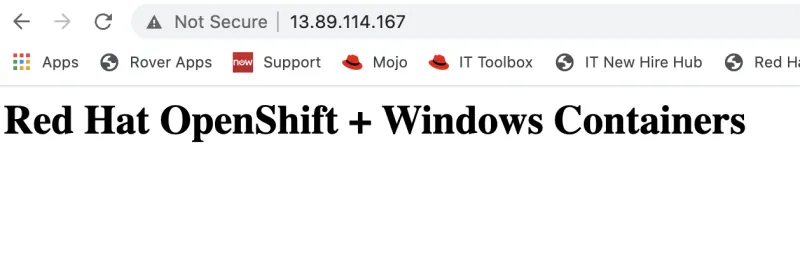
Access the sample application from a browser
Please take the Windows Community Operator for a spin from the on-cluster #OperatorHub and provide feedback by opening GitHub issues.
{{cta('1ba92822-e866-48f0-8a92-ade9f0c3b6ca')}}
Über die Autoren

Ähnliche Einträge
Red Hat to distribute NVIDIA CUDA across Red Hat AI, RHEL and OpenShift
Introducing Red Hat’s STIG-hardened UBI for NVIDIA GPUs on Red Hat OpenShift
You Can’t Automate Expectations | Code Comments
Can Kubernetes Help People Find Love? | Compiler
Nach Thema durchsuchen

Automatisierung
Das Neueste zum Thema IT-Automatisierung für Technologien, Teams und Umgebungen

Künstliche Intelligenz
Erfahren Sie das Neueste von den Plattformen, die es Kunden ermöglichen, KI-Workloads beliebig auszuführen

Open Hybrid Cloud
Erfahren Sie, wie wir eine flexiblere Zukunft mit Hybrid Clouds schaffen.

Sicherheit
Erfahren Sie, wie wir Risiken in verschiedenen Umgebungen und Technologien reduzieren

Edge Computing
Erfahren Sie das Neueste von den Plattformen, die die Operations am Edge vereinfachen

Infrastruktur
Erfahren Sie das Neueste von der weltweit führenden Linux-Plattform für Unternehmen

Anwendungen
Entdecken Sie unsere Lösungen für komplexe Herausforderungen bei Anwendungen

Virtualisierung
Erfahren Sie das Neueste über die Virtualisierung von Workloads in Cloud- oder On-Premise-Umgebungen
