
Running Red Hat Enterprise Linux (RHEL) for Amazon Web Services (AWS) offers several benefits, including enhanced scalability, flexibility, cost-efficiency, and access to a wide range of managed services. By using Amazon Web Services global infrastructure, you can scale your Red Hat Enterprise Linux workloads to meet changing demands, reduce capital expenditure, and take advantage of various purchase models. This offering includes integrated support between Red Hat and Amazon Web Services with 24×7 support.
In this article, I provide tips to set up Red Hat Enterprise Linux for Amazon Web Services, along with a few pointers for how to maximize its value. This article is meant to help you avoid pitfalls in the process of purchasing, deploying, configuring, and managing Red Hat Enterprise Linux instances on AWS, whether you're moving existing workloads to the cloud or just getting started.
Purchasing options for Red Hat Enterprise Linux for AWS
There are two ways to purchase Red Hat Enterprise Linux for AWS:
- Purchase directly on the AWS Marketplace, for pay-as-you-go (PAYG) or a 1 or 3 year term. This uses a base Red Hat Enterprise Linux image for Amazon EC2 and receives L1 technical support from AWS.
- Purchase a subscription from Red Hat or from a Red Hat partner. If this option is a migration scenario, you can move it to AWS using Red Hat Cloud Access, which is also known as bring-your-own-subscription (BYOS). Additionally, you can deploy your own image or a gold image as a virtual machine (VM). You retain your L1 technical support from Red Hat.
Either of these methods is equally valid, and both result in a Red Hat Enterprise Linux instance that automatically receives updates at the same time updates are made available from Red Hat. You should be deliberate and purposeful about which one you choose, as they are intended for different use cases, which I address later in this article.
Benefit from the power of enterprise Linux
Red Hat Enterprise Linux offers more than just access to the operating system (OS). It's tailored for AWS environments and includes built-in features and integrations that streamline performance, management, and security:
- Pre-configured AWS-specific performance profiles for faster, consistent deployments
- Red Hat Enterprise Linux for AWS provides the capability to collect, analyze, and visualize performance and diagnostic data
- AWS CLI (
awscli2) provides command line interface management of Red Hat Enterprise Linux for AWS images and resources - Image mode streamlines cloud operations with container-native tools, enabling bootable Red Hat Enterprise Linux container images and immutable system images for reduced attack surface
Red Hat Lightspeed helps you run Red Hat Enterprise Linux as a single platform
Red Hat Lightspeed comes at no extra cost with Red Hat Enterprise Linux and increases infrastructure resilience and operational excellence by working smarter and with increased speed. The enhanced platform features offer:
- Visibility: Simplify management and monitoring with a comprehensive view of your full Red Hat Enterprise Linux estate
- Proactive alerts: Notify administrators and stakeholders before an outage, or security event occurs
- Deviation analysis: Analyze data across all environments, highlighting performance patterns and frequency distributions that could affect application performance
- Compliance: Monitor systems against industry standards, helping you to maintain compliance and assisting your efforts to strengthen your security posture
Lightspeed streamlines Red Hat Enterprise Linux management across diverse deployments, ensuring a consistent experience no matter where you install it, which is especially useful if you still have some of your workloads running on premise in addition to those running on AWS.
This functionality is accessed through Red Hat Hybrid Cloud Console. Make sure your AWS account and your Red Hat account are connected, and that you're signed up for Lightspeed. If you signed up for Red Hat Enterprise Linux through PAYG images on the AWS Marketplace, this connection might not be automatic.
Questions to answer before you begin
Before you get started, take some time to consider a few determining factors. These are some questions that come up frequently:
What is the use case for your deployment of Red Hat Enterprise Linux?
How you deploy your Red Hat Enterprise Linux instance on AWS depends on your use case. A critical workload expected to run continuously for extended periods of time requires a persistent, stable, and highly available cloud infrastructure. Workloads that exhibit seasonal variance—experiencing high demand during certain periods and low demand during others—would also benefit from the cloud's elasticity. This allows for rapid scaling up of resources during peak times and scaling down during off-peak periods, optimizing cost efficiency. These different use cases suggest different deployment models.
What is the most appropriate deployment model?
When choosing a deployment model, payment preference should be considered. Both an annual subscription and pay-as-you-go (based on usage) options have advantages and disadvantages, and the ideal choice largely depends on your specific requirements, budget constraints, and anticipated workload patterns. If budget predictability and simplified billing are paramount, a monthly or yearly rate may be most suitable. Conversely, if flexibility, cost-efficiency, and the ability to rapidly scale are essential, a usage-based model might be a better option.
- Annual subscription: An annual subscription provides budget predictability, simplified billing, and generally a more competitive price for committing to longer-term plans. A fixed rate also eliminates the need for close usage monitoring. Subscriptions are available through your Red Hat account manager or a certified Red Hat partner. You may also qualify for the Red Hat Hybrid Committed Spend program which spans across clouds and on premise environments.
Pay-as-you-go (PAYG): This payment option provides enhanced flexibility, freedom from longer-term commitments, and qualifies for AWS committed spend program, Enterprise Discount Program (EDP). This usage-based approach means you only pay for the resources you use, allowing for optimal cost allocation and rapid scaling in response to demand fluctuations. However, this model can result in unpredictable costs and necessitate continuous usage monitoring to prevent overruns.
It is important to note that if you are utilizing PAYG through EC2, there is no need to attach a Red Hat subscription. Attaching a Red Hat Enterprise Linux subscription through the subscription manager will not cancel any purchase made through the EC2 console and may cause double billing.
Deploying Red Hat Enterprise Linux on AWS
After you have chosen the deployment and payment options that work best for your organization, you need two things to get started: An AWS account and your Red Hat account. If you do not have one of those or the other, set them up before you begin.
Just as there are various ways to pay for Red Hat Enterprise Linux on AWS, there are various ways to deploy an instance there.
Setting up Red Hat Enterprise Linux purchased through AWS
If you purchased Red Hat Enterprise Linux from AWS, here's how to get set up.
1. Sign in to AWS
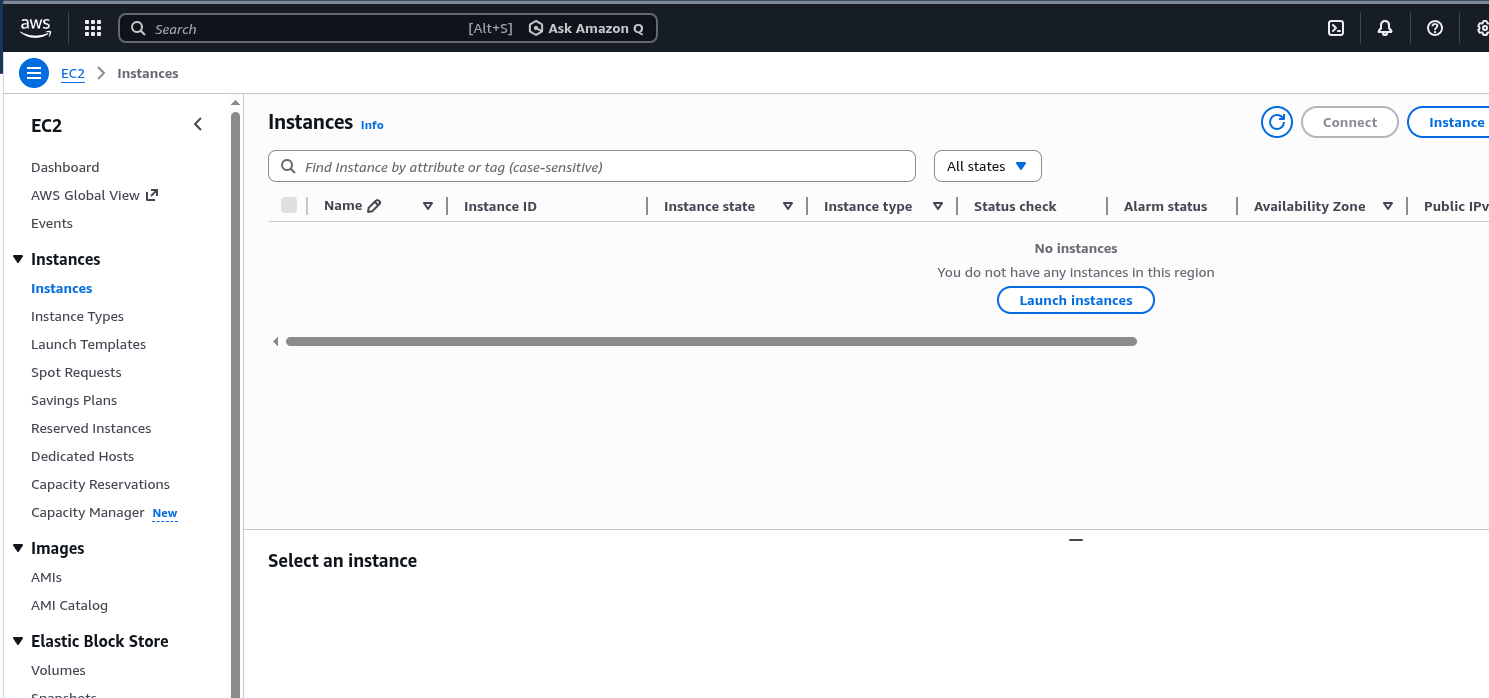
Sign into the AWS Management Console. Open the EC2 dashboard (find this under Services). In the EC2 menu, choose Instances.
2. Create a new instance
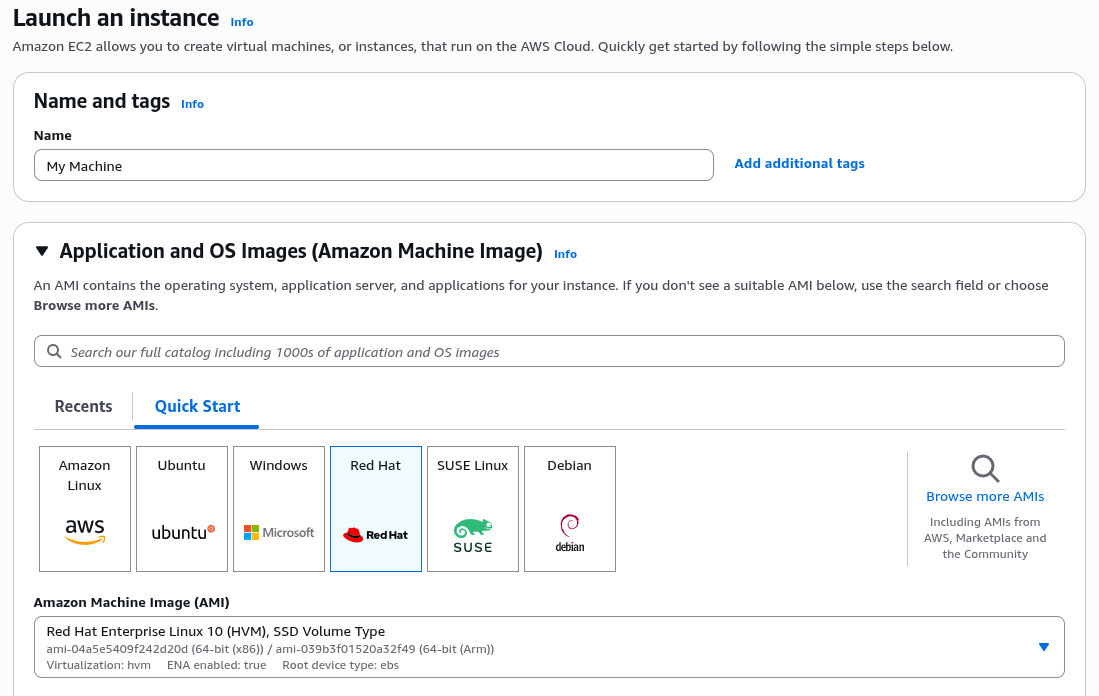
Click Launch Instance to create a new instance. This displays a list of possible Amazon Machine Images you can choose for your instance. Choose the version of Red Hat Enterprise Linux you wish to use (such as Red Hat Enterprise Linux 10), and select it.
3. Select an instance type
Next, you must define the instance type. Amazon EC2 offers a wide selection of different instance types to fit different use cases, which have varying combinations of CPU, memory, storage, and networking capacity. Select the combination that best fits your business needs.
4. Configure your instance details
On the Configure Instance Details page, specify detailed settings for your instance, such as the number of instances, purchasing options, networking, subnet, and more. This can be changed later, so if you want to just move on, leave the default settings and select Next: Add Storage.
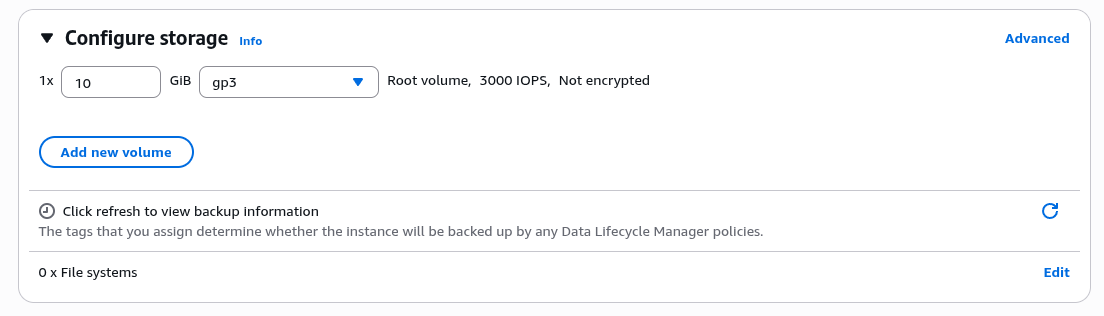
5. Add storage
Here, you can add a new volume to your instance or modify the settings of the root volume. This also can be reconfigured later, as needed.
6. Add tags
The next step is the Add Tags page, where you can add metadata to your instance using tags. This step is optional.
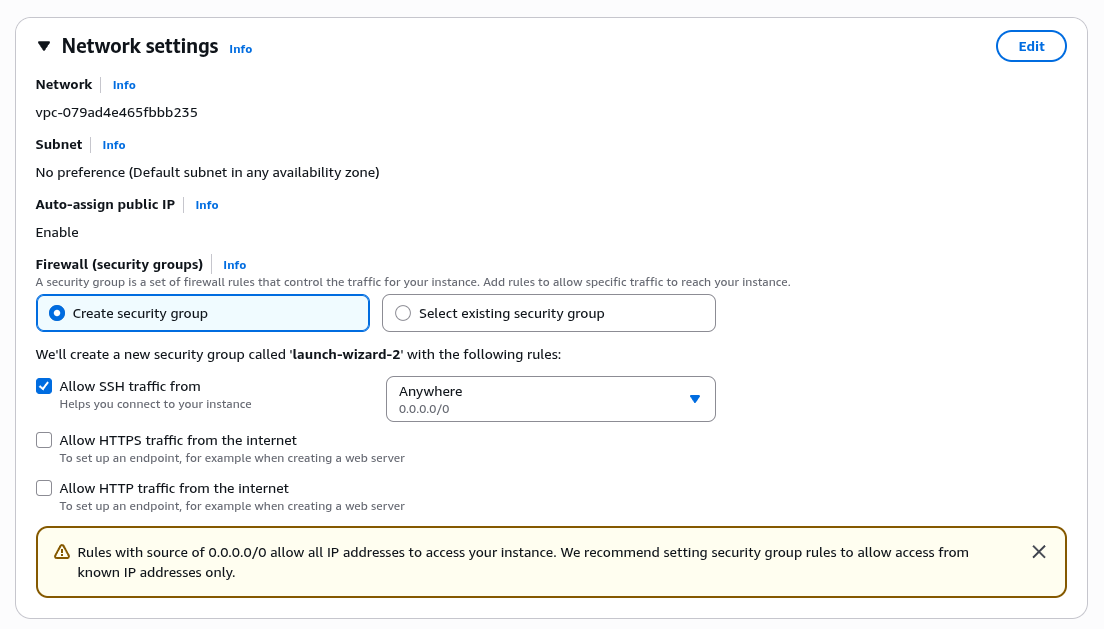
7. Configure security
This is a very important step where you define the firewall rules that control the traffic for your instance. You can create a new security group and set rules as you see fit. For a basic setup, you might want to add a rule that allows SSH traffic (port 22) from your IP address.
8. Review and launch
Review your instance configuration. If everything looks good, click Launch. You're prompted to select an existing key pair or create a new one. This key pair is used to help securely connect to your instance after it is running.
9. Key pair creation
If you do not have an existing key pair, select Create a new key pair. Give your key a name for your own reference, and then download it. Make sure to store this file safely, because you cannot download it again. If you lose this key pair, you can't connect to your instance.
10. Launch status
After clicking Launch Instances, AWS starts the process of creating and initializing your instance. You're redirected to a launch status page that shows the progress of these operations.
11. View your instance
Select View Instances at the bottom of the page to go back to the EC2 dashboard. Your new instance is listed there. If it is not there, wait a few minutes for the page to populate.
Installing a previously deployed on-premise Red Hat Enterprise Linux instance
Transferring from a previously deployed on-premise Red Hat Enterprise Linux instance requires a few additional steps before you do the setup in the previous section. Before you start, be sure to assess plans around downtime and data transfer costs.
This section assumes you're moving from a virtualized environment. If your on-premise instance was running on bare metal, there are additional steps not included here.
1. Make a backup
Making a backup is a critical step of this procedure. You're making core changes to your system, and a good backup may be your only recovery method if things do not go as planned.
2. Create a disk image of the on-premise instance
If you're able to stop the server, you can create the image using the dd command. If you are unable to stop the server, create the image using Logical volume management (LVM).
Save the disk image to a file.
3. Upload the disk image to an Amazon S3 bucket
Sign in to the AWS Management Console, create an Amazon S3 bucket (or use an existing one), and upload the disk image file to the bucket.
4. Create a snapshot from the disk image
From the AWS Management Console, navigate to the EC2 dashboard. From there, go to Snapshots under Elastic Block Store and create a new snapshot from the disk image file in your S3 bucket.
5. Create an Amazon Machine Image from the snapshot
Still in the EC2 dashboard, go to AMIs under images, and create a new AMI from the snapshot you just created. Make sure to specify the correct architecture, root device name, and virtualization type of the existing on-premise deployment.
6. Launch an EC2 instance from the AMI
Once your AMI is ready, you can launch a new EC2 instance from it. Click Launch Instance from the EC2 dashboard, and select your new AMI from the My AMIs section. From there, the process is the same as launching any other EC2 instance: Choose an instance type, configure instance details, add storage, add tags, configure the security group, review, and launch.
You can follow the steps in the Setting up Red Hat Enterprise Linux purchased through AWS section to finish the process.
7. Configure to match your on-premise deployment
Once your instance is running, you may need to perform additional configuration. Connect to the instance and check everything is running as expected. You may need to do updates, change configurations, or make other changes to match the on-premise instance.
Tried, trusted, true
Running Red Hat Enterprise Linux for Amazon Web Services (AWS) delivers significant value by providing enhanced scalability, flexibility, cost-efficiency, and access to a wide range of managed services. By leveraging the Amazon Web Services global infrastructure, you can confidently scale your Red Hat Enterprise Linux workloads to meet changing demands while reducing capital expenditure. In short, Red Hat Enterprise Linux on AWS provides flexibility when it comes to deploying in the cloud. Learn more about the specific technical processes for setting up Red Hat Enterprise Linux for AWS.
Product trial
Red Hat Enterprise Linux | Product Trial
About the author
I am focused on creating content for the RHEL community. Over a Decade in IT, cybersecurity advocate, conference organizer, and open-source enthusiast. Hobbies include homelabs, podcasting and 3D Printing.
More like this
RHEL for NVIDIA delivers trusted foundation for next-gen AI workloads
Red Hat Enterprise Linux is now a native offering on Oracle Cloud Infrastructure
Infrastructure At The Edge | Compiler
Operating System Management | Compiler
Browse by channel

Automation
The latest on IT automation for tech, teams, and environments

Artificial intelligence
Updates on the platforms that free customers to run AI workloads anywhere

Open hybrid cloud
Explore how we build a more flexible future with hybrid cloud

Security
The latest on how we reduce risks across environments and technologies

Edge computing
Updates on the platforms that simplify operations at the edge

Infrastructure
The latest on the world’s leading enterprise Linux platform

Applications
Inside our solutions to the toughest application challenges

Virtualization
The future of enterprise virtualization for your workloads on-premise or across clouds
