



Red Hat Learning Subscription Management Reporting: Getting started
Value insights into the learning journey
This guide is designed to help you effectively establish management reporting with your Red Hat® Learning Subscription. Its purpose is to help you monitor and access end user progress data. Follow the instructions in this document to streamline the process of setting up management reporting and gain valuable insights into the learning journey of your users.
Your organization
Management reporting functions are structured based on a hierarchical system of roles, each granted specific permissions to view user data. It is crucial to carefully plan and define viewing permissions for your teams before implementing this feature. The hierarchical structure is shown in the following illustration.
Roles
- Enterprise administrator controls creation of the organizational structure and has access to all user progress data within the organization.
- Responsibilities:
- Create and invite organizational managers
- Assign users to managers
- Set up, disable, or delete managers
- Generate progress reports for the entire organization
- Schedule progress reporting jobs to run at a defined cadence
- Create and assign custom skills paths to the entire organization
- Responsibilities:
- Enterprise manager is added by an enterprise administrator and has access to user progress data only for users assigned to them by an enterprise administrator.
- Responsibilities:
- Ensure users are correctly assigned to them
- Review progress data of assigned users to ensure training goals are met
- Generate reports for assigned users
- Schedule progress reporting jobs to run at a defined cadence on assigned users
- Create and assign custom skills paths to assigned users
- Responsibilities:
Getting started
Activate management reporting
To activate management reporting, give your Red Hat administrator 2 details per organization:
- Provide the LMS order number(s) you want to include. Collaborate with your Red Hat Training and Certification representative to locate your order number(s). A Red Hat Learning Subscription account ID linked to your order helps identify the order number(s).
- Share the Red Hat account ID for each enterprise administrator in this organization. You can have multiple enterprise administrators, and you may also include your Red Hat Training and Certification representative.
Organization dashboard - accessing as an administrator
The dashboards are within the Red Hat Learning Subscription platform. (Enterprise Administrators and Enterprise Managers are not required to have a subscription enrollment.)
- Go to rol.redhat.com.
- Log in through Red Hat’s single sign-on (SSO) technology.
- Upon accessing the Red Hat Learning Subscription homepage, if you do not have an active subscription, you will encounter the message No enrollment found. This is the anticipated behavior.
- Click the Dashboard at the top of the page and select Management overview.
- In the Dashboard, select your organization from the drop down menu.
- Click the Organization tab to view your organization details.
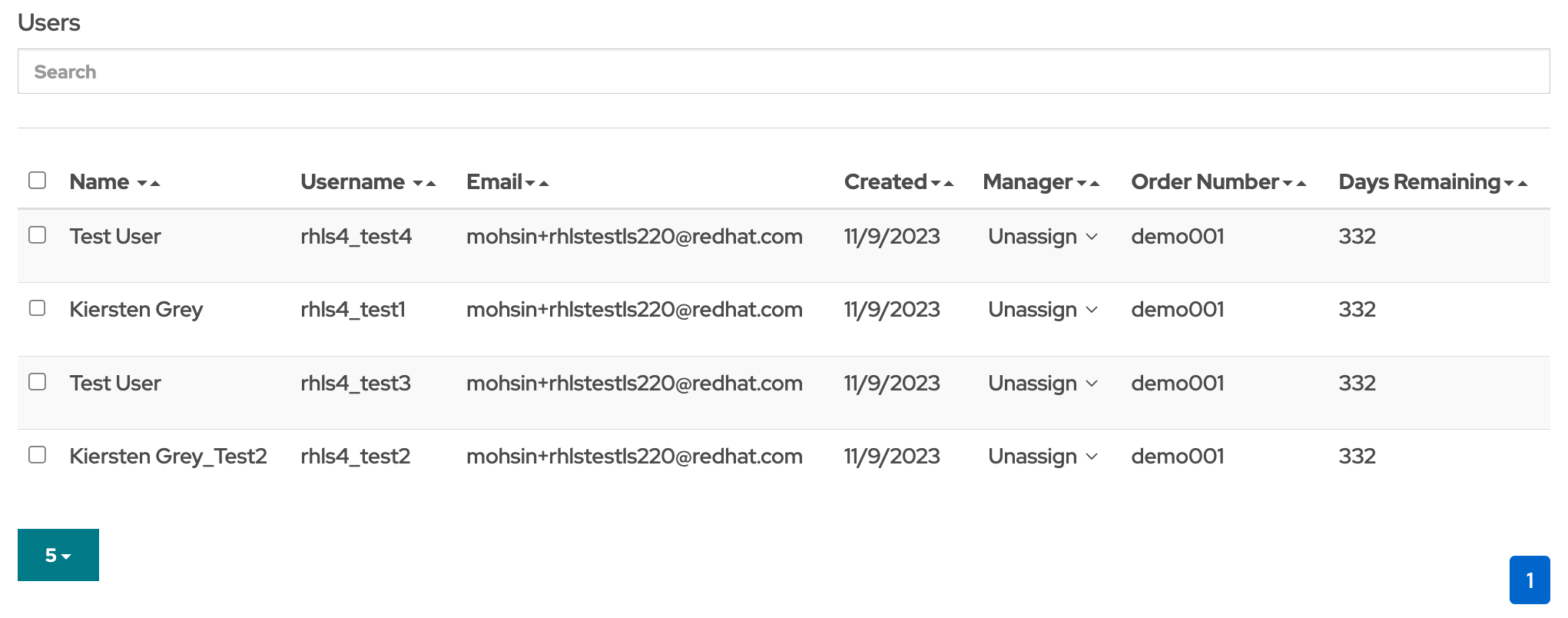
The enterprise administrator has visibility into all learning subscription users assigned to their order(s), displayed in the Users list at the bottom.
Note: Enterprise administrators do not have the capability to add or remove users with this dashboard. Its purpose is solely for viewing users associated with the orders entered for the organization. To add new users, coordinate with your Red Hat Training and Certification representative.
The user list contains the following for each user:
- Name: first and last
- Username
- Email address
- Created: date the user subscription was created
- Manager: Enterprise Manager assigned to this user. This will begin as unassigned.
- Order number
- Days remaining in this user’s subscription
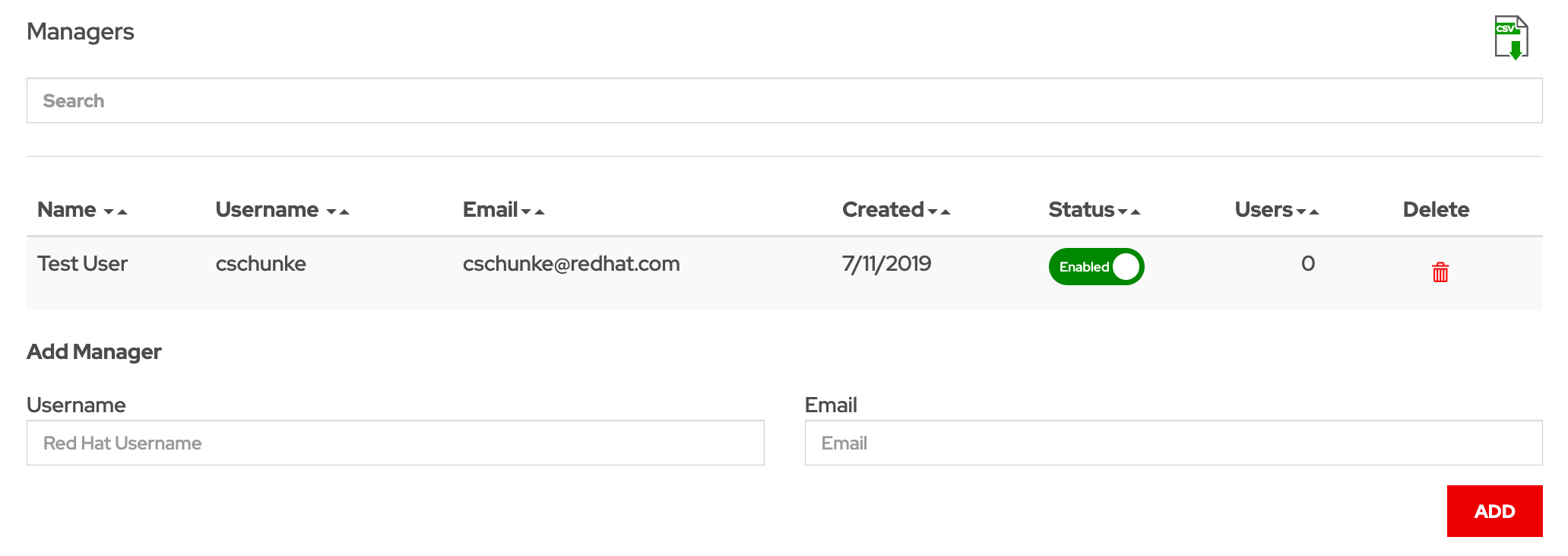
Enterprise Administrators are responsible for adding Enterprise Managers to the organization, enabling managers to access user data. Managers will have visibility only into the progress data of users assigned to them. As managers usually don't possess subscriptions, Enterprise Administrators must create and invite them. This process requires the manager to have a Red Hat Account ID. To add a manager:
- In the “Add Manager” form, enter the manager’s Red Hat Account username.
- Enter the manager’s email where they should receive the invitation.
- Click the ADD button.
An email invitation containing login instructions will be sent to the manager, facilitating access to their dashboard. Simultaneously, this process adds the manager to the organization's list of managers.
The enterprise administrator (admin) can view all the managers in their manager list. Each manager will have the following information:
- Name: first and last
- Username
- Email address
- Creation date
- Status: enabled or disabled
- Number of users assigned
Manager's personal data is added only if they log into the platform and accept the terms and conditions of management reporting. Each column is sortable. Click the column header to sort data alphabetically, chronologically, or numerically. Admins can use the search field to locate managers by searching text in the data columns.
Note: Until a manager accepts the terms and conditions, their status will be Pending, and users cannot be assigned to the manager.
Assigning a user to a manager
Once the manager logs in and accepts the terms, their status shifts to Enabled in the manager list, signifying their readiness to have users assigned to them. To assign a user to a manager:
- Click the dropdown arrow in the Manager column, in the user list. Note: The dropdown shows a list of all managers.
- Select the manager you want to assign to this user. Note: Only 1 manager can be assigned to a user.
- The user list and manager list will update with the identified user or manager selection.
Assigning multiple users to a manager
The enterprise administrator can follow these steps to assign users to a manager:
- Check the box next to each user for the manager assignment change. Note: You can also use the checkbox in the header row to select or deselect all at once.
- Click the dropdown arrow in the Manager column. Note: A list of all managers will appear in the dropdown.
- Choose the manager for these users. Each selected user will reflect the updated manager assignment, and the count of users in the manager list for that manager will update accordingly.
Enabling, disabling, deleting managers
The dashboard functions allow you to block user data from managers temporarily or permanently.
- Enable | Disable manager access
To enable or disable a manager, click the button that toggles between these 2 modes. Disabling a manager temporarily removes their access to user data. Users assigned to this manager remain assigned.
- Permanently delete a manager
- Click the trashcan icon in the Delete column next to the manager you need to remove. Note: An alert will come up warning that this manager will be deleted.
- Confirm the deletion. Note: The manager will be removed from the manager list and all users previously assigned to them will change to “unassigned”.
Generating progress reports
The enterprise administrator has the capability to generate a comprehensive report containing all user progress data from their dashboard. Simply click the icon located in the top right corner of the Organization tab. This action automatically incorporates all users from the admin's user list into the report.
The exported report will contain the following progress data for users:
- Username
- First name
- Last name
- Country
- Subscription SKU
- LS120: Basic
- LS220: Standard
- LS300: Developer
- LS520: Premium
- Subscription Start date
- Subscription End date
- Activity
- Active: user with at least 1 page of progress
- Inactive: user with no activity on the learning subscription
- Offering name
- Offering SKU
- Modality
- Progress: percentage complete in the course
- Course hours invested
- Date of completion: Date user achieved 75% of course progress
- Lab hours
- Last accessed
- Exam status and Premium session status
- Exam enrollment date: Date the user enrolled in the exam
- Exam date and Premium session date: Date the event is scheduled
- Exam location
- Whether exam is a retake
- Order number
- Manager name
- Manager email address
- Subscription enrollment date
Using the team dashboard
Assessing the team dashboard
The manager's dashboard is part of the learning subscription platform. It's worth noting that managers do not require an active learning subscription.
- Go to rol.redhat.com
- Log in through Red Hat’s SSO technology. Note: You will receive the message, “No enrollment found” if you do not have an active subscription.
- Click Dashboard at the top of the page to access user data.
4. Select Management overview to review and agree to the provided terms and conditions.
5. Select your organization from the drop down menu.
6. Click the Team tab.
7. You will now find your team in the manager dashboard. However, it won't display any users until they are assigned by your enterprise administrator.
User data
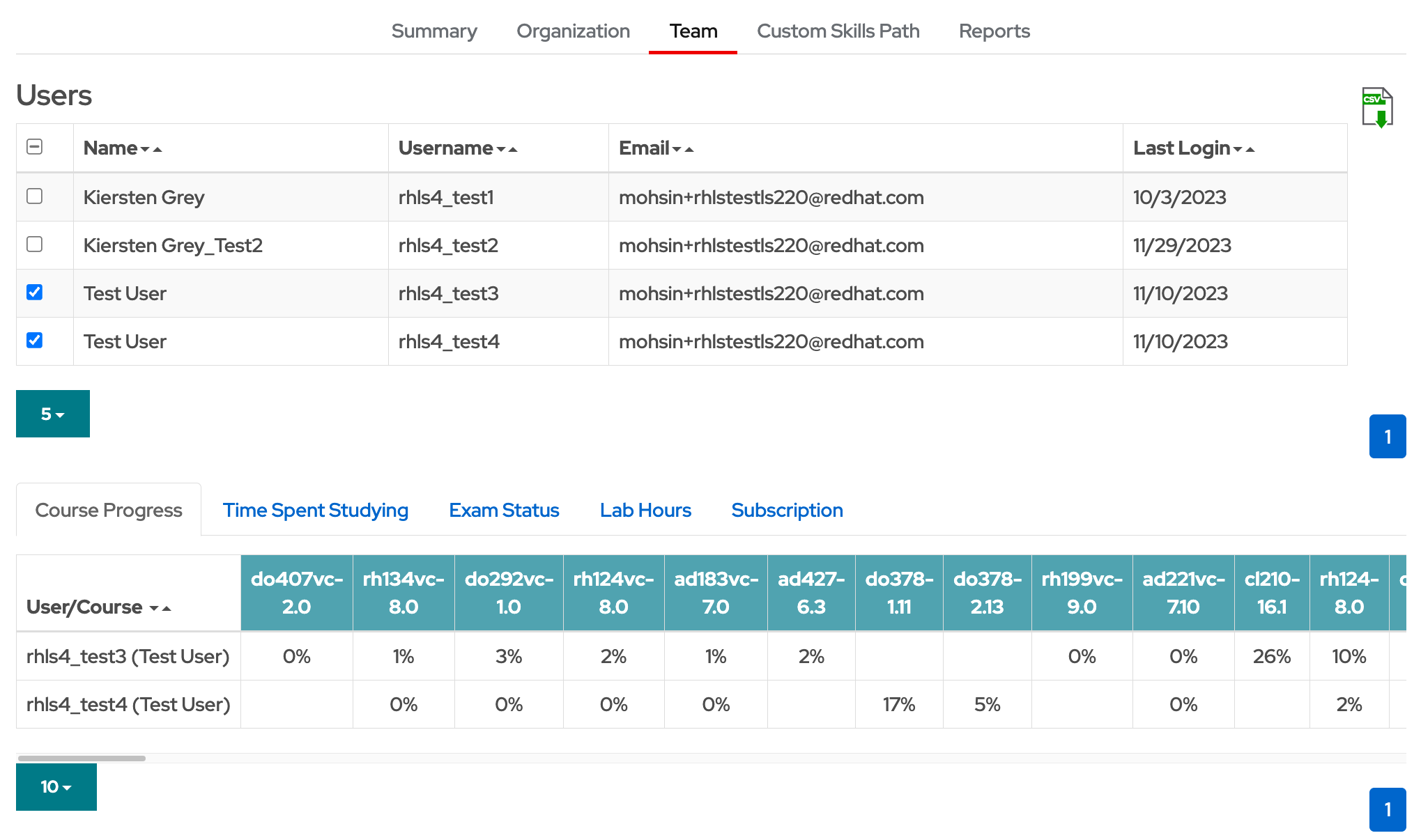
Once users are assigned to a manager, the manager can view their progress data. At the top of the dashboard, there is a list of users, and the manager can choose the specific user(s) they wish to see data for.
Managers can select individual users or all users assigned to them. If there are many users, the manager may need to navigate between pages and can choose how many users they want to display on each page.
User progress
A user progress table contains all consumption and course progress data for selected users. The following data is included:
- Course progress
Course progress is shown as a percentage in the table. Each course is labeled by the Red Hat Training and Certification course SKU to keep the table concise. To view the course title, scroll across the header.
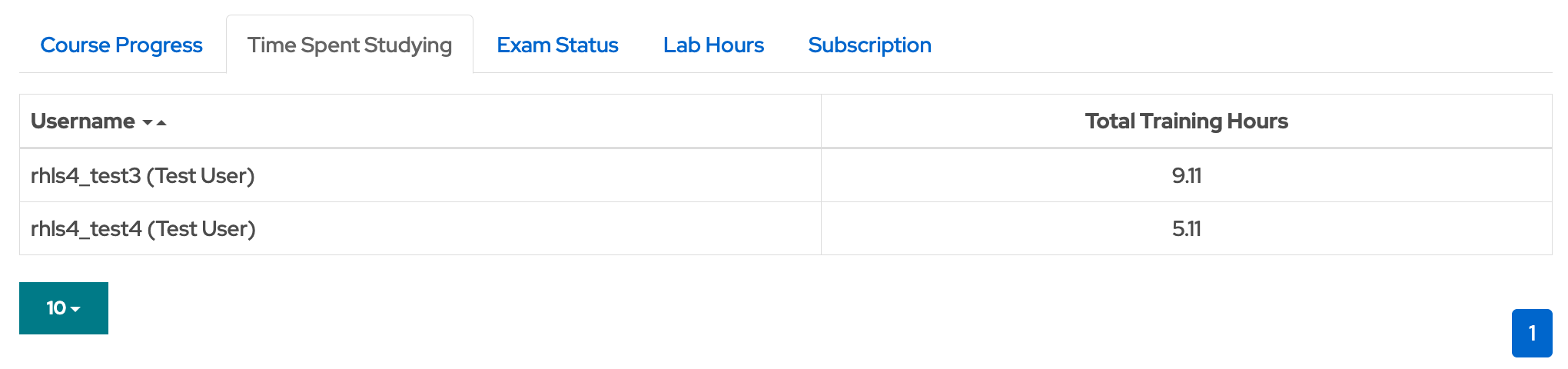
- Time spent studying
Training hours are tracked as the amount of time users spend in training courses. This is time spent reading course content and watching videos, not time participating in labs.
- Exam status
Exams the user has enrolled in are shown, as well as the date of scheduled exams.
Exam statuses are:- Unscheduled: User has enrolled for this exam, but not scheduled it
- Scheduled: User has scheduled the exam, but not taken it
- Completed : User has completed their exam. This status does not yet specify whether the exam was passed or not, only that the exam was taken.
- Retake available: User has completed their exam, and a retake is available for this exam.
- Retake scheduled: User has scheduled the retake attempt but not taken it
Retake complete: User has completed the exam retake attempt. This status does not yet specify whether the exam was passed or not.
Each exam is labeled with the Red Hat Training and Certification course SKU to keep the table concise. To view the exam title, scroll across the table header.
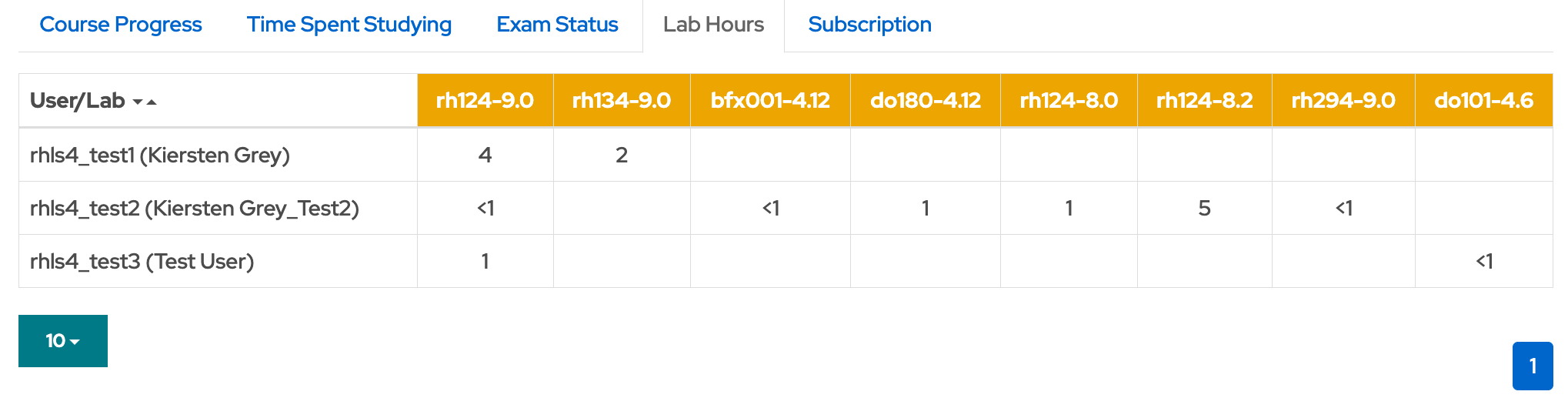
- Lab hours
Each lab the user has launched and worked with will be shown here. The total number of hours the user has spent in the lab are shown for each one. Labs are labeled by the Red Hat Training and Certification course SKU; to see the course title, scroll across the table header.
- Reporting on users
Managers can export a report of user progress data for all of their assigned users by clicking the icon in the top right corner of the Team tab. This only includes selected users from the users list.
The exported report will contain the following data for users:- Username
- First name
- Last name
- Country
- Subscription SKU
- LS120: Basic
- LS220: Standard
- LS300: Developer
- LS520: Premium
- Subscription Start date
- Subscription End date
- Activity
- Active: user with at least 1 page of progress
- Inactive: user with no activity on the learning subscription
- Offering name
- Offering SKU
- Modality
- Progress: percentage complete in the course
- Course hours invested
- Date of completion: date user achieved 75% of course progress
- Lab hours
- Last accessed
- Exam status and Premium session status
- Exam enrollment date: Date the user enrolled in the exam
- Exam date and Premium session date: Date the event is scheduled
- Exam location
- Whether exam is a retake
- Order number
- Manager name
- Manager email
- Subscription enrollment date
Summary dashboard
Summary metrics
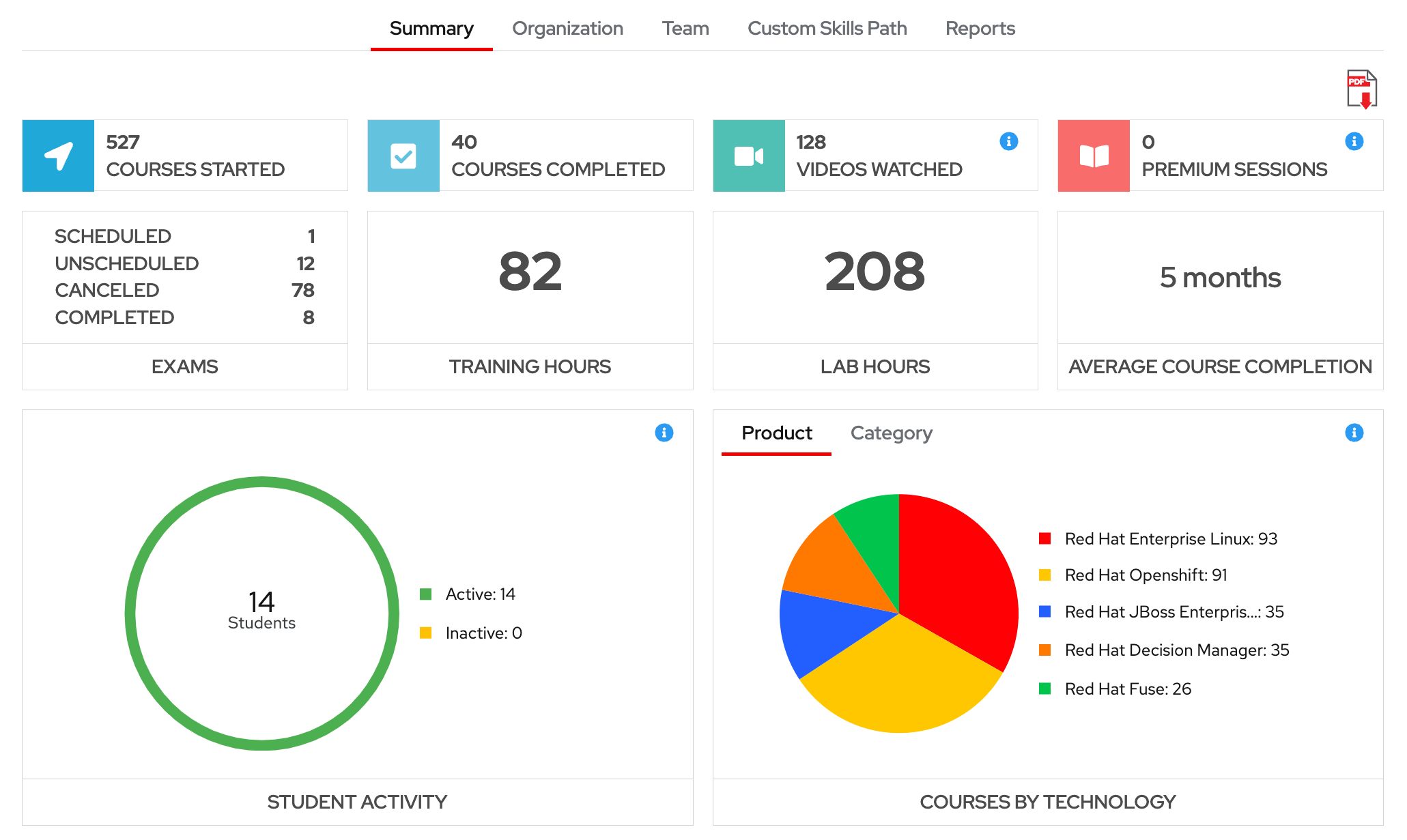
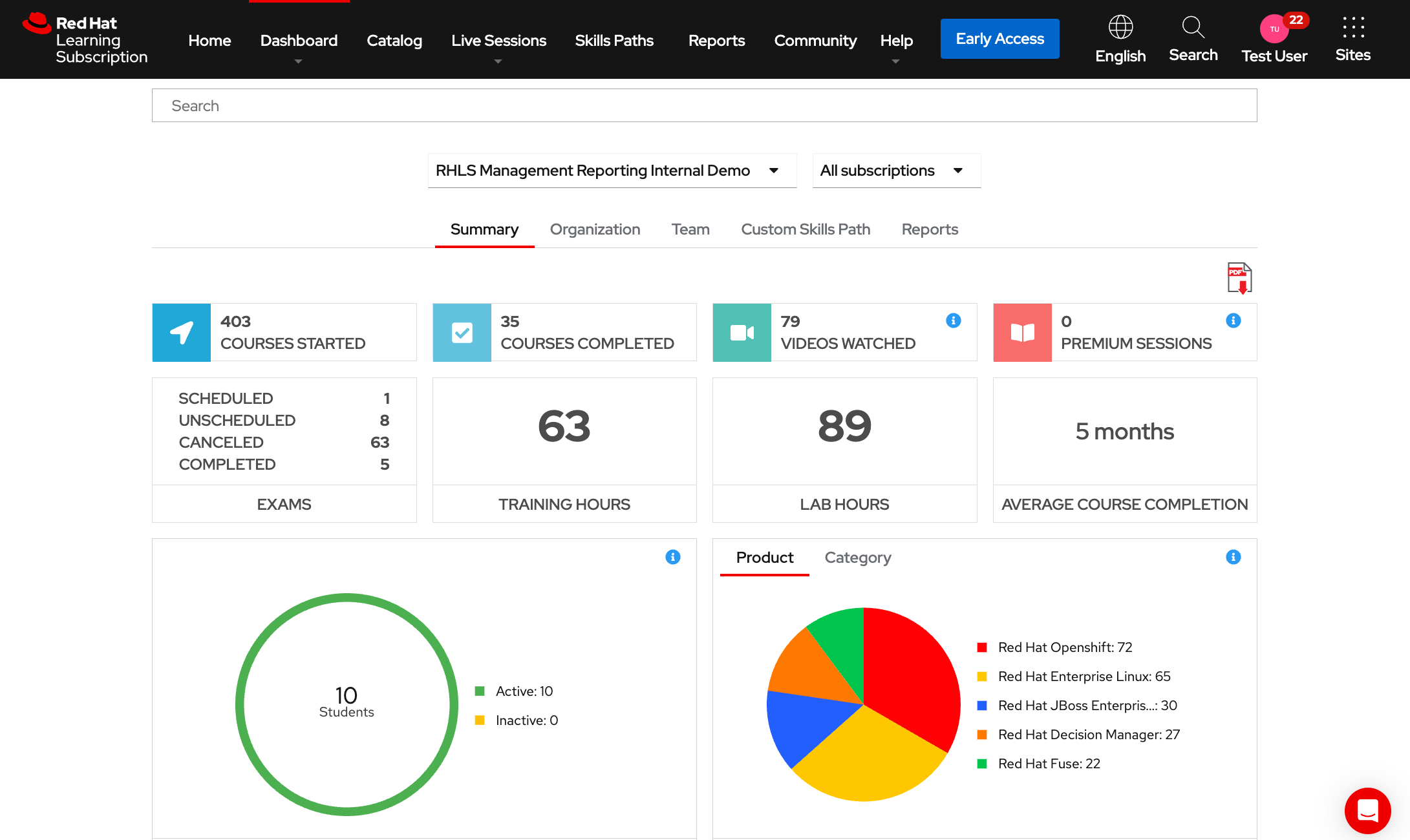
The metrics at the top of the dashboard highlight overall use by the entire organization.
- Courses started: Total number of self-paced courses that users have started.
- Courses completed: Total number of self-paced courses where users achieved at least 75% progress.
- Videos watched: Total number of videos that users started watching.
- Premium sessions: Total number of premium sessions attended by the users
- Exams: Breakdown of how many exams the organization has enrolled into, scheduled, and completed.
- Training hours: Total number of hours that all users have spent within the courseware, not including lab time.
- Lab hours: Total number of hours that all users have spent within all of the course lab environments.
- Average course completion: The average time that takes all users to get from starting a course, to completing a course.
- Student activity: Breakdown of how many users in the organization are actively using the learning subscription, versus inactive users.
- Courses by technology: Breakdown of the number of courses users have taken based on the Red Hat product or technology category those courses are assigned.
Course progress tables
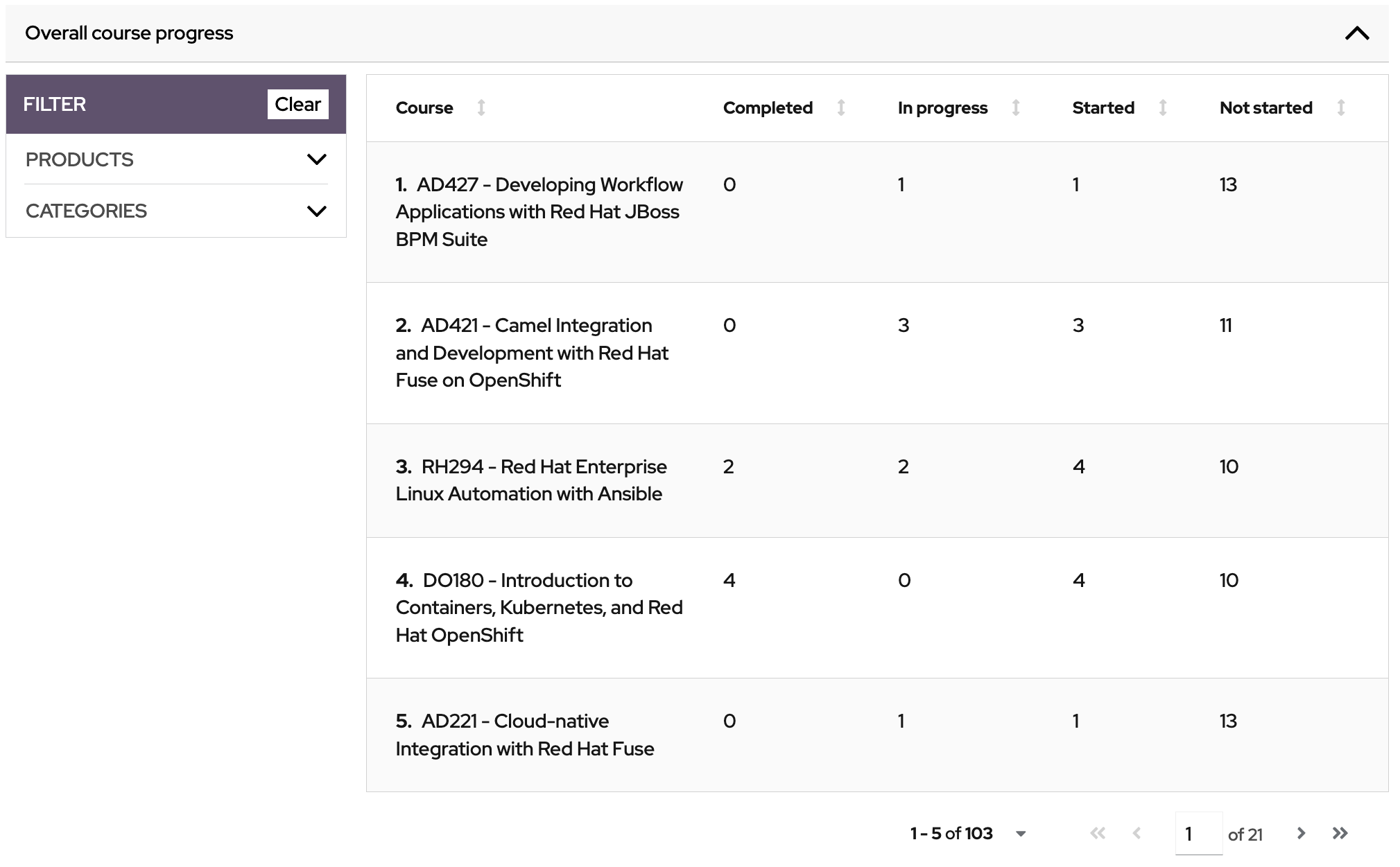
Overall course progress table provides a listing of every course available in your Red Hat Learning Subscription. With this table, enterprise administrators are able to assess whether their organization is participating and completing in the courses that are most important to their business goals. For each course, enterprise administrators can view:
- Total number of users that started the course.
- Total number of users that have not started the course.
- Total number of users that are in progress, meaning they are less than 75% complete.
- Total number of users that have completed the course, meaning they are at or above 75% completion.
The manager assessment table provides an overview of how many courses have been completed by users of each manager. This provides enterprise administrators the information they need to see if management teams are on track to achieve their training goals. For each manager, the table will show:
- The name of the manager.
- Total number of courses completed by users assigned to the manager.
- Total number of courses in progress (less than 75%) by users assigned to the manager.
- Total number of users assigned to the manager.
- Total number of exams completed by the users assigned to the manager.
Custom Skills paths
Enterprise administrators and managers can create a personalized list of Red Hat Learning Subscription offerings and assign it to users in their organization for focused learning. The management reporting tool allows tracking of user progress on these customized skill paths.
Creating a skills path
A path consists of 1 or more catalog offerings, along with a due date, title, and description. Enterprise administrators and managers have the ability to build a path for a team.
- Log into Red Hat Learning Subscription with your administrator or manager credentials.
- Click the Skills paths tab at the top of the page.
- Click the red Create custom skill path button under the list of filters on the left hand side.
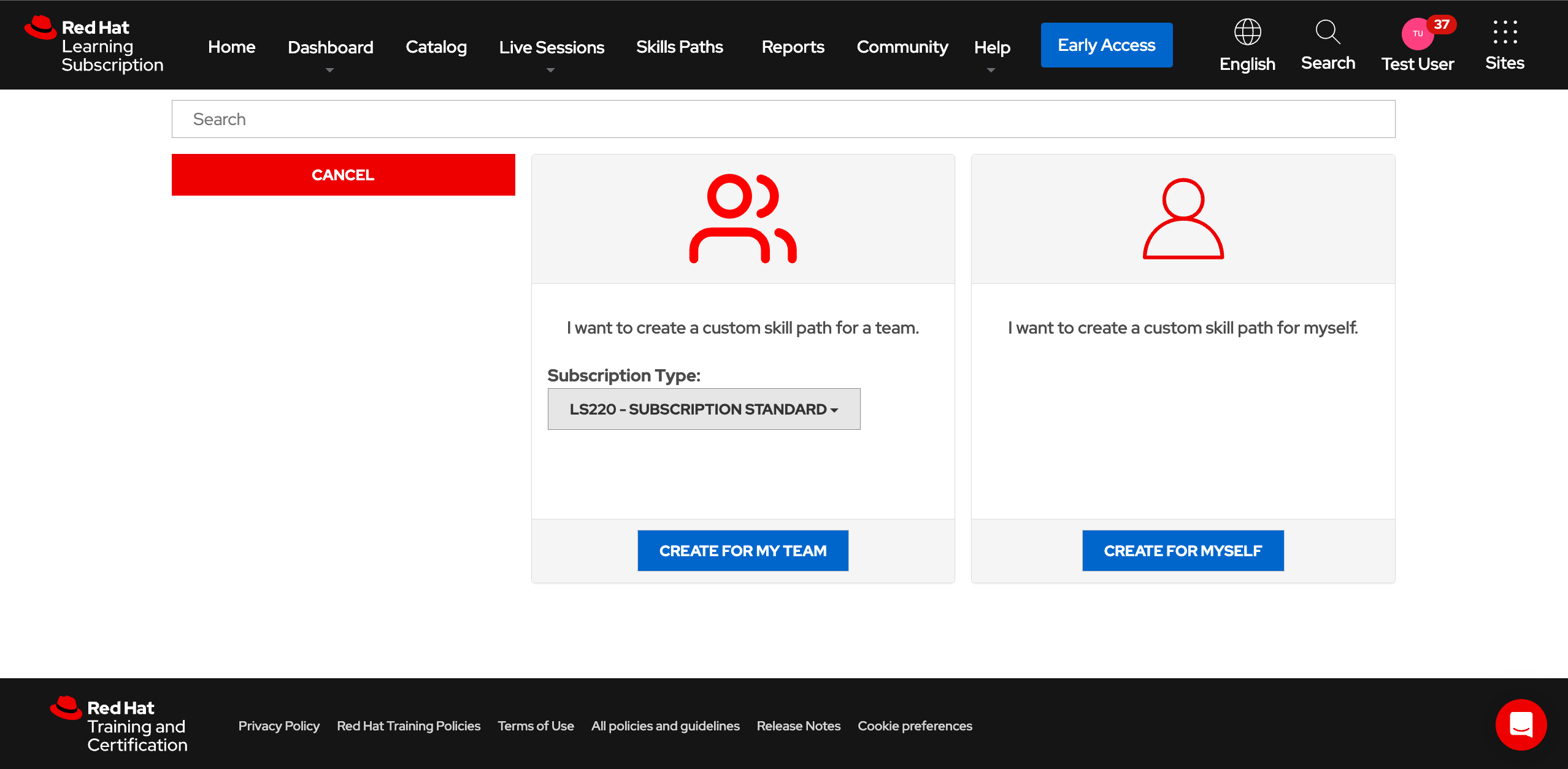
- Indicate whether you are building the path for your team or for yourself. If you are building a skills path for your team, you will also need to select the subscription type of your team.
5. Fill out all of the form fields to create the custom skills path. Add as many offerings to the path as you wish by using the available offerings listed below the form, or clicking on the empty offering card and selecting from the dropdown list.
6. After filling out all forms, including the due date and users assigned to the path, click Create.
7. All assigned users will receive a notification when they next log into their Red Hat Learning Subscription, and the skills path will be added to their home page.
Monitoring custom skills paths
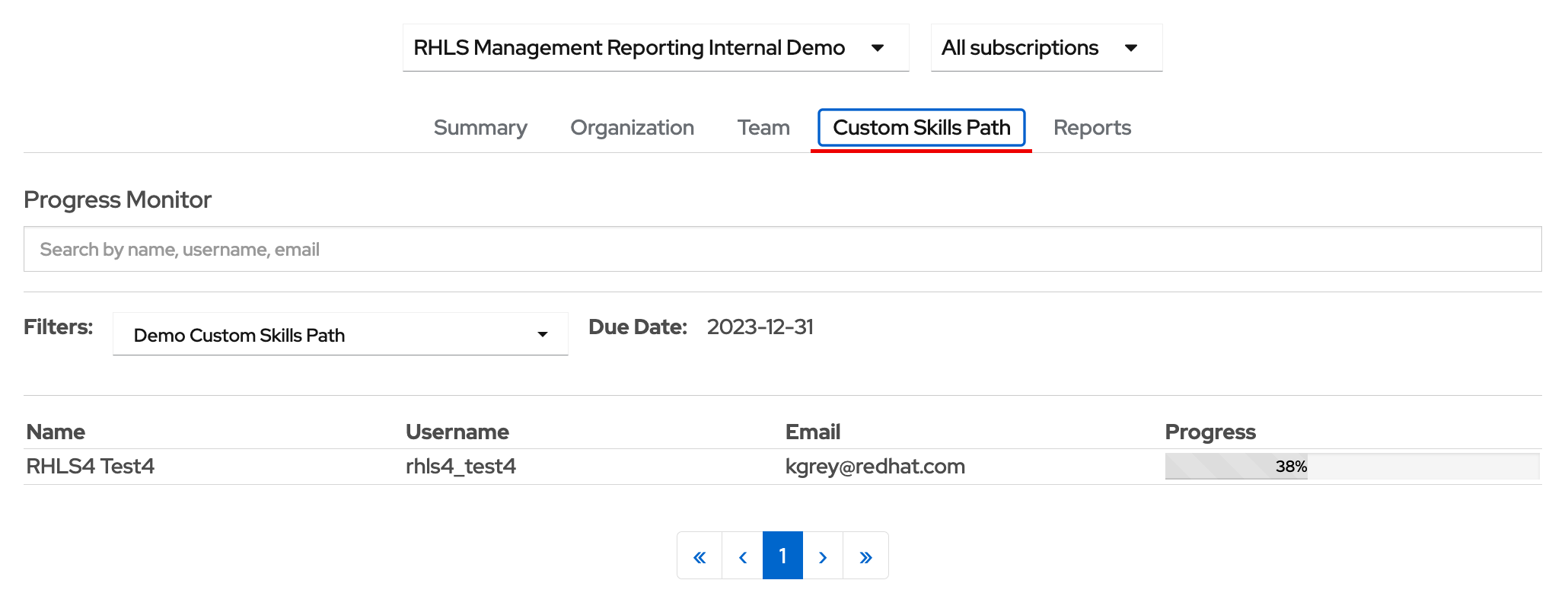
After a custom skills path has been assigned to at least 1 user, you can follow the progress through the path from the custom skills path tab in the management overview. This view will contain a list of users assigned to the path that you select in the Filters dropdown. For each assigned user for the path, you will be able to view:
- The name of the assigned user.
- The username.
- Their email address.
- The progress percentage through the path.
Scheduling reports
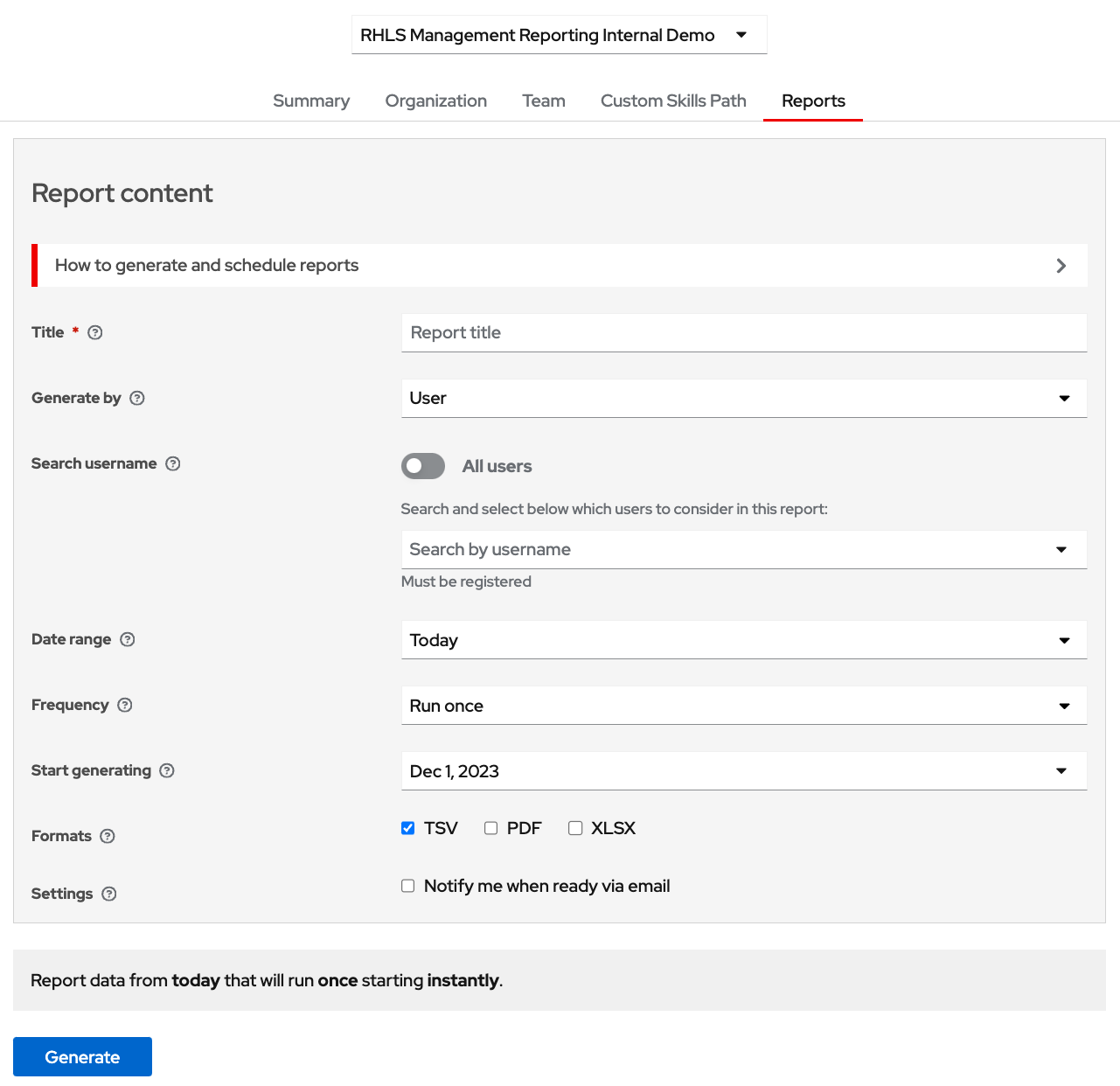
Enterprise administrators and managers have the ability to create custom reporting jobs that produce progress reports for their organization based on their needs. The Reports tab in the management overview provides this ability. To create a custom report, perform the following:
- Give your reporting job a title. This will be how you identify the job, as well as how any reports that are generated from the job will be named.
- Choose a target to generate. The following options are available for each job:
- User: Provide a list of users in your organization. This can be done by choosing all users, or searching within the search field. Note: Managers can only target users that have been assigned to them.
- Order number: Provide a list of order numbers in your organization. This will pull a report on all users within the chosen order numbers. This can be done by choosing all order numbers, or searching within the search field. Note that managers can only target order numbers that contain users that are assigned to them.
- Manager: Provide a list of managers in your organization. This will pull a report on all users assigned to these managers. This can be done by choosing all managers, or searching within the search field. Note: This option is not available for managers.
- Choose a date range to analyze the progress and consumption of the target. Note: This can be relative to the date the report is generated, or a specific date range.
- Choose a frequency for when the report will be generated. The report can be run once, weekly, monthly, every 90 days, every 180 days, or yearly.
- Choose a date to start generating the report. Note: Recurring reports will generate on the same date, or day of the week, depending on what was selected.
- Select the output formats for the generated report:
- TSV. Tab-separated values for all of the data fields indicated above. Ideally used for import into other systems
- PDF. Ideally used when read by other managers and leadership.
- XLSX. Spreadsheet that provides some additional tabs for analysis, such as inactive users, completed courses, and completed exams
- Select whether you would like to be notified by email when the scheduled job is complete.
- Click generate.
Each generated job will be listed in the Scheduled jobs tab at the bottom of the screen. When a job is complete, any generated files will be located in the Reports tab. Reports can be downloaded and deleted from this tab. Saved jobs can also be edited to change any of the form fields if there are changes in the future.
Support
Assistance is provided by the Red Hat Training Support team. Complete the form inside your Red Hat Learning Subscription for help, following these steps:
- Click the Support button at the top of the page.
- A form will open on the side of the screen.
- Fill in the required details.
- Add a note specifying assistance is needed for management reports.
- Include your role within the tool: Enterprise administrator or manager.
Within 24 hours, you should receive an acknowledgment of your request. The resolution time may vary based on the issue's complexity, and all communication will be conducted by email.