The model context protocol (MCP) server for Kubernetes is moving toward technology preview (TP), and it’s bringing a powerhouse integration with it: the Kiali toolset. By integrating Kiali into the MCP server, we are bridging the gap between large language models (LLM) and your service mesh. This means your AI assistant doesn't just "talk" about your cluster, it can now visualize traffic, diagnose latency, and manage Istio configurations using the same trusted logic that powers the Kiali UI.
Why Kiali in MCP?
While standard Kubernetes tools handle pods and services, the Kiali toolset provides mesh-awareness. It understands the "connect, secure, and observe" philosophy of Istio. Whether you are debugging a 503 error or mapping cross-namespace dependencies, these tools allow an LLM to act as a specialized service mesh engineer.
The Kiali toolset at a glance
The following tools are now available for use within the MCP server, allowing for deep introspection of your mesh:
- mesh_status: High-level health check of Istio, Kiali, and the control plane
- traffic_graph: Visualize service-to-service dependencies and mTLS status
- istio_config_read/write: List, get, create, or patch Istio objects (VirtualServices, for example)
- Resource_details: Get details about specific Kubernetes and Istio resource manifests
- trace_list/details: Pull Jaeger and Tempo distributed traces for request-level debugging
- pod_performance: Summarize CPU and memory usage compared to actual Kubernetes requests and limits
- logs: Fetch container logs with built-in severity (ERROR or WARN, for example) filtering
- metrics: See traffic trends, throughput, and latency quantiles (p95, p99).
How to get started
The Kiali MCP integration is a modernized approach to mesh management. To use these features, your environment must meet one of the following version requirements:
- Red Hat OpenShift Service Mesh: Requires v3.3.3 or higher
- Kiali: Requires Kiali v2.25 or higher
If your current Kiali version is below v2.25, you can test the latest capabilities by using the Kiali operator or Helm to deploy the specific image.
Which method should I use?
- Use the operator method if you are on a standard Red Hat OpenShift installation where the Kiali operator manages the lifecycle and CRDs automatically.
- Use the Helm method if you prefer manual version control or are integrating Kiali into a CI/CD GitOps pipeline (like ArgoCD).
Operator method
1. Enable ad-hoc images
First, allow the Kiali operator to use non-default images:
oc set env deploy/kiali-operator \
-n openshift-operators ALLOW_AD_HOC_KIALI_IMAGE=true
2. Patch your Kiali CR
Update your Kiali instance to v2.25 to unlock the API endpoints required by the MCP server:
kubectl patch kiali kiali -n istio-system --type merge -p '
{
"spec": {
"deployment": {
"image_name": "quay.io/kiali/kiali",
"image_version": "v2.25"
}
}
}'
Helm method
If you manage your Kiali installation using Helm charts instead of the operator, you can upgrade your release to v2.25 by overriding the image parameters during an upgrade command.
1. Add/Update the Kiali Helm Repository
Ensure you have the latest chart definitions from the official repository:
helm repo add kiali https://kiali.org/helm-charts
helm repo update
2. Upgrade the release
Use the --set flag to point the deployment to the required image and version. Replace <release-name> and <namespace> (typically istio-system) as appropriate for your configuration:
helm upgrade <release-name> kiali/kiali-server \
  --namespace <namespace> \
  --set deployment.image_name=quay.io/kiali/kiali \
  --set deployment.image_version=v2.25
Connecting to Red Hat OpenShift Lightspeed
With Kiali updated to v2.25, the final step is to bridge the Kiali MCP server with your AI assistant. In an OpenShift environment, this is handled by the Lightspeed operator.
To enable these advanced capabilities, you must integrate the external MCP server by modifying the OLSConfig custom resource. According to the official OpenShift Lightspeed documentation, you must define the MCP server's endpoint and name within your configuration. This secure connection grants the AI the necessary context to pull real-time telemetry and to manage Istio objects directly through the chat interface.
Use case: The AI SRE
Imagine asking your AI: "Why is the 'orders' service slow in the production namespace?"
With the Kiali toolset, the MCP server can:
- Analyze: Call
ossm_get_mesh_traffic_graphto identify a specific hop causing latency. - Drill Down: Use
ossm_list_tracesto find specific erroring requests. - Inspect: Use
ossm_get_pod_performanceto see whether the pod is being CPU throttled. - Remediate: Suggest a
ossm_manage_istio_configpatch to reroute traffic away from the failing version.
Try it yourself: An AI prompt example
Once you have the Kiali MCP server connected to your favorite LLM, try these prompts to see the power of a mesh-aware AI in action:
- Observability and health checks: "Check the overall health of my service mesh. Are there any degraded components in the control plane or the data plane?"
Tools used: ossm_get_mesh_status
- Traffic and dependency analysis: "Show me the traffic graph for the
bookinfonamespace and tell me if mTLS is enabled between the services”
Tools used: ossm_get_mesh_traffic_graph
- Troubleshooting performance: "The
product-pageservice seems slow. List the latest traces for it in the prod namespace and tell me which span has the highest latency"
Tools used: ossm_list_traces and ossm_get_trace_details
- Resource efficiency: "Are there any pods in the
shippingnamespace that are exceeding their memory limits? Compare their current usage with their defined requests."
Tools used: ossm_get_pod_performance
- Configuration management: "I need to shift 20% of the traffic for the
reviewsservice to version v3. Generate and apply the necessary Istio VirtualService configurations"
Tools used: ossm_manage_istio_config
- Deep debugging: "Find the logs for the
detailspod. Filter for only 'ERROR' or 'WARN' messages from the last 10 minutes and summarize what might be going wrong."
Tools used: ossm_get_logs
When you instruct your AI to "Check my mesh" it leverages the Kiali MCP to perform an instant diagnostic across your infrastructure. It confirms the stability of the control plane and observability tools while immediately flagging the bookinfonamespace as UNHEALTHY. This transforms manual troubleshooting into conversational diagnostics, pinpointing specific data plane failures by interpreting complex telemetry in seconds.
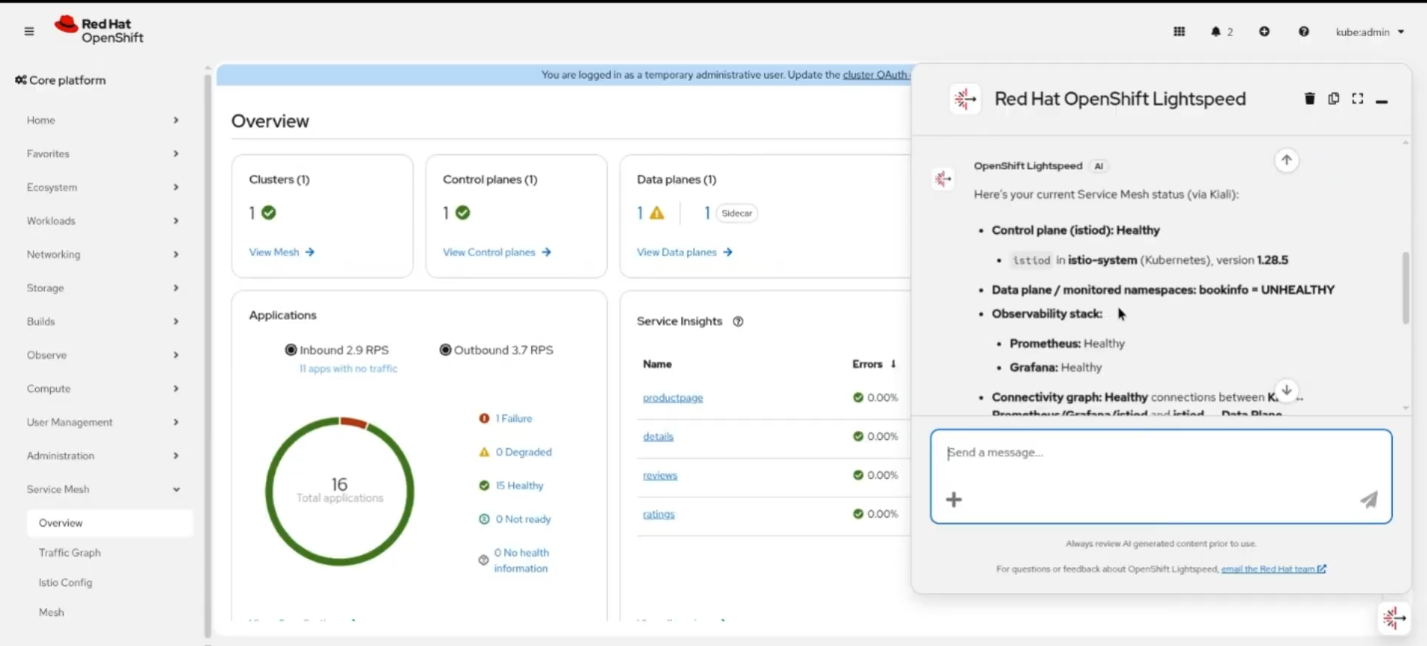
Figure 1: LightSpeed prompt “Check my mesh.”
By asking the AI to "Check bookinfo namespace," you trigger an inspection of specific workload metrics through the Kiali MCP. The AI identifies that the namespace is degraded due to the productpageapp failing, citing a significant 39.2% error rate. By correlating traffic data with service health, it pinpoints "failure edges" between microservices and detects non-mTLS traffic issues, providing a detailed root-cause analysis through simple conversation.
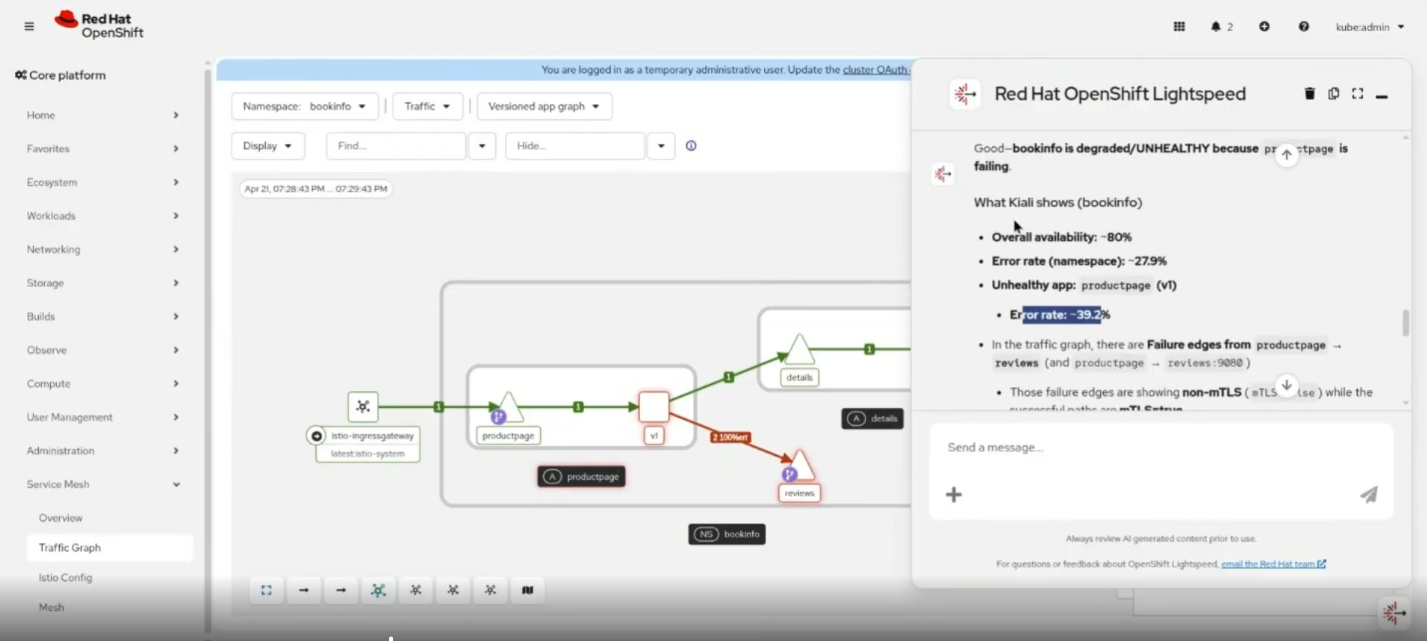
Figure 2: LightSpeed prompt “Check bookinfo namespace”.
A simple "Delete it" or "Fix it" command allows the AI to move from diagnosis to remediation using the MCP. It identifies the specific DestinationRuleresponsible for the fault-injection and requests confirmation before removing the object. This closed-loop interaction demonstrates how the AI can not only find the root cause but also execute precise administrative actions to restore the mesh to a healthy state.
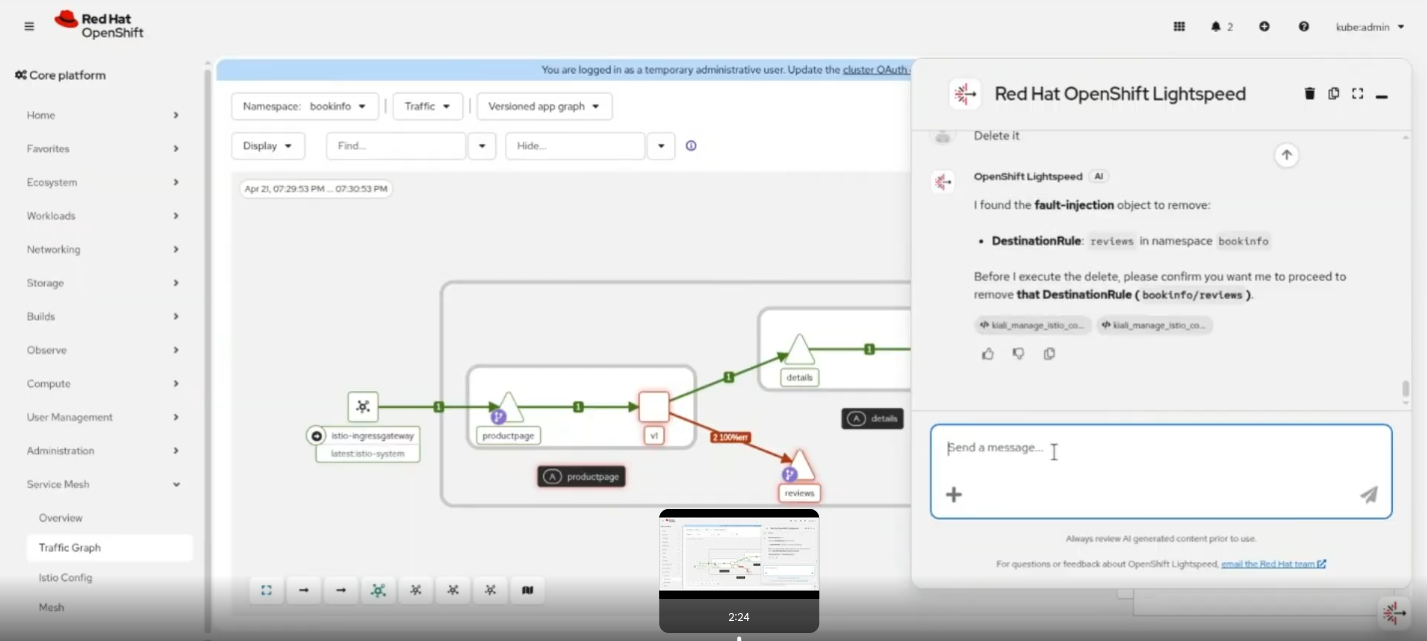
Figure 3: LightSpeed prompt “Fix it.”
The future of mesh-aware AI
The integration of the Kiali toolset into the MCP server marks a significant shift in how we manage complex microservices. By giving your AI assistant native mesh-awareness, you move beyond basic chat and into a world of conversational SRE. Instead of manually digging through dashboards, you can now diagnose latency, verify mTLS, and remediate Istio configurations through a simple dialog.
- Deep integration: Kiali v2.25+ provides the brain for AI-native observability in OpenShift Service Mesh.
- Actionable intelligence: Tools like
traffic_graphandpod_performanceallow LLMs to see exactly what is happening in your cluster. - Closed-loop remediation: Use your AI assistant not just to find problems, but to generate and apply Istio patches in real time.
- Easy deployment: Whether you prefer the Kiali operator or Helm, upgrading to a mesh-aware environment takes only a few commands.
Try it today
Ready to turn your AI assistant into a Service Mesh expert? Upgrade your Kiali instance to v2.25 or install the latest OpenShift Service Mesh 3.3 and connect it to OpenShift Lightspeed to start exploring your mesh like never before.
We’d love to hear how you're using these new tools. Try it out, and then let us know which mesh-aware prompts are saving you the most time!
製品トライアル
Red Hat OpenShift Container Platform | 製品トライアル
執筆者紹介

チャンネル別に見る

自動化
テクノロジー、チームおよび環境に関する IT 自動化の最新情報

AI (人工知能)
お客様が AI ワークロードをどこでも自由に実行することを可能にするプラットフォームについてのアップデート

オープン・ハイブリッドクラウド
ハイブリッドクラウドで柔軟に未来を築く方法をご確認ください。

セキュリティ
環境やテクノロジー全体に及ぶリスクを軽減する方法に関する最新情報

エッジコンピューティング
エッジでの運用を単純化するプラットフォームのアップデート

インフラストラクチャ
世界有数のエンタープライズ向け Linux プラットフォームの最新情報

アプリケーション
アプリケーションの最も困難な課題に対する Red Hat ソリューションの詳細

仮想化
オンプレミスまたは複数クラウドでのワークロードに対応するエンタープライズ仮想化の将来についてご覧ください
