
In my previous article, "How to open a Linux terminal," you learned how to open a Linux terminal window and create a shortcut for easy access. In this article, I will show you how to install an additional terminal emulator and see how it works.
For this article, I’m working on CentOS 8 machine with the Gnome desktop environment. Irrespective of what flavor of Linux you’re using, the process of installing an additional terminal emulator should be the same. I will install the Konsole terminal emulator for this article. Konsole is the default terminal emulator in the K Desktop Environment (KDE).
I will also show you how to install a terminal emulator from gnome-terminal. If you’ve followed my article on how to open a Linux terminal and set up a keyboard shortcut, launch the gnome-terminal emulator using your keyboard shortcut (in my case, it is Ctrl+Alt+T).
Note: I’m using a CentOS 8 computer, but this technique will work on any Red Hat-based system. Depending on which particular distribution you have, you might need to install the Extra Packages for Enterprise Linux (EPEL) repo. If you want to learn how to add yum repositories to your system, read How to add a Yum repository.
Once you open the terminal window, issue the following command:
$ sudo yum install konsole -y
Or the following command as root user:
# yum install konsole -y
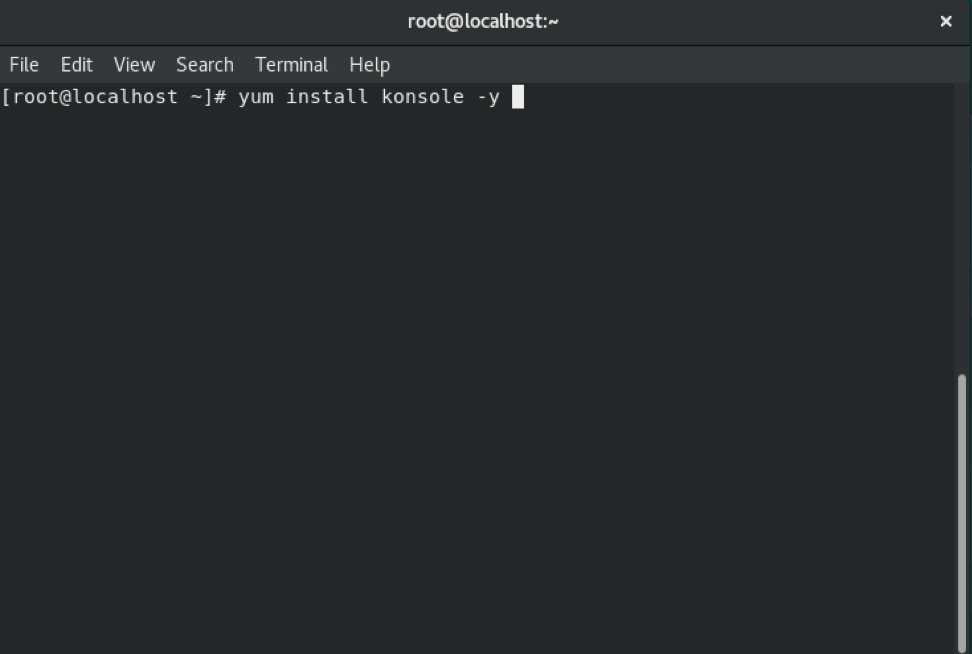
Once you have the Konsole terminal emulator program installed, search for konsole and launch it:

Note: If you like Konsole, you can set up a shortcut as we did with gnome-terminal.
Wrapping up
I wanted to keep this article simple and easy. With these few steps, you can set up an additional terminal emulator on your Linux computer. There are many other terminal emulators that you might like to try. Check out the article Top 7 open source terminal emulators for Linux to see more options.
Want to try out Red Hat Enterprise Linux? Download it now for free.
About the author
Keerthi is aspiring Cloud, DevOps engineer, he has been working with Windows and Linux systems. He believes in continuous learning (CL) and continuous sharing (CS), on his way building his very own CL CS pipeline. When he is not playing in the CLI, you will find him playing Cricket.
More like this
RHEL for NVIDIA delivers trusted foundation for next-gen AI workloads
Red Hat Enterprise Linux is now a native offering on Oracle Cloud Infrastructure
Infrastructure At The Edge | Compiler
Operating System Management | Compiler
Browse by channel

Automation
The latest on IT automation for tech, teams, and environments

Artificial intelligence
Updates on the platforms that free customers to run AI workloads anywhere

Open hybrid cloud
Explore how we build a more flexible future with hybrid cloud

Security
The latest on how we reduce risks across environments and technologies

Edge computing
Updates on the platforms that simplify operations at the edge

Infrastructure
The latest on the world’s leading enterprise Linux platform

Applications
Inside our solutions to the toughest application challenges

Virtualization
The future of enterprise virtualization for your workloads on-premise or across clouds
