
Text editing is essential to Linux users. Historically, the Vim text editor has been the default tool for managing file contents. Today, many systems and many sysadmins prefer to use the nano text editor.
This is the second article in a series that covers some essential Linux tools. My first article discusses: "The four things you must be able to do in Vim." It is a companion article to this one.
Nano is quite a bit more intuitive than Vim, but it's still worth taking a brief look at its most fundamental features. You must be able to accomplish the following four tasks with nano:
- Create/open a file
- Edit the file
- Save changes
- Exit the file
Create or open a file
To create a new file by using nano, type nano /path/filename. This is the same syntax Vim uses. The new file is created and opened for editing. To create a new file named "RHEL_versions," I type the following:
# nano ~/Documents/RHEL_versions
The file may now be edited. Nano does not use the concept of modes like Vim. Once the file opens in nano, if you type on the keyboard, text is inserted into the file.
Use the same command syntax to open an existing file, such as the "demo" file:
# nano ~/Documents/demo
[ You might also enjoy, Getting started with Nano ]
Edit a file
Because nano does not use modes, you may begin editing the file immediately without navigating between Command mode and Insert mode. This certainly makes nano easier to use, but it also makes it less flexible. However, for basic file edits, such flexibility is often overkill.
Save a file
The Ctrl key activates nano's commands on your keyboard. There is an abbreviated list of commands displayed at the bottom of the nano interface, and these cover most basic needs. You "write out" a file to save its contents by using Ctrl+O.
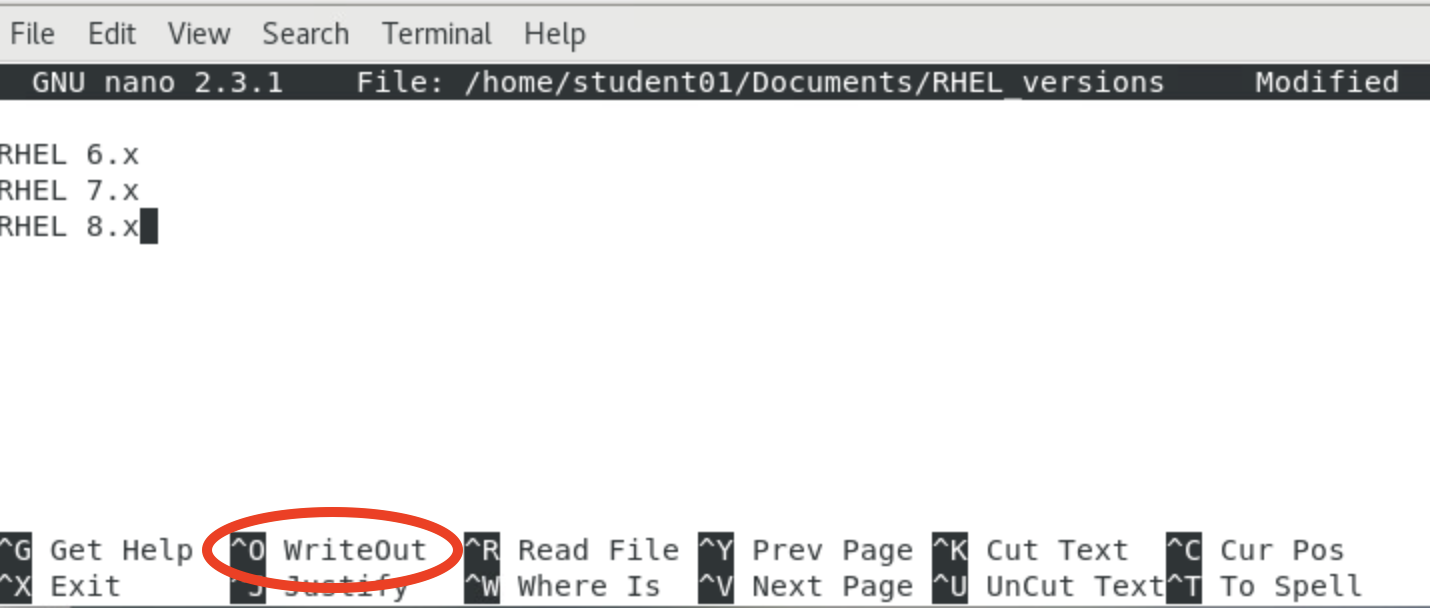
Note: There are many additional commands available within nano that are not displayed in the primary menu.
Exit nano
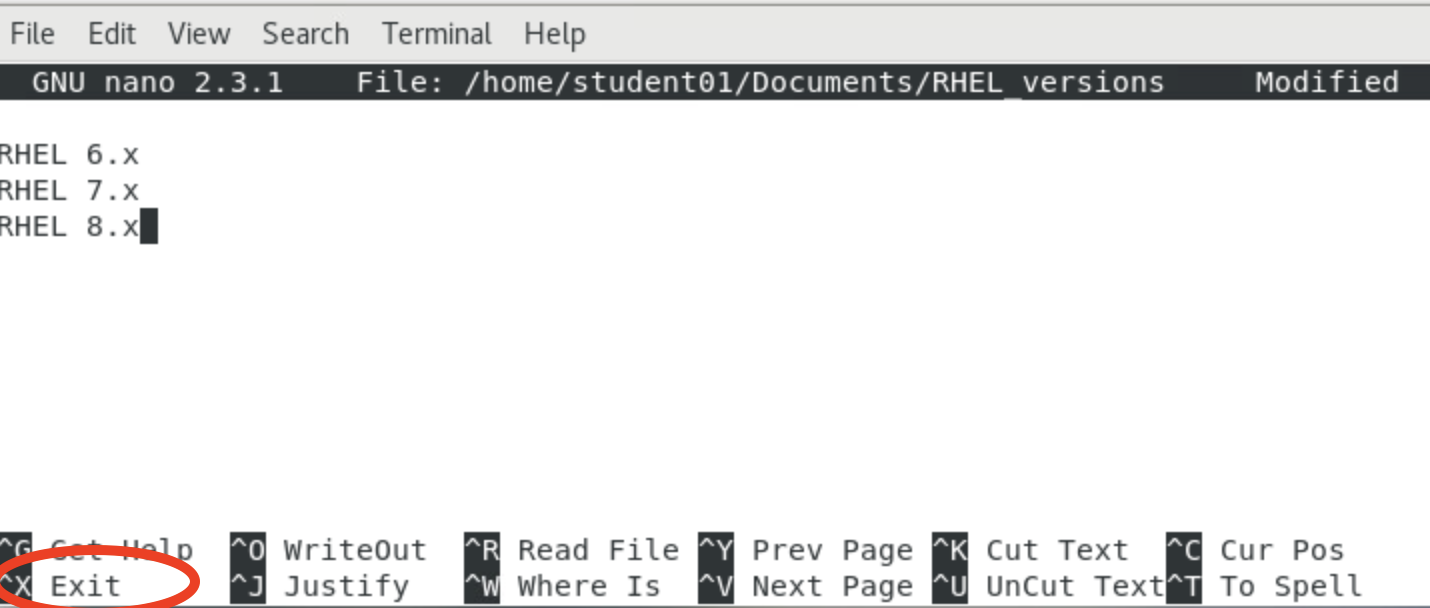
If you examine the list of available commands at the bottom of nano's interface, you discover that you won't "quit" nano, but instead "exit" nano by using Ctrl+X.
[ Free download: Advanced Linux commands cheat sheet. ]
Wrap up
In some ways, using nano is more like using the keyboard shortcuts in Microsoft Word or LibreOffice Writer. Nano is significantly more powerful than I am showing here, so be sure to check the documentation for more tricks. If you're a Vim user and you find yourself on a distribution that only has nano available, at least you'll know these simple functions.
I guess I'm old school (or just old), but I prefer Vim, even for very short and simple edits. I acknowledge that nano is easier, but I am in the habit of using Vim. In fact, I have it installed on my Mac and Windows computers, too.
執筆者紹介
Damon Garn owns Cogspinner Coaction, LLC, a technical writing, editing, and IT project company based in Colorado Springs, CO. Damon authored many CompTIA Official Instructor and Student Guides (Linux+, Cloud+, Cloud Essentials+, Server+) and developed a broad library of interactive, scored labs. He regularly contributes to Enable Sysadmin, SearchNetworking, and CompTIA article repositories. Damon has 20 years of experience as a technical trainer covering Linux, Windows Server, and security content. He is a former sysadmin for US Figure Skating. He lives in Colorado Springs with his family and is a writer, musician, and amateur genealogist.
類似検索
金融サービスにおけるポスト量子セキュリティを今すぐ始めるべき理由
Red Hat Enterprise Linux Long-Life Add-On :終了期限を設定しない RHEL への道筋
Infrastructure At The Edge | Compiler
Operating System Management | Compiler
チャンネル別に見る

自動化
テクノロジー、チームおよび環境に関する IT 自動化の最新情報

AI (人工知能)
お客様が AI ワークロードをどこでも自由に実行することを可能にするプラットフォームについてのアップデート

オープン・ハイブリッドクラウド
ハイブリッドクラウドで柔軟に未来を築く方法をご確認ください。

セキュリティ
環境やテクノロジー全体に及ぶリスクを軽減する方法に関する最新情報

エッジコンピューティング
エッジでの運用を単純化するプラットフォームのアップデート

インフラストラクチャ
世界有数のエンタープライズ向け Linux プラットフォームの最新情報

アプリケーション
アプリケーションの最も困難な課題に対する Red Hat ソリューションの詳細

仮想化
オンプレミスまたは複数クラウドでのワークロードに対応するエンタープライズ仮想化の将来についてご覧ください
