
The Linux wc command calculates a file's word, line, character, or byte count. Far from just being a utility for word processing, wc is a useful tool for a variety of system tasks.
[ Get the Linux commands cheat sheet. ]
For basic usage, all you need is a file with some text in it. Here's my plan for a zombie apocalypse:
$ wc zombie-apocalypse_plan-A.txt
188  581 3591 zombie-apocalypse_plan-A.txt
The default output of wc is the file's number of lines, words, and characters, followed by its path. (With only 188 lines of text in my plan, it's probably time to work on a Plan B.)
Here are three things you may not know you can do with the wc command.
1. Count items in a directory with wc
Many desktop file managers provide a running total of how many items are in a directory.
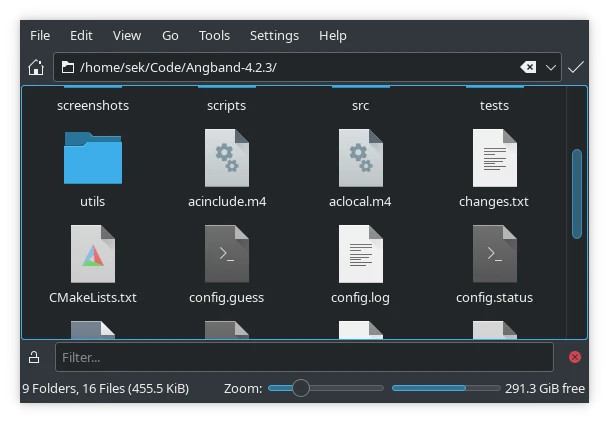
The terminal doesn't do that. At least, not by default.
The -1 (that's the number one, not a lower-case L) option for ls (list) forces the ls command to list files in a single column. Pipe that output to wc with its --lines option for a count of items:
$ ls -1 ~/Code/Angband-4.2.3 | wc --lines
25
There are a few caveats to keep in mind. I alias my ls command to include the --almost-all option, which omits the . and .. entries from directory listings. I also have ls set to ignore files ending in ~ or #, both of which are often used as extensions for backup files. Finally, by default, I don't view hidden files. That means that my report on the directory's contents isn't off by two (. and ..) but doesn't include any backup files or hidden files.
That's exactly the count I want, but keep those conditions in mind in case you want something different. The wc command parses the output of your ls command, so it believes you even when you "lie" to it.
2. Detect hidden characters with wc
I'm involved with some projects that use an XML toolchain, and sometimes users file bugs about a file that breaks the process for them. By the time the report gets to me, it's a verifiable mystery. People have run linters to look for errors or misconfigurations, other people have inspected the file, and nobody can determine the issue.
The --char option of wc shows something suspicious, though:
$ cat hidden.txt
ab
$ wc --char hidden.txt
5
Most files contain some nonvisible characters. For instance, wc sees newlines as valid countable characters. However, the character count of 5 hardly accounts for the single newline at the end of ab (the correct count is 3).
In practice, this is of limited use if you don't know where in a file to look for those hidden characters. After all, a report that a file has 758 characters isn't much good unless you manually count how many characters you can see. However, if your toolchain provides an error for where in a file the problem occurred, then it's trivial to copy and paste a section from the document into a wc command.
In short, using wc has been an easy diagnostic step for users and has saved me from having to explain Emacs' describe-char function to people who aren't used to the magic of GNU Emacs.
For the record, here's an example of the fix (the problem was a "soft hyphen" that wasn't visible in the users' text editors):
$ sed 's/\o302\xAD//' hidden.txt > fixed.txt
wc --char fixed.txt
3
3. Get the size of a file with wc
There are lots of ways to get the size of a file. There's du, of course, and ls (although ls -l requires some parsing). Add wc to the list.
$ wc --bytes ~/pixel.png
258   pixel.png
$ du --bytes ~/pixel.png
258   pixel.png
I haven't yet encountered a system that has wc and not du, but I have encountered implementations of du that don't provide the --bytes option. So far, the wc command has been consistent in its ability to count bytes (although in some implementations, there's only the -c short option).
$ du -h B ~/pixel.png
512B  pixel.png
$ wc -c ~/pixel.png
258   pixel.png
[ Get the guide to installing applications on Linux. ]
Count on wc
The wc command is a simple counter. It doesn't have any special features and it's not a particularly great demo of what's great about Linux. However, it's a reliable and predictable command that does one thing and does it well. Put it to good use.
執筆者紹介
Seth Kenlon is a Linux geek, open source enthusiast, free culture advocate, and tabletop gamer. Between gigs in the film industry and the tech industry (not necessarily exclusive of one another), he likes to design games and hack on code (also not necessarily exclusive of one another).
類似検索
金融サービスにおけるポスト量子セキュリティを今すぐ始めるべき理由
Red Hat Enterprise Linux Long-Life Add-On :終了期限を設定しない RHEL への道筋
Infrastructure At The Edge | Compiler
Operating System Management | Compiler
チャンネル別に見る

自動化
テクノロジー、チームおよび環境に関する IT 自動化の最新情報

AI (人工知能)
お客様が AI ワークロードをどこでも自由に実行することを可能にするプラットフォームについてのアップデート

オープン・ハイブリッドクラウド
ハイブリッドクラウドで柔軟に未来を築く方法をご確認ください。

セキュリティ
環境やテクノロジー全体に及ぶリスクを軽減する方法に関する最新情報

エッジコンピューティング
エッジでの運用を単純化するプラットフォームのアップデート

インフラストラクチャ
世界有数のエンタープライズ向け Linux プラットフォームの最新情報

アプリケーション
アプリケーションの最も困難な課題に対する Red Hat ソリューションの詳細

仮想化
オンプレミスまたは複数クラウドでのワークロードに対応するエンタープライズ仮想化の将来についてご覧ください
