
This article discusses and demonstrates the steps to install and configure an httpd service to serve content over HTTPS. The purpose of using HTTPS rather than basic HTTP is that the content is encrypted while it's in transit. This means that if somebody captures the traffic between your system and the webserver, they won't be able to see what was being sent. If you were accessing a basic HTTP server, they could see the content.
The prerequisites
To begin, the environment we'll use is a basic Red Hat Enterprise Linux (RHEL) 8.2 virtual machine. Make sure the system is registered to either a Red Hat Satellite or to the Red Hat Customer Portal. For assistance with that, please see the Registration Assistant.
After the system is registered and the correct subscriptions are attached, install httpd and mod_ssl:
[root@webserver ~]# dnf install httpd mod_ssl
### Output truncated ###

Installed:
  apr-1.6.3-9.el8.x86_64                                                         apr-util-1.6.1-6.el8.x86_64
  apr-util-bdb-1.6.1-6.el8.x86_64                                                apr-util-openssl-1.6.1-6.el8.x86_64
  httpd-2.4.37-21.module+el8.2.0+5008+cca404a3.x86_64                            httpd-filesystem-2.4.37-21.module+el8.2.0+5008+cca404a3.noarch
  httpd-tools-2.4.37-21.module+el8.2.0+5008+cca404a3.x86_64                      mod_http2-1.11.3-3.module+el8.2.0+7758+84b4ca3e.1.x86_64
  mod_ssl-1:2.4.37-21.module+el8.2.0+5008+cca404a3.x86_64                        redhat-logos-httpd-81.1-1.el8.noarch

Complete!
[root@webserver ~]#
[ Readers also liked: Surviving a security audit with enterprise Linux ]
Generating certificates
After the RPMs are installed, generate certificates from a CA of your choice, if you don’t already have them:
[root@webserver ~]# openssl req -newkey rsa:2048 -nodes -keyout /etc/pki/tls/private/httpd.key -x509 -days 3650 -out /etc/pki/tls/certs/httpd.crt
Generating a RSA private key
..............+++++
..........................................................................+++++
writing new private key to '/etc/pki/tls/private/httpd.key'
-----
You are about to be asked to enter information that will be incorporated
into your certificate request.
What you are about to enter is what is called a Distinguished Name or a DN.
There are quite a few fields, but you can leave some blank
For some fields, there will be a default value,
If you enter '.', the field will be left blank.
-----
Country Name (2 letter code) [XX]:US
State or Province Name (full name) []:North Carolina
Locality Name (eg, city) [Default City]:Holly Springs
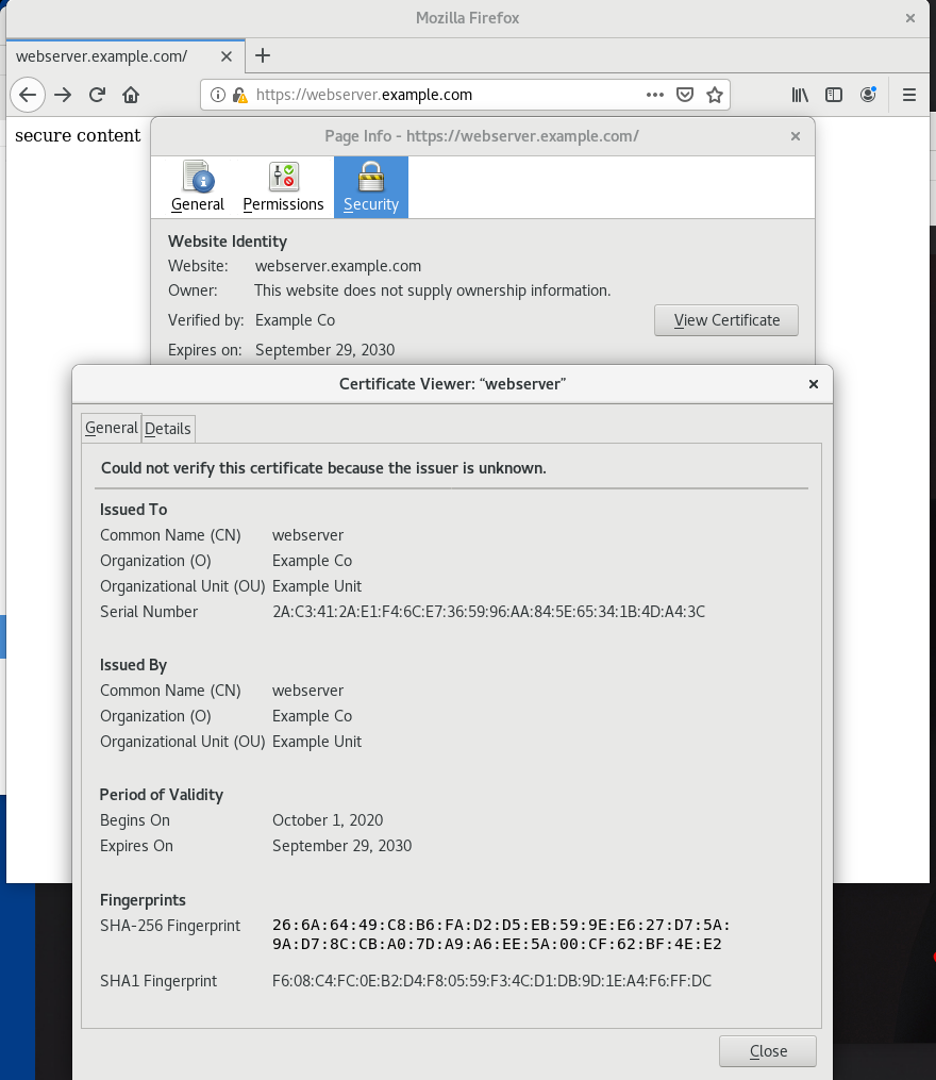
Organization Name (eg, company) [Default Company Ltd]:Example Co
Organizational Unit Name (eg, section) []:Example Unit
Common Name (eg, your name or your server's hostname) []:webserver
Email Address []:root@localhost

[root@webserver ~]#
You can verify the files were created:
[root@webserver ~]# ls -l /etc/pki/tls/private/ /etc/pki/tls/certs/
/etc/pki/tls/certs/:
total 4
lrwxrwxrwx. 1 root root   49 Oct 18  2019 ca-bundle.crt -> /etc/pki/ca-trust/extracted/pem/tls-ca-bundle.pem
lrwxrwxrwx. 1 root root   55 Oct 18  2019 ca-bundle.trust.crt -> /etc/pki/ca-trust/extracted/openssl/ca-bundle.trust.crt
-rw-r--r--. 1 root root 1489 Oct  1 12:02 httpd.crt

/etc/pki/tls/private/:
total 4
-rw-------. 1 root root 1704 Oct  1 12:00 httpd.key
Now that the certificates have been generated, you need to create a directory from which your webserver will serve the content. For example:
[root@webserver ~]# mkdir /var/www/httpsYou can put sample content in the index.html file there:
[root@webserver ~]# echo secure content > /var/www/https/index.html
[root@webserver ~]# cat /var/www/https/index.html
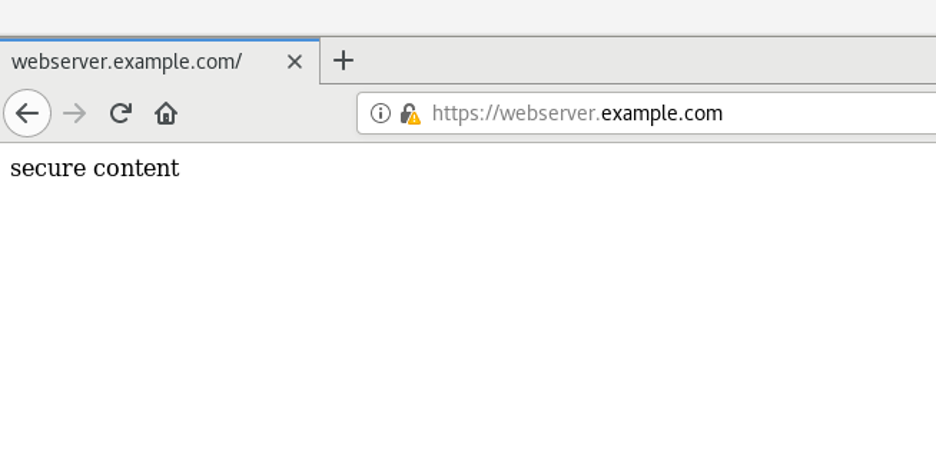
secure content
[root@webserver ~]#
SELinux security
Verify that the correct SELinux context is set:
[root@webserver ~]# ll -Z /var/www
total 0
drwxr-xr-x. 2 root root system_u:object_r:httpd_sys_script_exec_t:s0 6 Dec  2  2019 cgi-bin
drwxr-xr-x. 2 root root system_u:object_r:httpd_sys_content_t:s0     6 Dec  2  2019 html
drwxr-xr-x. 2 root root unconfined_u:object_r:httpd_sys_content_t:s0 6 Oct  1 12:34 https

[root@webserver ~]#
Also verify the SELinux context is correct for your index.html file:
[root@webserver ~]# ll -Z /var/www/https/index.html
-rw-r--r--. 1 root root unconfined_u:object_r:httpd_sys_content_t:s0 15 Oct  1 15:07 /var/www/https/index.html

[root@webserver ~]#
Now that you have the right certificates, the directory has been created, and SELinux is correct, tell httpd to use the keys:
[root@webserver ~]# vi /etc/httpd/conf.d/ssl.conf
[root@webserver ~]# grep -e httpd.crt -e httpd.key /etc/httpd/conf.d/ssl.conf -B1
#SSLCertificateFile /etc/pki/tls/certs/localhost.crt
SSLCertificateFile /etc/pki/tls/certs/httpd.crt
--
#SSLCertificateKeyFile /etc/pki/tls/private/localhost.key
SSLCertificateKeyFile /etc/pki/tls/private/httpd.key
[root@webserver ~]#
[root@webserver ~]# grep DocumentRoot /etc/httpd/conf.d/ssl.conf
DocumentRoot "/var/www/https"
#DocumentRoot "/var/www/html"

[root@webserver ~]#
Firewall settings
The httpd service has now been configured, but we need to make sure that traffic is allowed through the firewall. We'll enable port 443, and then reload the firewall:
[root@webserver ~]# firewall-cmd --permanent --add-port=443/tcp
success

[root@webserver ~]# firewall-cmd --reload
success
Final configuration and testing
Enable the httpd service to start at boot and then restart the httpd service:
[root@webserver ~]# systemctl enable httpd
Created symlink /etc/systemd/system/multi-user.target.wants/httpd.service → /usr/lib/systemd/system/httpd.service.
[root@webserver ~]# systemctl restart httpd
[root@webserver ~]# systemctl status httpd
● httpd.service - The Apache HTTP Server
   Loaded: loaded (/usr/lib/systemd/system/httpd.service; enabled; vendor preset: disabled)
   Active: active (running) since Thu 2020-10-01 12:35:26 EDT; 1min 30s ago
     Docs: man:httpd.service(8)
 Main PID: 33387 (httpd)
   Status: "Total requests: 1; Idle/Busy workers 100/0;Requests/sec: 0.0112; Bytes served/sec:  40 B/sec"
    Tasks: 213 (limit: 74790)
   Memory: 35.6M
   CGroup: /system.slice/httpd.service
           ├─33387 /usr/sbin/httpd -DFOREGROUND
           ├─33390 /usr/sbin/httpd -DFOREGROUND
           ├─33391 /usr/sbin/httpd -DFOREGROUND
           ├─33392 /usr/sbin/httpd -DFOREGROUND
           └─33393 /usr/sbin/httpd -DFOREGROUND

Oct 01 12:35:26 webserver.example.com systemd[1]: Starting The Apache HTTP Server...
Oct 01 12:35:26 webserver.example.com systemd[1]: Started The Apache HTTP Server.
Oct 01 12:35:26 webserver.example.com httpd[33387]: Server configured, listening on: port 443, port 80

[root@webserver ~]#
You can verify that the service is running and listening on port 443 by using netstat:
[root@webserver ~]# netstat -tlpn
Active Internet connections (only servers)
Proto Recv-Q Send-Q Local Address           Foreign Address         State       PID/Program name
tcp        0      0 192.168.124.1:53        0.0.0.0:*               LISTEN      1505/dnsmasq
tcp        0      0 0.0.0.0:22              0.0.0.0:*               LISTEN      1438/sshd
tcp        0      0 127.0.0.1:631           0.0.0.0:*               LISTEN      1904/cupsd
tcp        0      0 0.0.0.0:111             0.0.0.0:*               LISTEN      1/systemd
tcp6       0      0 :::80                   :::*                    LISTEN      33387/httpd
tcp6       0      0 :::22                   :::*                    LISTEN      1438/sshd
tcp6       0      0 ::1:631                 :::*                    LISTEN      1904/cupsd
tcp6       0      0 :::443                  :::*                    LISTEN      33387/httpd
tcp6       0      0 :::111                  :::*                    LISTEN      1/systemd

[root@webserver ~]#
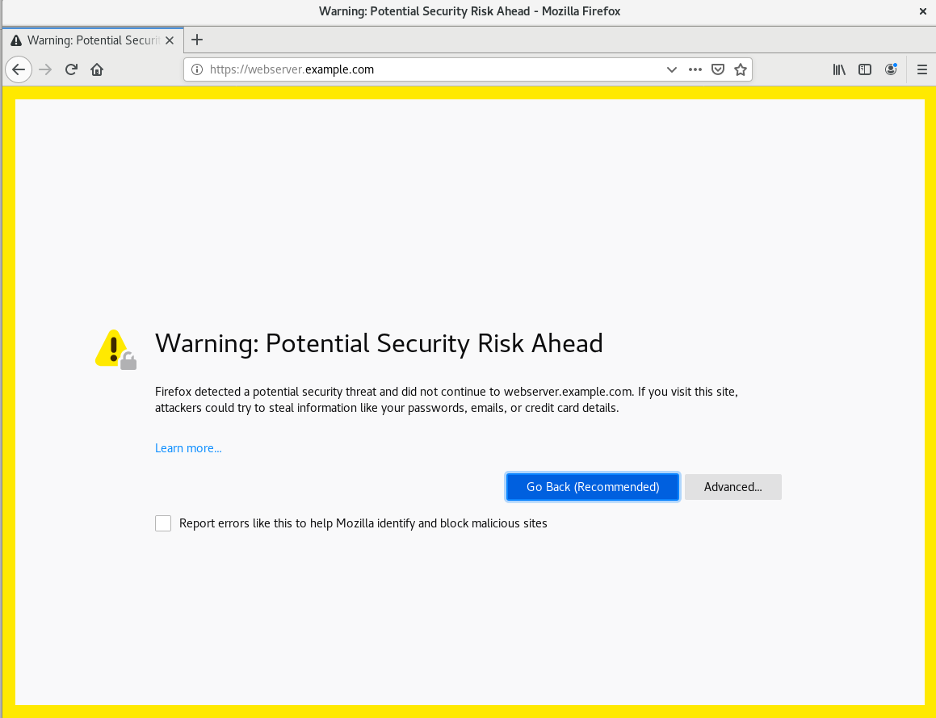
At this point, the web service should be correctly working and visible to your clients. To verify that, try using your web browser to get to the site. If you're using a self-signed certificate, you'll need to accept it:
By clicking the lock icon in the address bar and then selecting "View Certificate," you'll see the certificate information that you entered:
You will be able to see the content in the /var/www/https/index.html file being served to you over HTTPS:
[ Want to learn more about security? Check out the IT security and compliance checklist. ]
Wrap up
This article has shown you how to install and configure an HTTPS server and then verify that the service is working correctly. Additional configurations might include setting up remote logging, enabling PHP, or a configuring database for the website.
執筆者紹介
I am a Senior Principal Security Architect at Verizon. Before that, I worked at Red Hat in various roles such as consulting and in the Solutions Architect where I specialized in Smart Management, Ansible, and OpenShift. In my free time, I enjoy spending time with my family, exercising, and woodworking.
類似検索
安定したコードの書き換えを停止:Lightwell が収益と開発者の作業速度を保護する方法
企業のスピードを左右する新たな要素
Can Compliance Be A Piece Of Cake? | Compiler
Infrastructure At The Edge | Compiler
チャンネル別に見る

自動化
テクノロジー、チームおよび環境に関する IT 自動化の最新情報

AI (人工知能)
お客様が AI ワークロードをどこでも自由に実行することを可能にするプラットフォームについてのアップデート

オープン・ハイブリッドクラウド
ハイブリッドクラウドで柔軟に未来を築く方法をご確認ください。

セキュリティ
環境やテクノロジー全体に及ぶリスクを軽減する方法に関する最新情報

エッジコンピューティング
エッジでの運用を単純化するプラットフォームのアップデート

インフラストラクチャ
世界有数のエンタープライズ向け Linux プラットフォームの最新情報

アプリケーション
アプリケーションの最も困難な課題に対する Red Hat ソリューションの詳細

仮想化
オンプレミスまたは複数クラウドでのワークロードに対応するエンタープライズ仮想化の将来についてご覧ください
