In this blog, I introduce the RBAC model around a cluster set in Red Hat Advanced Cluster Management for Kubernetes (RHACM) that is available in version 2.3.
Red Hat Advanced Cluster Management for Kubernetes provides end-to-end visibility and control to manage your Kubernetes clusters, and controls your application lifecycle across the hybrid clouds. The following cluster related resources are defined in RHACM:
- cluster set (
managedclusterset.cluster.open-cluster-management.io) - managed cluster (
managedcluster.cluster.open-cluster-management.io) - cluster pool (
clusterpool.hive.openshift.io) - cluster deployment (
clusterdeployment.hive.openshift.io) - cluster claim(
clusterclaim.hive.openshift.io)
For managed clusters there are two sets of permissions that you need, a cluster role-binding to the ManagedCluster resource itself and a namespace role-binding to the cluster namespace. It is possible for you to have either or both assignments, an assignment only to the ManagedCluster resource, or an assignment only to the cluster namespace. Similarly, cluster pools, cluster claims, and cluster deployments also have their permissions. The permissions can also be assigned to only one of the them, or some of the them. This leads to the complexity in understanding what the perspective pattern means for both the administrator and user.
In this release, RHACM supports using cluster sets to group and manage these resources and the resource permissions.
Cluster set
Cluster set defines a group of cluster-related resources. Currently, you can add managedclusters, submariner add-ons, and clusterpools resources to a cluster set from the RHACM console when created. In this blog, I demonstrate how to manage the managed clusters, cluster pools, and automatically sync their permissions.
From the command line interface (CLI), you can also add, remove, or transfer the resource to a cluster set by adding the label, cluster.open-cluster-management.io/clusterset=<CLUSTERSET_NAME>. You can only add or remove this label if you are bound to the clusterset-admin permission. To update this label, you must have the permission on both the old and new cluster set.
When one cluster set is created, two cluster roles are generated automatically, cluster set admin and cluster set view. View the following descriptions of the cluster roles:
-
Cluster set admin: This role has full, access permissions to all of the
ClusterandClusterPoolresources that are assigned to theManagedClusterSetpermission. With this role, you can create clusters, import clusters, and create cluster pools. -
Cluster set view: This role has read-only permissions to all of the
ClusterandClusterPoolresources that are assigned to theManagedClusterSetpermission. With this role, you do not have access to create clusters, import clusters, or create cluster pools.
Best practices
Continue reading to learn how different personas with different permissions work in RHACM. Let's define some personas and use these personas to log in to Red Hat OpenShift Container Platform (RHOCP) and RHACM. In the upcoming section, I describe several use-cases on how a cluster administrator manages the team, and how team members provision and manage clusters in their own scope.
Persona permissions and responsibilities
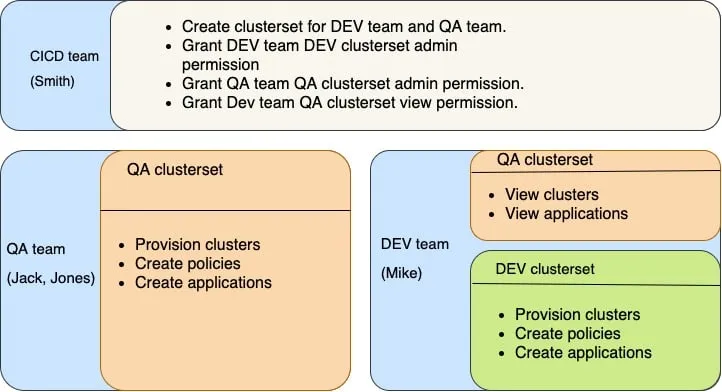
Imagine the following general workplace scenarios:
Use-case 1: The Continuous Integration/Continuous Deployment team (CICD) creates a RHACM hub cluster, grants the Quality Assurance team (QA) and Developer team (DEV) permissions to make sure they can provision clusters, which means they can create applications and policies in their own clusters. Use-case 2: The QA team members provision some clusters and set some policies for the provisioned clusters. Then, the QA members create an application in the provisioned clusters to test it. Use-case 3: DEV team members view the provisioned clusters created by the QA team, and investigate the application issues if the QA team finds any bugs. DEV team also provisions their clusters and create applications in these clusters.
Continue to follow along to learn how I use the previously mentioned personas to log in to RHOCP and the RHACM console. In the following section, I show several use-cases on how a cluster admin manages the QA and DEV teams, and how QA and DEV team members provision and manage clusters in their own scope.
Use-cases
Use-case 1
CICD team creates cluster set for DEV and QA team, grants dev-clusterset admin permission to DEV team, grants qa-clusterset admin permission to QA team, grants qa-clusterset view permission to DEV team.
-
Smith creates two clustersets,
dev-clustersetandqa-clusterset.- From the navigation menu in the RHACM hub cluster, select Infrastructure > Clusters > Cluster sets tab.
- Select the Create cluster set button. Enter dev-clusterset as the cluster set name in the dialog box.
- Select Create to create clusterset.
- Repeat these steps to create a
qa-clusterset.
-
Smith grants
dev-clustersetadmin permission to the DEV team.- From the navigation menu in the hub cluster, select Infrastructure > Clusters > Cluster sets tab.
- Select
dev-clusterset> Access management tab. - Select the Add user or group button. A dialog box is displayed. Then select
devgroup. - Select the
Cluster set adminrole. - Select Add to submit the changes.
- The
devgroup is now displayed in the table.
-
Smith grants
qa-clustersetadmin permission to the QA team and grantsqa-clustersetview permission to the DEV team.- From the navigation menu in the hub cluster select Infrastructure > Clusters > Cluster sets tab.
- Select
qa-clusterset> Access management tab. - Select the Add user or group button. A dialog box is displayed. Then select the
qagroup. - Select the
Cluster set adminrole - Select Add to submit the changes.
- The
qagroup is displayed in the table. - Repeat these steps to add the
Cluster set viewrole to thedevgroup.
Use-case 2
QA team members provision clusters, create policy for each cluster, and create an application to test it.
-
Jack creates three projects,
qa-clusterpool-namespace,qa-application-namespace,qa-policy-namespacefrom the RHOCP console.- Jack logs in to the RHOCP console.
- From the navigation menu select Home > Projects.
- Click the Create Project button.
- Click Create to create the project.
- Repeat these steps to create
qa-application-namespace,qa-policy-namespace.
-
Jack shares the
qa-application-namespaceadmin permission to the QA team, and view permission to the DEV team.- Click
qa-application-namespace> Role Bindings > Create bindings. - A dialog box is displayed. Select
adminfor the Role field, selectqafor the Group field, and then click Creat to create it. - Click Create bindings.
- A dialog box is displayed. Select
viewfor the Role field, selectdevfor the Group field, then click Create to create it.
- Click
-
Jack creates a credential for the AWS cloud provider named 'jack-aws-credential
inqa-clusterpool-namespace`.- Go to Credentials, then click Add credentials.
- Select the cloud provider and data center credentials, then input the credential information to create a credential named
jack-aws-credentialin the namespace,qa-clusterpool-namespace.
-
Jack creates a managed cluster named
qa-managedcluster1inqa-clusterset.- From the navigation menu select Infrastructure > Clusters.
- Click the Managed clusters tab, then click the Create cluster button.
- A dialog box is displayed. Enter
qa-managedcluster1in the Cluster name field, selectqa-clustersetin the Cluster set field. Then click Next.
Notes: Jack is a non-cluster admin, so he must select one cluster set when he creates managed clusters, if not, the create request is denied.
- Select the type of Kubernetes distribution and select a cloud provider, then click Next.
- Select Release image and select
jack-aws-credentialas the provider connection. - Use the default values that are provided and click Create in the last step to create the managed cluster.
- The
qa-managedcluster1is displayed in the table and the status is Creating. - After about 30 minutes, the status changes to Ready, which means the managed cluster is created successfully.
-
Jack creates a cluster pool named
qa-clusterpoolinqa-clusterpool-namespace.- From the navigation menu, select Infrastructure > Clusters .
- Click the Cluster pools tab, click the Create cluster pool button.
- A dialog box is displayed. Enter
qa-clusterpoolas the cluster pool name, selectqa-clusterpool-namespaceas the cluster pool namespace, selectqa-clustersetas the cluster set, and then click Next.
Notes: Jack is a non-cluster admin, so he must select one cluster set, if not, the create request is denied. After the cluster pool is created in this cluster set, the entire cluster pool namespace (
qa-clusterpool-namespace) is shared to the QA team. All team members in the QA team have admin permission to theqa-clusterpool-namespacenamespace, and all team members in the DEV team have view permission toqa-clusterpool-namespacenamespace. So if you arecluster-admin, please create a namespace for each team to create a cluster pool.- Select the type of Kubernetes distribution and select a cloud provider, then click Next.
- Select Release image and select
jack-aws-credentialas the provider connection. - Use the default values that are provided and click Create in the last step to create the cluster pool.
- The
qa-clusterpoolis displayed in the table. - A few minutes later, the cluster pool clusters,
qa-clusterpool-xxxxx, are created and the status is Creating. - After about 30 minutes, the cluster pool cluster,
qa-clusterpool-xxxxx, status changed to Hibernating.
-
Jack claims a cluster from the cluster pool
qa-clusterpool.- From the navigation menu, select Infrastructure > Clusters.
- Click the Cluster pools tab.
- From the
qa-clusterpoolrow, click Claim cluster. - A dialog box is displayed. Enter the
qa-claimed-clusteras the cluster claim name. - The
qa-claimed-clusteris shown in the managed clusters table.
Note: When you claim a cluster from a cluster pool, the claimed cluster is added to the cluster set automatically.
-
Jack creates a policy in
qa-policy-namespace.- From the navigation menu, select Governance.
- Click the Create policy button.
- Complete the Create policy form by entering or selecting the following parameter values:
- Name:
qa-policy-grc - Namespace:
qa-policy-namespace - Specifications:
Namespace - Must have namespace 'prod' - Cluster selector:
name: qa-claimed-cluster
- Name:
- Click Create to create the policy.
-
Jack creates an application in
qa-application-namespace.- From the navigation menu, select Applications.
- From the Overview tab, click Create application.
- Complete the form by entering or selecting the following parameter values:
- Name:
qa-helloworld-app - Namespace:
qa-application-namespace - Repository types:
Git - URL:
https://github.com/ldpliu/app-samples.git - Branch:
main - Path:
helloworld - Select
Deploy application resources only on clusters matching specified labels - Label:
name - Value:
qa-claimed-cluster
- Name:
- Click Save to create the application.
-
Jones is also on the QA team, so he has admin permission to the cluster pool (
qa-clusterpool), permission to the managed cluster (qa-managedcluster1) and permission to the claimed cluster (qa-claimed-cluster). Jones can also destroy the managed cluster,qa-managedcluster1.- Jones logs in to the RHACM console.
- From the navigation menu, select Infrastructure > Clusters.
- The cluster pool,
qa-clusterpool, is displayed in the Managed cluster table. - Select the Managed clusters tab.
- Destroy the
qa-managedcluster1by selecting the Action icon (...) in the rows. - Click Destroy cluster to destroy the managed cluster.
-
Jones scales the cluster pool
qa-clusterpool.- From the navigation menu, select Infrastructure > Clusters
- Select the Cluster pools tab.
- Click the Action icon (
...) in theqa-clusterpoolrow of the Cluster pool table. - Click Scale cluster pool.
- A dialog is displayed.
- Enter 2 as the cluster pool size, then click Scale.
Use-case 3
DEV team members view QA team environment to debug applications, and provision clusters in the dev-clusterset, then create an application in the managed cluster, which is in the dev-clusterset.
-
Mike can view managed clusters and cluster pools in the
qa-clusterset.- From the navigation menu, select Infrastructure > Clusters.
- Select the Managed clusters tab.
- The claimed cluster,
qa-claimed-cluster, is shown in the Managed clusters table. - When Mike clicks the Action icon (
...) in theqa-managedcluster1row, the action Update is unavailable. - From the navigation menu, click Infrastructure > Clusters
- Click the Cluster pools tab to view the cluster pool,
qa-clusterpool, from the Cluster pool table. - When Mike clicks the Action icon (
...) in theqa-clusterpoolrow, the action Update is unavailable.
-
Mike can view applications in the
qa-application-namespace.- From the navigation menu, select Applications > Overview.
- The application,
qa-helloworld-appis shown in the table. - Select
qa-helloworld-app. - The application details are shown, and you can click deployment/service/pod to see resource details, which are deployed in target clusters.
-
Mike creates a namespace named
dev-application-namespace, where the application is created.- Mike logs in to the RHOCP console.
- From the navigation menu, select Home > Projects. Then click the Create Project button.
- A dialog box is displayed. Enter
dev-application-namespaceas the name. - Click Create to create the project.
-
Mike creates a credential named
mike-aws-credentialfor the cloud provider indev-clusterpool-namespace.- Mike logs in to the RHACM console.
- From the navigation menu, select Credentials.
- Click the Add credentials button.
- Select the cloud provider and data center credentials, then enter the credential information to create the credential
mike-aws-credentialindev-clusterpool-namespacenamespace.
-
Mike creates a managed cluster named
dev-managedcluster1indev-clusterset.- From the navigation menu, select Infrastructure > Clusters.
- Click the Managed clusters tab, then click the Create cluster button.
- A dialog box is displayed. Enter
dev-managedcluster1as the cluster name, selectdev-clustersetas the cluster set, and then click Next. - Select the type of Kubernetes distribution and select a cloud provider. Then click Next.
- Select Release image and
mike-aws-credentialas the provider connection. - Use the default values that are provided and click Create in the last step to create the managed cluster.
- The
dev-managedcluster1is displayed in the table and the status is Creating. - After about 30 minutes, the status changeds to Ready, which means the managed cluster is created successfully.
-
Mike creates an application in
dev-application-namespace.- From the navigation menu, select Applications > Overview.
- Click the Create application button.
- Enter or select the following values for each parameter field:
- Name:
qa-helloworld-app - Namespace:
qa-application-namespace - Repository types:
Git - URL:
https://github.com/ldpliu/app-samples.git - Branch:
main - Path:
helloworld - Select Deploy application resources only on clusters matching specified labels, and enter the following values for the parameters:
- Label:
name - Value:
qa-claimed-cluster
- Name:
Conclusion
Throughout this blog, I have described use-cases on how a cluster admin manages the QA and DEV teams, and how QA and DEV team members provision and manage clusters in their own scope. Thanks for learning more about managing the roles in your cluster. I hope the use-cases in this blog have been beneficial for you.
About the author

More like this
From incident responder to security steward: My journey to understanding Red Hat's open approach to vulnerability management
File encryption and decryption made easy with GPG
What Is Product Security? | Compiler
Technically Speaking | Security for the AI supply chain
Browse by channel

Automation
The latest on IT automation for tech, teams, and environments

Artificial intelligence
Updates on the platforms that free customers to run AI workloads anywhere

Open hybrid cloud
Explore how we build a more flexible future with hybrid cloud

Security
The latest on how we reduce risks across environments and technologies

Edge computing
Updates on the platforms that simplify operations at the edge

Infrastructure
The latest on the world’s leading enterprise Linux platform

Applications
Inside our solutions to the toughest application challenges

Virtualization
The future of enterprise virtualization for your workloads on-premise or across clouds
