Red Hat Satellite manages Red Hat Enterprise Linux (RHEL) systems at scale across the cloud and on-premises. Last year, a model context protocol (MCP) server for Red Hat Satellite was released as a Technology Preview feature to enable more intelligent and automated management of Satellite and RHEL systems through your favourite large language model (LLM).
LLMs make it possible to perform highly automated and sophisticated tasks. An LLM can enable automatic, unsupervised problem solving, simulating the acts of perception, learning, and reasoning. Tools such as MCPs make it possible for LLMs to orchestrate operations on systems, using specialized domains of knowledge.
MCP enables an LLM to incorporate natural language context. Specifically, an MCP server provides specialized knowledge specific to an operating system, helping an LLM offer more relevant information about your systems.
The MCP server for Red Hat Satellite adds value by integrating Satellite-specific data with LLMs. It provides API tools that enable LLMs to query the Satellite database for information regarding the RHEL systems under its management. The combination of these three tools enables systems administrators to use natural language to perform specialized tasks to manage a RHEL environment such as identifying and troubleshooting problems with your systems.
This blog demonstrates how to set up and use the MCP server for Red Hat Satellite with Goose CLI (an LLM chat client) and Ollama (LLM model management). To try the demonstration yourself, you must have a properly installed and configured Satellite 6.18 server.
Instructions
There are three tasks you must complete to start using the MCP server for Satellite:
- Configure a personal access token in Satellite. The token authenticates communication between the MCP server and the Satellite server.
- Install and run the Satellite MCP server.
- Configure your chat client to use the MCP server. In this step, you use the Goose and Ollama clients to download and manage LLM models.
Configure a Foreman token in Satellite
The MCP requires authentication to the Satellite server. You must create an access token to be passed to the MCP server.
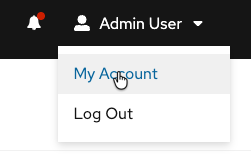
First, click My Account in the user drop-down menu in the top right of the Satellite window.
Navigate to the Personal Access Tokens tab.
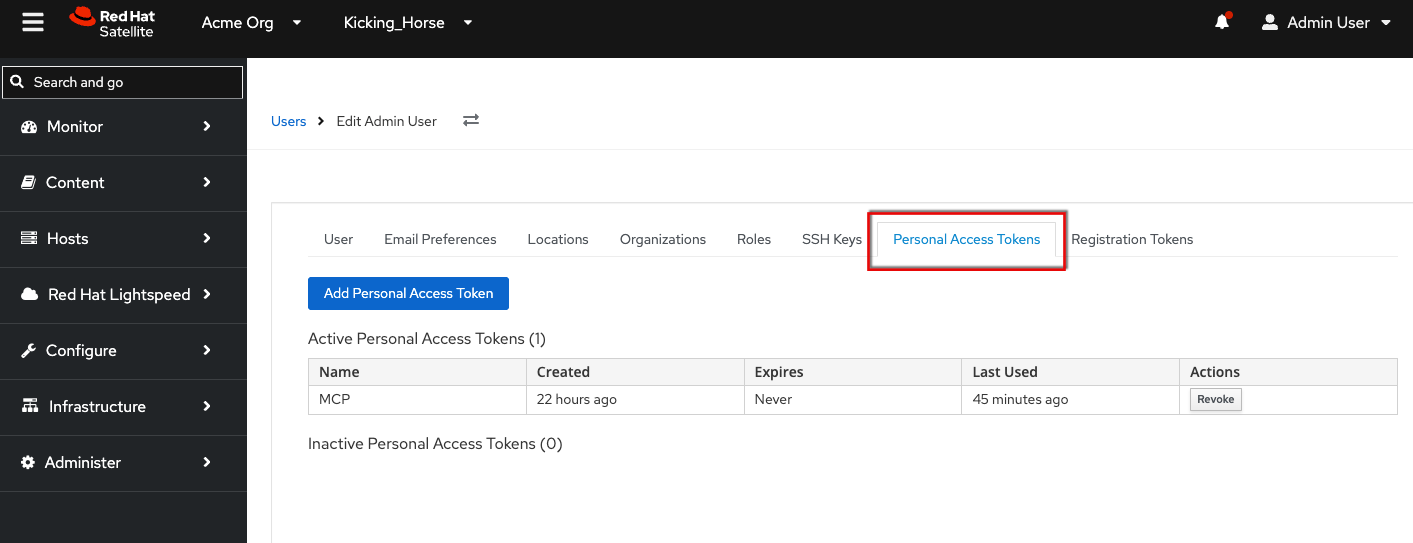
Click the Add Personal Access Token button.
Install and run the MCP server
On a separate system (not your Satellite server), log into registry.redhat.io:
$ podman loginAfter reading the errata, run the MCP server as a container. The CA bundle for your Satellite must be made available on the system where you're going to run the MCP server. You can download it from your Satellite server (for example, satellite.example.com/unattended/public/foreman_raw_ca).
The MCP server communicates with the Satellite server through RESTful APIs. This communication is SSL encrypted. If you are using self-signed SSL certificates, you must import them into the system that hosts the MCP server. The --volume <Path_to_My_CA_Bundle>:/app/ca.pem:ro,Z parameter points the MCP server at a CA bundle (but remember to replace <Path_to_My_CA_Bundle> with the actual path to the CA bundle). You can override SSL certificate errors with the --no-verify-ssl parameter.
Make sure you open port 8080 or whatever port you need for the chat client to connect to the MCP server.
$ podman run --interactive --tty --publish 8080:8080 \
--volume <Path_to_My_CA_Bundle>:/app/ca.pem:ro,Z \
registry.redhat.io/satellite/foreman-mcp-server-rhel9 \
--foreman-url https://satellite618-ga.lab \
--no-verify-ssl
Configure your chat client
It's ideal to run the chat client on a fairly powerful system with a GPU, otherwise the chat client returns answers slowly and inaccurately.
Install Ollama
First, download and install Ollama:
$ curl -fsSL https://ollama.com/install.sh | shPull a model
In this example, I chose the gpt-oss:120b. It's 64 GB. You may get better results with other models.
$ ollama run gpt-oss:120bInstall Goose CLI
So that you can interact with the model, download and install the Goose client:
$ curl -fsSL \
https://github.com/block/goose/releases/download/stable/download_cli.sh | bash
Run the Goose CLI configuration wizard. It creates a configuration file in ~/.config/goose/config.yaml. For more information about Goose CLI, refer to the official documentation.
Here's my config.yaml for reference:
[root@rhai-client-20251104-154842 ~]# cat .config/goose/config.yaml
extensions:
  extensionmanager:
    available_tools: []
    bundled: true
    description: Enable extension management tools for discovering, enabling, and disabling extensions
    enabled: true
    name: Extension Manager
    type: platform
  satellite6.18mcp:
    available_tools: []
    bundled: null
    description: satellite
    enabled: true
    env_keys: []
    envs: {}
    headers:
      FOREMAN_TOKEN: DS_3j-2pjaYgJHWluCrE4A
      FOREMAN_USERNAME: admin
    name: Satellite 6.18 MCP
    timeout: 300
    type: streamable_http
    uri: http://satellite618-ga.lab:8080/mcp
  todo:
    available_tools: []
    bundled: true
    description: Enable a todo list for Goose so it can keep track of what it is doing
    enabled: true
    name: todo
    type: platform
GOOSE_MODEL: gpt-oss:120b
OLLAMA_HOST: localhost
GOOSE_PROVIDER: ollama
That completes the configuration.
First step towards autonomous troubleshooting
An agentic workflow is a structured series of actions managed and completed by AI agents. When an AI agent is given a goal to complete, it begins the workflow by breaking down a task into smaller individual steps, then performs those steps.
The MCP server for Red Hat Satellite makes it possible to connect LLMs to identify and troubleshoot RHEL systems being managed by Red Hat Satellite. The MCP server provides an interface of tools that can be used by the LLM of your choice in the agentic workflow of your choice. The MCP server for Satellite enables agentic workflows to respond to information about the RHEL systems and to act on that information in a way that conforms to your business requirements.
For more information on the MCP server for Satellite, visit the official documentation.
リソース
エンタープライズ AI を始める:初心者向けガイド
執筆者紹介

As a Senior Principal Technical Marketing Manager in the Red Hat Enterprise Linux business unit, Matthew Yee is here to help everyone understand what our products do. He joined Red Hat in 2021 and is based in Vancouver, Canada.
チャンネル別に見る

自動化
テクノロジー、チームおよび環境に関する IT 自動化の最新情報

AI (人工知能)
お客様が AI ワークロードをどこでも自由に実行することを可能にするプラットフォームについてのアップデート

オープン・ハイブリッドクラウド
ハイブリッドクラウドで柔軟に未来を築く方法をご確認ください。

セキュリティ
環境やテクノロジー全体に及ぶリスクを軽減する方法に関する最新情報

エッジコンピューティング
エッジでの運用を単純化するプラットフォームのアップデート

インフラストラクチャ
世界有数のエンタープライズ向け Linux プラットフォームの最新情報

アプリケーション
アプリケーションの最も困難な課題に対する Red Hat ソリューションの詳細

仮想化
オンプレミスまたは複数クラウドでのワークロードに対応するエンタープライズ仮想化の将来についてご覧ください
