This article examines tasks related to creating and restoring Red Hat Advanced Cluster Management for Kubernetes backups.
Read parts 1 and 2 here:
- Red Hat Advanced Cluster Management for Kubernetes: High availability and disaster recovery (part 1)
- Red Hat Advanced Cluster Management for Kubernetes: High availability and disaster recovery (part 2)
Backup schedule
Primary Hub Cluster
A BackupSchedule feature will enable backups to run at scheduled intervals. You must create a backup schedule on your primary hub cluster.
You can see an example of defining a BackupSchedule resource below:
$ cat schedule-acm.yaml

apiVersion: cluster.open-cluster-management.io/v1beta1
kind: BackupSchedule
metadata:
  name: schedule-acm
  namespace: open-cluster-management-backup
spec:
  veleroSchedule: 0 */2 * * *    # Run backup every 2 hours
  veleroTtl: 120h                # Optional: delete backups after 120h. If not specified, default is 720h
  useManagedServiceAccount: true # Auto Import Managed Clusters
Adjust the veleroSchedule and veleroTtl values as needed to satisfy any retention and retrieval goals.
Check the scheduled backup:
$ oc get BackupSchedule -n open-cluster-management-backup

NAME           PHASE     MESSAGE
schedule-acm   Enabled   Velero schedules are enabled
Verify that initial backup continuous restore (CR)s were created:
$ oc get backups -n open-cluster-management-backup

NAME                                            AGE
acm-credentials-schedule-20230704201006         22m
acm-managed-clusters-schedule-20230704201006    22m
acm-resources-generic-schedule-20230704201006   22m
acm-resources-schedule-20230704201006           22m
acm-validation-policy-schedule-20230704201006   22m
And finally, check if the backups are being completed:
$ oc get backups -n open-cluster-management-backup -o custom-columns="NAME":.metadata.name,"PHASE":.status.phase

NAME                                            PHASE
acm-credentials-schedule-20230704201006         Completed
acm-managed-clusters-schedule-20230704201006    Completed
acm-resources-generic-schedule-20230704201006   Completed
acm-resources-schedule-20230704201006           Completed
acm-validation-policy-schedule-20230704201006   Completed
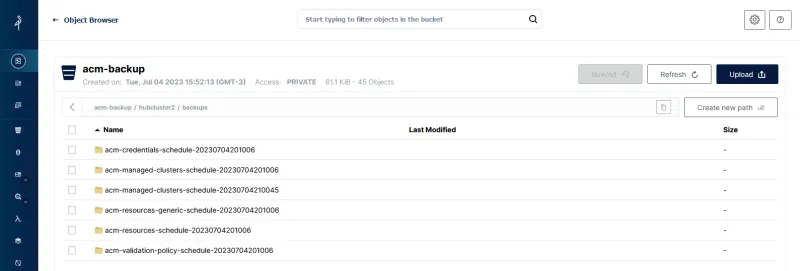
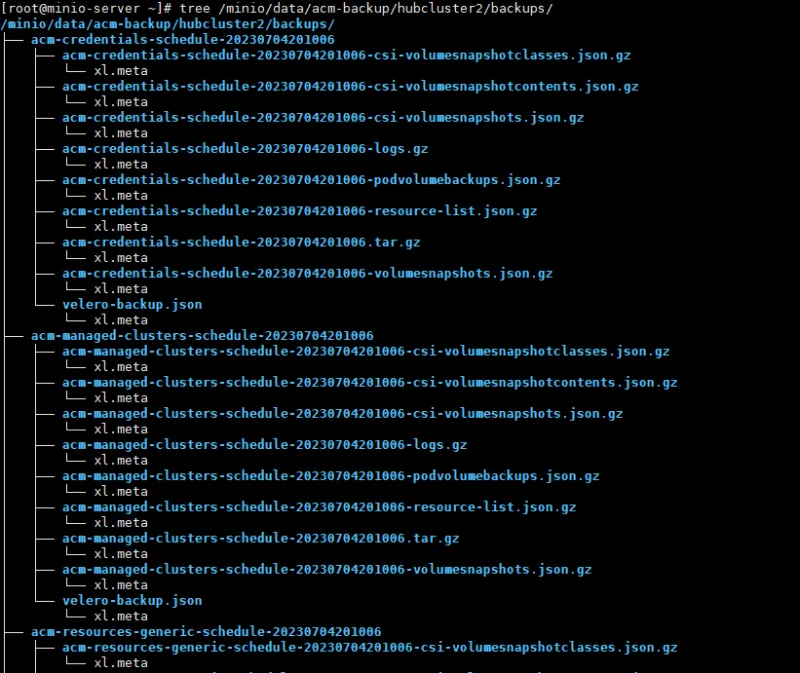
Many backups will exist on the object storage side:
Backup-restore Red Hat Advanced Cluster Management Policy
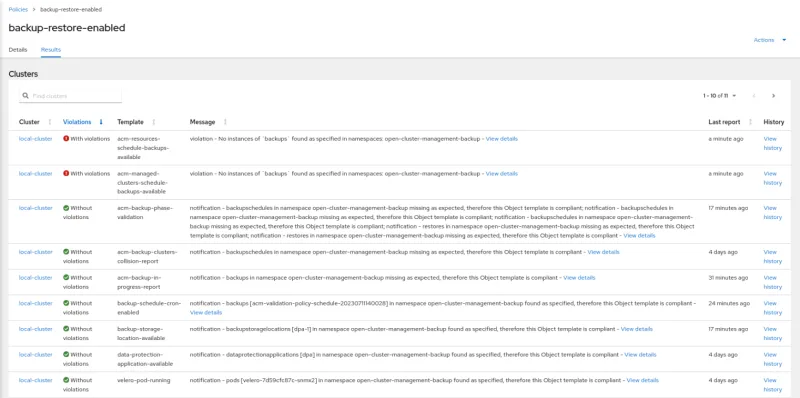
Go to Red Hat Advanced Cluster Management and review the policy named backup-restore-enabled to identify violations and templates used. By default, the Red Hat Advanced Cluster Management Backup and Restore Operator installs a policy to check the status of backups and the operator's integrity.
- Several templates exist for checking different status types and settings to ensure backups are up and running. A complete list can be consulted here.
Example of a working policy:
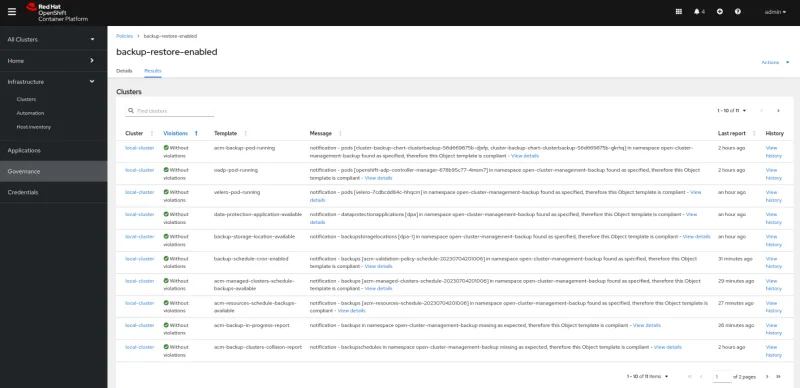
You can see a full example without violations below:
Backup-restore process on standby hub clusters
Standby Hub Cluster
Create a custom resource for sync restore purposes on your standby Red Hat Advanced Cluster Management. Remember that the standby hub cluster should already have Red Hat Advanced Cluster Management installed and any necessary customizations already made.
Use the following checklist to help you remember everything on your standby cluster:
- Install the Red Hat Advanced Cluster Management Operator
- Create the MultiClusterHub
- Activate the cluster-backup component in the MultiClusterHub
- Create the S3 storage secret
- Enable the ManagedServiceAccount component on the MultiClusterEngine
- Enable DataProtectionApplication (DPA)
Sync restore CR
Data must be continuously and passively restored on standby hub clusters. This function is activated through a restore CR and also by setting the parameters syncRestoreWithNewBackups and restoreSyncInterval.
Go to your standby hub cluster and create the restore passive sync, as seen below:
$ cat restore-standby-acm-passive-sync.yaml

apiVersion: cluster.open-cluster-management.io/v1beta1
kind: Restore
metadata:
  name: restore-acm-passive-sync
  namespace: open-cluster-management-backup
spec:
  syncRestoreWithNewBackups: true # restore when there are new backups
  restoreSyncInterval: 10m        # checks for backups every 10 minutes
  cleanupBeforeRestore: CleanupRestored
  veleroManagedClustersBackupName: skip
  veleroCredentialsBackupName: latest
  veleroResourcesBackupName: latest
Note: The veleroManagedClustersBackupName parameter must always remain set to skip in CR synced restore.
- Specifying a backup name here would activate managed clusters on the standby hub cluster, which is undesirable at this time.
Leave the parameters veleroCredentialsBackupName and veleroResourcesBackupName set to latest in these CRs.
Adjust the restoreSyncInterval parameter values to match your desired restore and recovery objectives.
Check if the resource was created:
$ oc get -n open-cluster-management-backup Restore restore-acm-passive-sync

NAME                       PHASE     MESSAGE
restore-acm-passive-sync   Enabled   Velero restores have run to completion, restore will continue to sync with new backups
Note: This item depends on at least one successful backup so that there is information to restore.
Validating restores
Make sure the restore CR is enabled and restores have completed on the standby hub cluster. Use this command:
$ oc get restore -n open-cluster-management-backup

NAME                       PHASE     MESSAGE
restore-acm-passive-sync   Running   Velero restore restore-acm-passive-sync-acm-resources-schedule-20230704220045 is currently executing
restore-acm-passive-sync   Enabled   Velero restores have run to completion, restore will continue to sync with new backups
You should see all of your managed cluster's restore data on the object storage, as seen below:
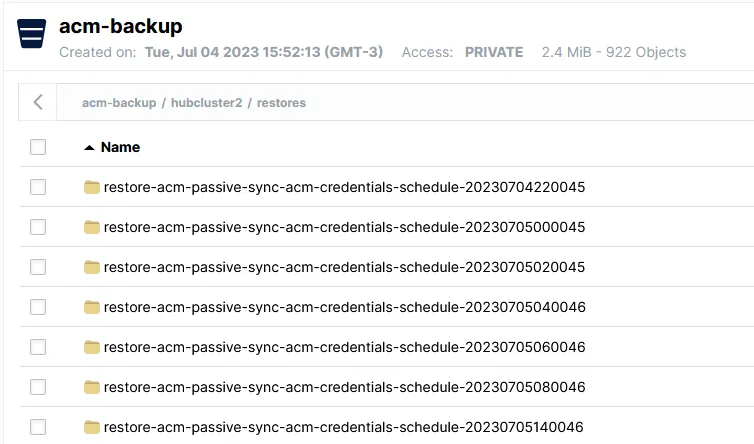
Here are the key details about the features that should exist in every Red Hat Advanced Cluster Management by now:
Primary Hub Cluster
- Backup schedule
Standby Hub Cluster
- Sync restore CR
That's it for this chapter. The next section covers activating a standby hub cluster as a primary hub cluster.
Activating a standby Red Hat Advanced Cluster Management cluster
This part looks at tasks related to promoting a Standby cluster to Primary and the old Primary to Standby.
This process consists of defining a standby Red Hat Advanced Cluster Management cluster as the structure's new primary, and making the OpenShift clusters managed by Red Hat Advanced Cluster Management start communicating with the new primary.
Enabling managed OpenShift clusters
When the primary hub cluster is down and a failover must be performed, activating the resources of the managed OpenShift clusters in the standby Red Hat Advanced Cluster Management cluster that is elected as the new primary is necessary.
Once activated, managed OpenShift clusters will start communicating with the new primary hub cluster for information regarding applications, policies, etc.
The CR that was created earlier only restores passive data. Therefore, it is necessary to stop it and create restore-once CRs to recover activation data from managed OpenShift clusters.
Important: These steps can only be performed when the primary hub cluster is completely unavailable. Since managed OpenShift clusters must only communicate with a single Red Hat Advanced Cluster Management hub cluster at a time, the replaced hub cluster must be completely inaccessible. Once confirmed, proceed with activating managed OpenShift clusters in the new primary hub cluster.
Standby pre-activation scenario
Please pay close attention to the next paragraphs.
At this point, your Primary hub cluster should be similar to this one:
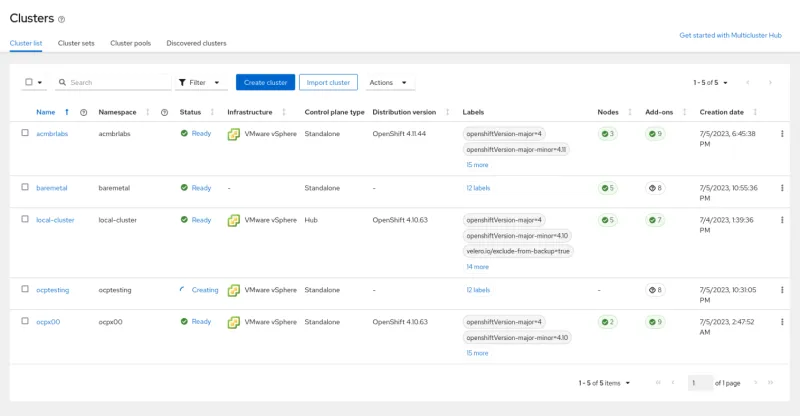
Primary Hub Cluster
About the managed clusters:
- Cluster ocptesting was created by Red Hat Advanced Cluster Management (by using the Hive API).
- All others were manually imported by using all the methods available (kubeconfig, token, and command).
- The test environment was prepared like this on purpose to verify that all managed clusters will be correctly transferred to the standby hub cluster.
And your Standby hub cluster should look like this:
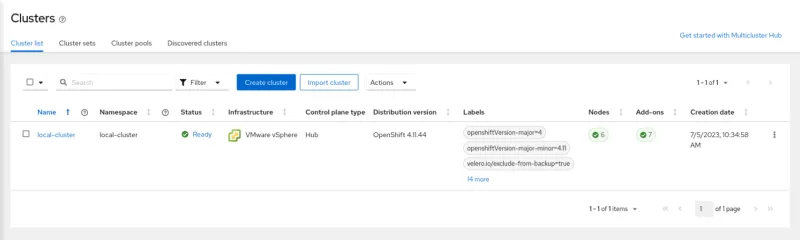
Standby Hub Cluster
Activation process
Be careful not to run the commands on the wrong clusters!
Steps for the Primary Hub Cluster
Verify that the backup schedule is enabled on the primary hub cluster:
$ oc get -n open-cluster-management-backup BackupSchedule schedule-acm
NAME           PHASE     MESSAGE
schedule-acm   Enabled   Velero schedules are enabled
Check the last backup status on the primary hub cluster:
$ oc get backups -n open-cluster-management-backup -o custom-columns="NAME":.metadata.name,"PHASE":.status.phase
Backups about credentials, managed-clusters, resources-generic, resources, and validation must be in the Completed stage, as seen below:

Disable the BackupSchedule:
$ oc delete -n open-cluster-management-backup BackupSchedule schedule-acm
Power down the Primary Hub Cluster. It must be completely inaccessible (you are simulating a failure).
Configure the Standby Hub Cluster
1. Check if Velero restores have run to completion:
$ oc get restore -n open-cluster-management-backup restore-acm-passive-sync

2. Delete the existing rolling restore on the Standby Hub Cluster selected as the new active cluster:
$ oc delete restore restore-acm-passive-sync -n open-cluster-management-backup
3. Create a new restore CR to activate the managed clusters on the new hub cluster. See the following example:
$ cat restore-acm-passive-activate.yaml

apiVersion: cluster.open-cluster-management.io/v1beta1
kind: Restore
metadata:
  name: restore-acm-passive-activate
  namespace: open-cluster-management-backup
spec:
  cleanupBeforeRestore: CleanupRestored
  veleroManagedClustersBackupName: latest
  veleroCredentialsBackupName: skip
  veleroResourcesBackupName: skip

$ oc create -f restore-acm-passive-activate.yaml
restore.cluster.open-cluster-management.io/restore-acm-passive-activate created
Note that the veleroManagedClustersBackupName will be set to latest so that the latest available restore will be used on the new hub cluster. The other parameters are set to skip as the data contained in them has already been restored via restore CR.
The cleanupBeforeRestore parameter is important as it will ensure that only the most recent information from the specified backup is restored on the hub cluster. It will clear all data on the new hub before restoring it to a state consistent with the most recent backup version.
Once this resource is created, the data will be immediately restored in the new hub cluster, and the managed OpenShift clusters will be imported and shown as Ready in the dashboard.
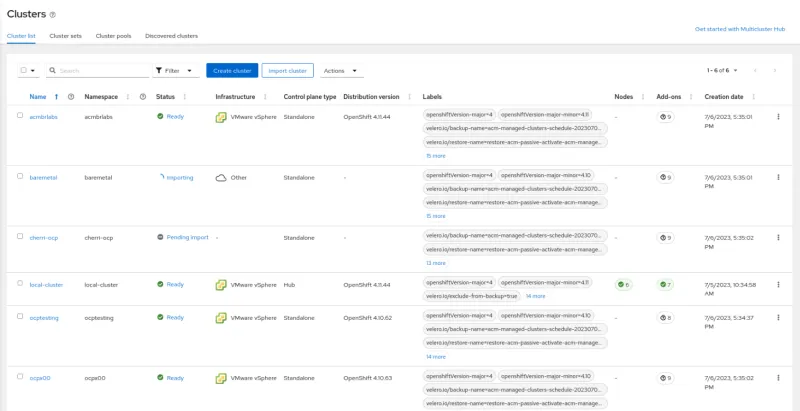
New Primary Hub Cluster
Check the restore activation status:
$ oc get restore -n open-cluster-management-backup
restore-acm-passive-activate   Finished   All Velero restores have run successfully
Note: It may take a few minutes for the managed clusters to display the Ready status as the resources in the open-cluster-management-agent and open-cluster-management-agent-addon namespaces will be reconfigured.
4. Create the backup schedule:
$ oc create -f schedule-acm.yaml

$ oc get BackupSchedule -n open-cluster-management-backup -w
NAME           PHASE     MESSAGE
schedule-acm   New       Velero schedules are initialized
schedule-acm   Enabled   Velero schedules are enabled
Possible problems
If some of your clusters fail to import automatically, there may be a communication problem (dial tcp timeout).
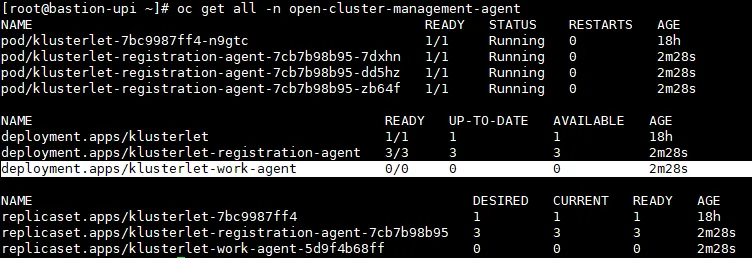
$ kubectl logs -n open-cluster-management-agent pod/klusterlet-registration-agent-7cb7b98b95-dd5hz
Trace[1455841955]: ---"Objects listed" error:Get "https://api.homelab.rhbrlabs.com:6443/apis/certificates.k8s.io/v1/certificatesigningrequests?limit=500&resourceVersion=0": dial tcp 10.1.224.110:6443: i/o timeout 30002ms (20:39:00.451)
Check your firewall, name resolution, and routing.
New Primary Hub Cluster
After the standby hub cluster activation is complete, it will be set as the new primary hub cluster. The new primary's dashboard should contain complete information about the managed clusters.
At this point, the switching process is complete!

GTA Feelings :-)
Auto Import feature limitations
There are limitations with the above approach that can result in the managed cluster not automatically importing when moving to a new hub cluster. I recommend reading and familiarizing yourself with the information below.
These situations that can result in the managed cluster not being imported:
1. Since the auto import operation uses the cluster import function through the auto import secret feature, the hub cluster must be able to access the managed cluster to perform the import operation.
2. Since the auto-import-secret created on the restore cluster uses the ManagedServiceAccount token to connect to the managed cluster, the latter must also provide the kube apiserver information. Non-OpenShift Kubernetes clusters typically do not have this configuration. The apiserver must be defined in the ManagedCluster resource, as shown in the following example:
apiVersion: cluster.open-cluster-management.io/v1
kind: ManagedCluster
metadata:
  name: managed-cluster-name
spec:
  hubAcceptsClient: true
  leaseDurationSeconds: 60
  managedClusterClientConfigs:
      url: <apiserver>
Only OpenShift clusters have the apiserver configuration set automatically when the cluster is imported into the hub.
Note: For any other type of managed clusters, such as EKS clusters, this information must be set manually by the user; otherwise, the automatic import feature will ignore these clusters and they will display Import Pending when moved to the restored cluster hub.
3. The backup controller regularly searches for imported managed clusters and creates the ManagedServiceAccount resource in the managed cluster namespace as soon as that managed cluster is found. This should trigger a token creation on the managed cluster. If the managed cluster is not accessible when this operation is performed (e.g., managed cluster hibernating or down), the ManagedServiceAccount will be unable to create the token. As a result, if a hub backup is performed at this time, the backup will not contain a token to automatically import the managed cluster.
4. It is possible that a secret ManagedServiceAccount is not included in a backup if the backup schedule is executed before the backup label is defined in the secret ManagedServiceAccount. ManagedServiceAccount secrets do not have the cluster.open-cluster-management.io/backup label defined during their creation. For this reason, the backup controller regularly looks for ManagedServiceAccount secrets in managed cluster namespaces and adds the backup label if not found.
5. In case the secret token auto-import-account is valid and it is backed up, but the restore operation occurs at a time when the token available with the backup has already expired, the auto-import operation will fail. If this happens, the status of the restore.cluster.open-cluster-management.io resource should report the invalid token issue for each managed cluster in this situation.
Closing notes
At the time of writing, the latest release of Red Hat Advanced Cluster Management is version 2.8. For this version, a Red Hat Advanced Cluster Management standby hub cluster promoted to primary permanently replaces the old cluster that acted in this role. The old cluster cannot be brought back online, as Disaster Recovery (DR) does not work this way. DR processes are performed when the primary site is lost. A function to have two Red Hat Advanced Cluster Management clusters online acting as Active/Standby is still under development.
Wrap up
Red Hat Advanced Cluster Management is a game-changer for organizations seeking to simplify the management of Kubernetes clusters across hybrid cloud environments. With its centralized management, policy-based governance, streamlined application lifecycle management, and built-in observability, Red Hat Advanced Cluster Management empowers administrators to unlock the full potential of Kubernetes while reducing complexity and enhancing operational efficiency. By adopting Red Hat Advanced Cluster Management, organizations can confidently scale their Kubernetes deployments, accelerate application delivery, and drive innovation in today's fast-paced digital landscape.
This article showed how to prepare an HA/DR framework to keep your Red Hat Advanced Cluster Management environment safe from failures.
All the best, and I'll see you next time!
執筆者紹介

Andre Rocha is a Consultant at Red Hat focused on OpenStack, OpenShift, RHEL and other Red Hat products. He has been at Red Hat since 2019, previously working as DevOps and SysAdmin for private companies.
チャンネル別に見る

自動化
テクノロジー、チームおよび環境に関する IT 自動化の最新情報

AI (人工知能)
お客様が AI ワークロードをどこでも自由に実行することを可能にするプラットフォームについてのアップデート

オープン・ハイブリッドクラウド
ハイブリッドクラウドで柔軟に未来を築く方法をご確認ください。

セキュリティ
環境やテクノロジー全体に及ぶリスクを軽減する方法に関する最新情報

エッジコンピューティング
エッジでの運用を単純化するプラットフォームのアップデート

インフラストラクチャ
世界有数のエンタープライズ向け Linux プラットフォームの最新情報

アプリケーション
アプリケーションの最も困難な課題に対する Red Hat ソリューションの詳細

仮想化
オンプレミスまたは複数クラウドでのワークロードに対応するエンタープライズ仮想化の将来についてご覧ください
