
Red Hat OpenShift Virtualization 4.21 introduces highly anticipated networking design flows to simplify network management. Tailored to VM network requirements, this complete workflow lets you more efficiently create networks, configure them on specific nodes, and provide reliable access to virtual machines (VMs). The new workflow helps create complex configurations by breaking them into smaller, simpler steps, while still providing the same functionality.
Explore the highlights of these networking enhancements:
Centralized physical networks page
A physical network is a logical entity that was added to consolidate the organization of node network configuration. The new physical networks page is designed exclusively for administrators to create and manage the physical networks, their configurations, and their associated nodes.
Key benefits:
- Simplified configuration: Create multiple simple node configurations and make them available as a single network.
- Instant visibility: Simply expand a network to see the underlying Node Network Configuration Policies (NNCPs).
- Real-time status tracking: Click any configuration to open a side drawer. You’ll find a "Details" tab for static info, plus a dynamic "State" tab that lets you monitor enactment status per node (e.g., Available, Progressing, Pending, Failing, or Aborted).
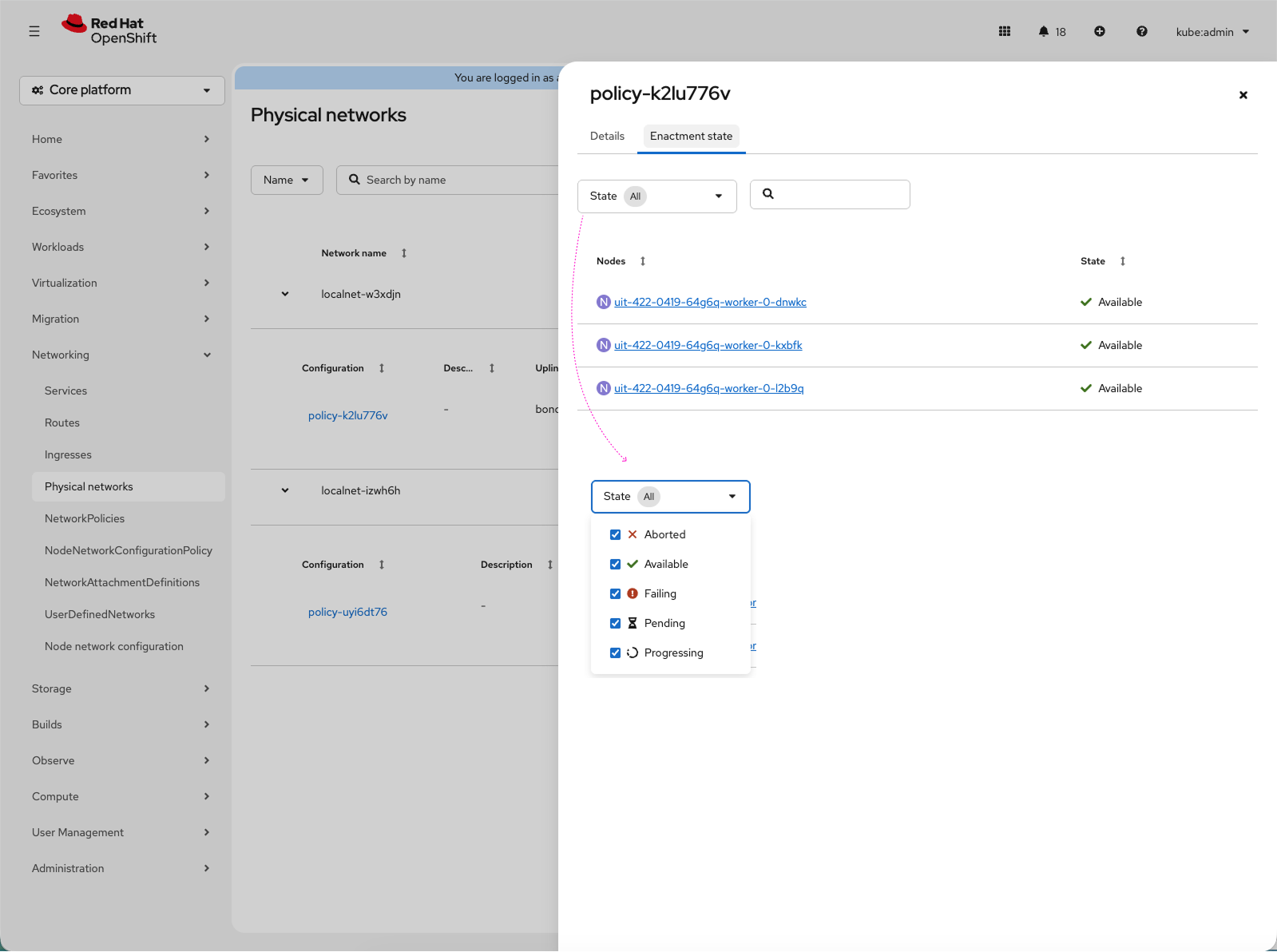
Image 1: The Physical networks page displays a list of existing physical networks, their configuration policies, and the associated nodes. Selecting a configuration opens a side drawer with two tabs: Details, which offers a static overview, and State, which shows the network's status (availability) per node across different node types.
Simplified node configuration
The new node networks wizard guides the user to create a simple policy per node configuration, reducing the need to create multiple configurations in a single policy. A wizard guides you through the entire process, helping you define your network identity and configure nodes quickly.
Key benefits:
- Reduce complexity: Create simple configuration policies that are easier to configure and manage.
- Flexible application: Apply configurations to your entire cluster or to target specific subsets of nodes.
- Simple uplink setup: Establish connections easily by selecting a default node network, a single interface, or a bonding interface.

Image 2: Using a concise wizard to drive localnet usage, to simplify the Node Network Configuration flow (removing the Linux option and focus on VMs). Users who need to configure Linux bridges via the UI can still use the existing "NNCP" page.
Dedicated virtual machine networks management
A virtual machine (VM) network is based on OVN-K localnet topology and is the recommended way to connect VMs to the L2 physical networks that were previously defined. You can now manage those networks in the new Virtual Machine Networks page, found in the Virtualization section.
Streamlining your networking workflow
We’ve separated VM network configuration from the broader UDN configuration to give you a more focused experience. You get the same reliable UDN technology, but optimized for the recommended and most common virtualization needs. Designed for OVN-K localnet topology, this flow removes the need to manually create a NetworkAttachmentDefinition (NAD), hides irrelevant container-specific configurations, and provides virtualization-specific guardrails.
Who is this for? This workflow is designed for virtualization administrators whose primary focus is connecting VMs. If you want a fast, direct way to connect your VMs to the L2 network using OVN-K localnet, this is your new go-to page. If you would like to use a different Container Network Interface (CNI) or set up a different type of network, NAD and standard User Defined Network (UDN) pages remain available for you.
Key features:
- Connecting the dots: Connect a VM network to a pre-defined physical network.
- OVN localnet tab: Save time with our 2-step wizard to define the network and map it to your projects. You can make the network available on the entire cluster, select specific projects manually, or assign it dynamically using labels.
- Additional network types: Access other VM-compatible networks such as Primary user-defined networks, Linux Bridges, SR-IOV, and Secondary layer-2 networks using the Other VM network types tab.
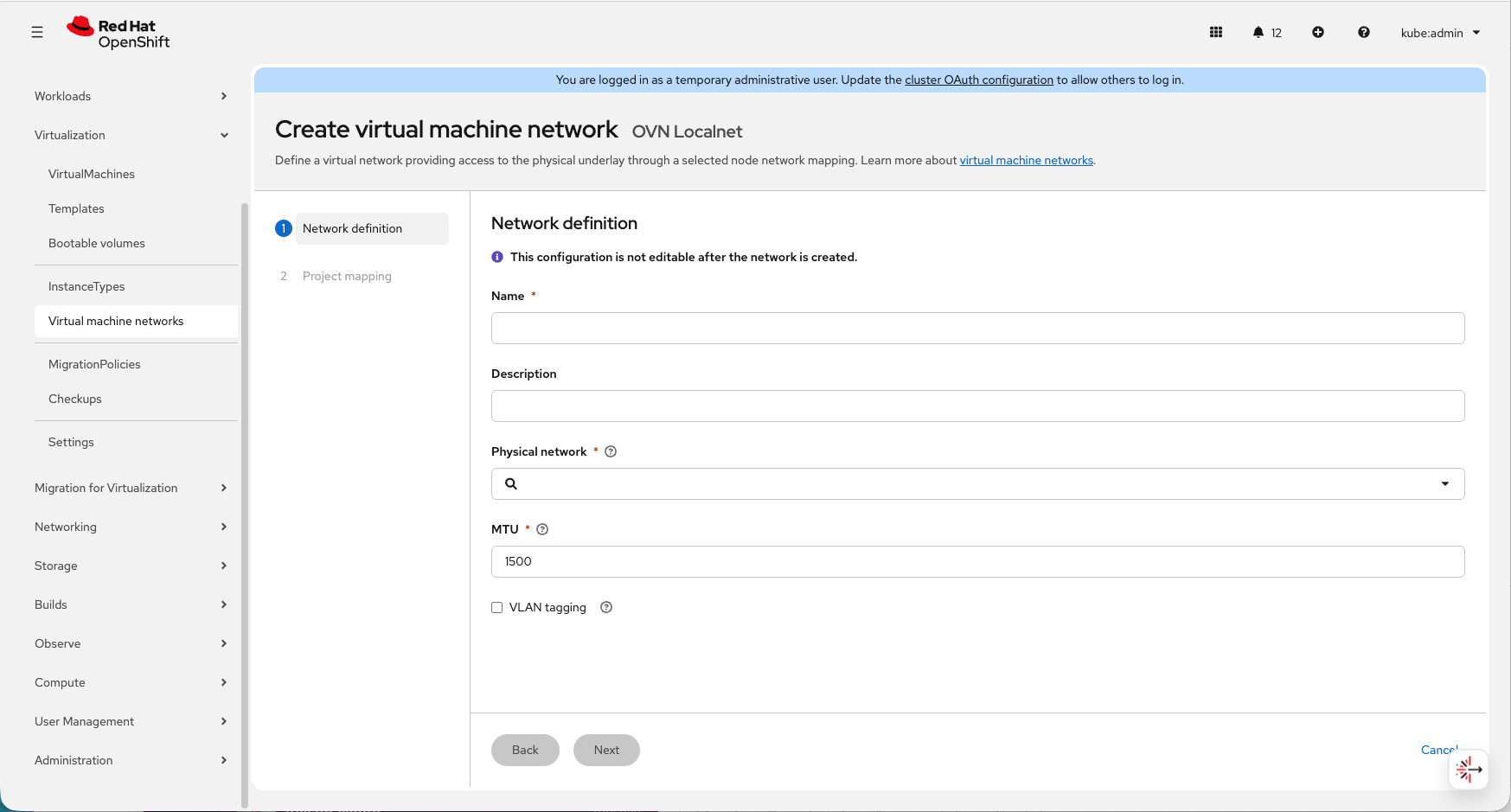
Image 3: A screenshot of the Red Hat OpenShift web console shows the "Create virtual machine network" configuration page for an OVN Localnet. The interface features a "Network definition" form with fields for Name, Physical network selection, MTU settings, and a VLAN tagging toggle.
Better visibility and control
Managing active networks is easier with new monitoring pages.
- A Connected projects page allows you to quickly understand which projects are connected to a specific network.
- A Connected VMs page lists the specific VMs using the connection. From here, you can take direct action to either disconnect a VM from its current network or move it to another one.

Image 4: Viewing the details of each VM network and exploring its tabs will show which projects and VMs are connected to it.
Summary
The 4.21 UX networking updates represent a major step forward in creating a simple network management experience. The new physical network concept simplifies node networking configuration, guiding users to define simple policies that help reduce the use of complex definitions, which are more error-prone. The VM network guides users to use the VM-recommended networking topology, separating it from the broader UserDefinedNetworks (UDN). This removes unnecessary complex options that are not usually needed for VMs. With tailored tools, built-in guardrails, and enhanced visibility, this gives you a simple and effective way to manage your infrastructure.
Although this introduction is a major experience enhancement, it did not require any functionality or API changes on the backend. Whether you’re already running OpenShift Virtualization or you are new to it, I encourage you to use these new workflows when you configure your VM networks.
To learn more about Red Hat OpenShift Virtualization and get additional resources, visit the official documentation.
Resource
15 reasons to adopt Red Hat OpenShift Virtualization
About the author
Designing user experiences at Red Hat since 2018
More like this
Why the virtualization decision keeps getting deferred
Managing virtual machines on Red Hat OpenShift with Service Mesh
Virtualization Is (Still) King | Compiler
Browse by channel

Automation
The latest on IT automation for tech, teams, and environments

Artificial intelligence
Updates on the platforms that free customers to run AI workloads anywhere

Open hybrid cloud
Explore how we build a more flexible future with hybrid cloud

Security
The latest on how we reduce risks across environments and technologies

Edge computing
Updates on the platforms that simplify operations at the edge

Infrastructure
The latest on the world’s leading enterprise Linux platform

Applications
Inside our solutions to the toughest application challenges

Virtualization
The future of enterprise virtualization for your workloads on-premise or across clouds
