
SSHFS itself is a file system in user space (FUSE) that uses the SSH File Transfer Protocol (SFTP) to mount a remote file system. The sshfs command is a client tool for using SSHFS to mount a remote file system from another server locally on your machine.
Note: User space (or userland) is all operating system code that runs outside of the Kernel.
While not as performant as a local file system, sshfs is an easy way to work with files on another computer using local programs and tools. Best of all, sshfs can be used by non-privileged users on the local machine (in fact, it is recommended to not be root or to elevate one’s privileges while using sshfs), and it requires no special software on the remote machine other than SSH with SFTP enabled—a common setup.
Installing sshfs
The sshfs tool is available from most distributions’ standard repositories and is most easily installed using that distribution’s package manager. For Fedora, installing sshfs is as easy as: dnf install fuse-sshfs. On Debian-based systems, the package is simply sshfs.
Mounting a remote file system
Once sshfs is installed, mounting a remote file system safely over SSH is simple. According to the sshfs manual page (man sshfs), the syntax for the command is:
sshfs [user@]host:[dir] mountpoint [options]
That syntax should look familiar to anyone who has used SSH or SCP before.
Let’s take a look at sshfs in action. First, create (or select an existing) directory to use as a mount point. Note that the local user invoking the sshfs command must have write access to the mount point. As use of the root account is discouraged, that policy might make using ~/mnt preferable to /mnt. Then, it is just a matter of using the sshfs command to connect to the remote machine using your SSH credentials, and specifying which remote location to mount to the mount point:
# Create the mountpoint
[chris@marvin ~ ]$ mkdir ~/mnt

# Invoke SSHFS with your SSH credentials and the remote location to mount
[chris@marvin ~ ]$ sshfs chris@zaphod:/home/chris/Pictures ~/mnt

# Access the newly mounted filesystem
[chris@marvin ~ ]$ ls ~/mnt/
'Screenshot from 2019-11-17 19-34-34.png'
Note: Fun fact, sshfs doesn’t expand ~ on a remote machine to the user’s home directory.
The mounted file systems can be accessed and used the same way a local file system is, both from the command line or using other tools:
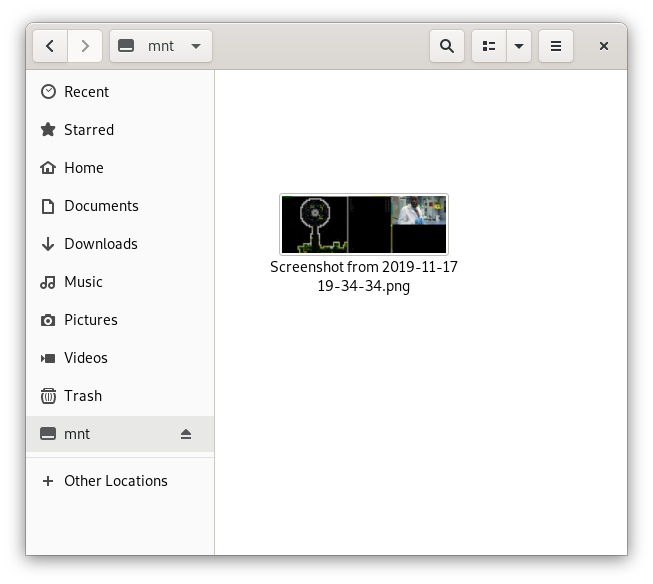
When you’re done with the remote file system, unmount it with the fusermount command:
# Unmount the remote FS
[chris@marvin ~ ]$ fusermount -u ~/mnt
Mount options
In most cases, the default sshfs command can be used as-is, but sshfs is far from a simple command. There are tons of options and flags that cover a variety of situations, including SSH and SFTP options, compression, etc. Check out the sshfs manual (man sshfs) for more details on what is available.
One of the most useful options, however, is reconnect, which allows the client to re-establish the connection to the remote system it is interrupted:
# Use "-o reconect" to allow the client to reconnect
[chris@marvin ~ ]$ sshfs chris@zaphod:/home/chris/Pictures ~/mnt -o reconnect
Mounting a remote file system on startup
The sshfs command can also be used in the client system’s /etc/fstab file to automatically mount the remote file system. Use the normal fstab syntax, including any options required, and use sshfs in place of the file system type:
# file: /etc/fstab
chris@zaphod:/home/chris/Pictures /home/chris/mnt sshfs
Note that using sshfs with fstab file mounting the file system must be done as root, so appropriate adjustments need to be made for SSH credentials, and adequate precautions must be taken.
Transport endpoint is not connected
You might receive a Transport endpoint is not connected error when the connection is interrupted (say, if the client machine changes networks, or is suspended). In this case, unmount the file system with the fusermount command, as described above:
[chris@marvin ~ ]$ ls ~/mnt
ls: cannot access '/home/chris/mnt': Transport endpoint is not connected
[chris@marvin ~ ]$ fusermount -u ~/mnt
Hopefully, this article gave you the basics needed to work with sshfs. It is a great tool for working with remote file systems securely over an encrypted SSH connection while mounted locally on your client computer. And as mentioned, thanks to sshfs being a FUSE file system, even unprivileged users can use it without requiring an administrator to set it up.
Want to try out Red Hat Enterprise Linux? Download it now for free.
About the author
Chris Collins is an SRE at Red Hat and a Community Moderator for Opensource.com. He is a container and container orchestration, DevOps, and automation evangelist, and will talk with anyone interested in those topics for far too long and with much enthusiasm.
More like this
Open Source Security Signals | Q3 2026
What’s old is new: Lightwell discovers novel zero-day vulnerability in core Java framework
Can Compliance Be A Piece Of Cake? | Compiler
Infrastructure At The Edge | Compiler
Browse by channel

Automation
The latest on IT automation for tech, teams, and environments

Artificial intelligence
Updates on the platforms that free customers to run AI workloads anywhere

Open hybrid cloud
Explore how we build a more flexible future with hybrid cloud

Security
The latest on how we reduce risks across environments and technologies

Edge computing
Updates on the platforms that simplify operations at the edge

Infrastructure
The latest on the world’s leading enterprise Linux platform

Applications
Inside our solutions to the toughest application challenges

Virtualization
The future of enterprise virtualization for your workloads on-premise or across clouds
