Automation Platform
-
Overview Get started
Features
- Automation orchestrator
- Automation coding assistant
- Automation intelligent assistant
- Ansible plug-ins for Red Hat Developer Hub
- Event-Driven Ansible
- Self-service automation portal
- Automation execution environments
- Automation controller
- Automation mesh
- Ansible Content Collections
- Ansible automation hub
- Automation dashboard and automation analytics
- Ansible development tools
-
All features
-
Use cases -
Integrations Extend your use of Ansible Automation Platform with partner offerings, including certified collections and resources.
-
Deployment options - Documentation
Interactive demo
Get started with the automation coding assistant
Set up the automation coding assistant service in Red Hat® Ansible® Automation Platform in 5 steps.
Thank you for your interest in a 90-trial to the automation coding assistant for IBM watsonx Code Assistant. Please follow these steps to activate the service.
NOTE: You must be a current Ansible Automation Platform subscriber to activate the trial. You will also need your Red Hat login credentials.
Not currently an Ansible Automation Platform customer? Sign up for a free 60-day trial which includes access to the coding assistant.
Step 1
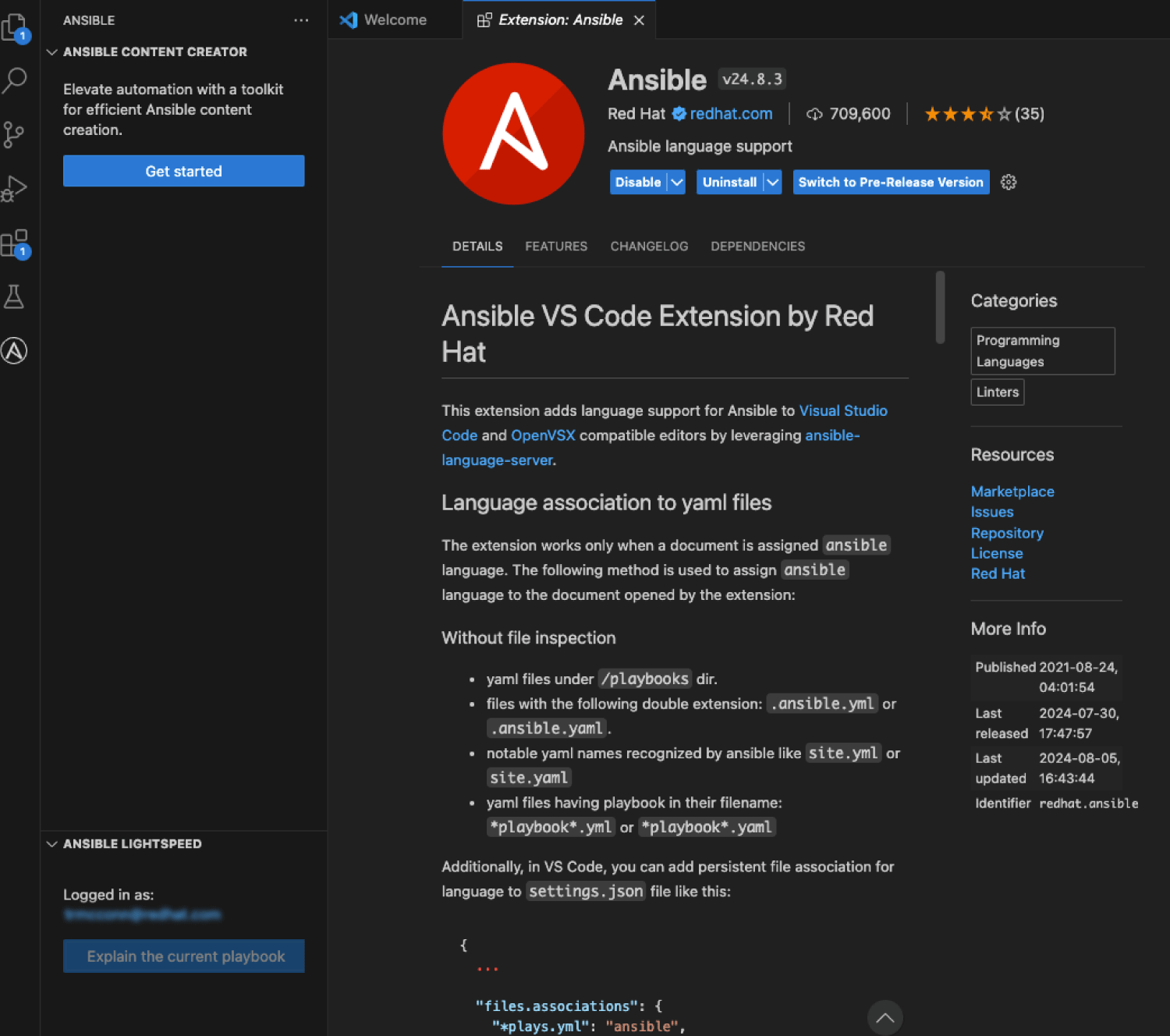
In VS Code, download and install the Ansible VS Code Extension by Red Hat.
Already using VS Code for Ansible? Skip to Step 2.

Step 2
In the bottom-left navigation in the Ansible VS Code extension, select "Connect" under “Ansible Lightspeed Login.” You will be directed to the Ansible Lightspeed portal.

Step 3
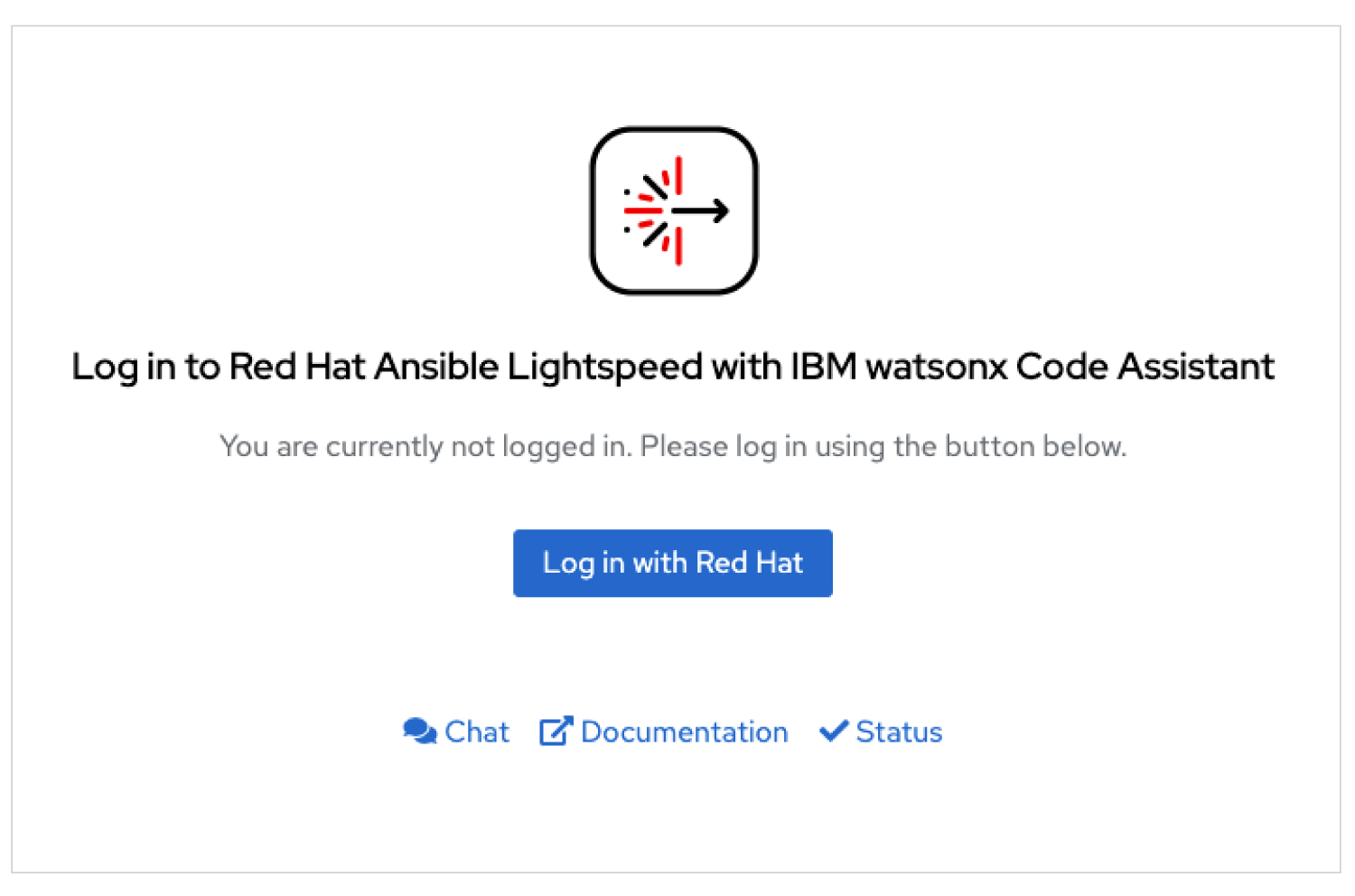
Don't have a Red Hat user login? Contact your Ansible Automation Platform administrator to request access.
Step 4
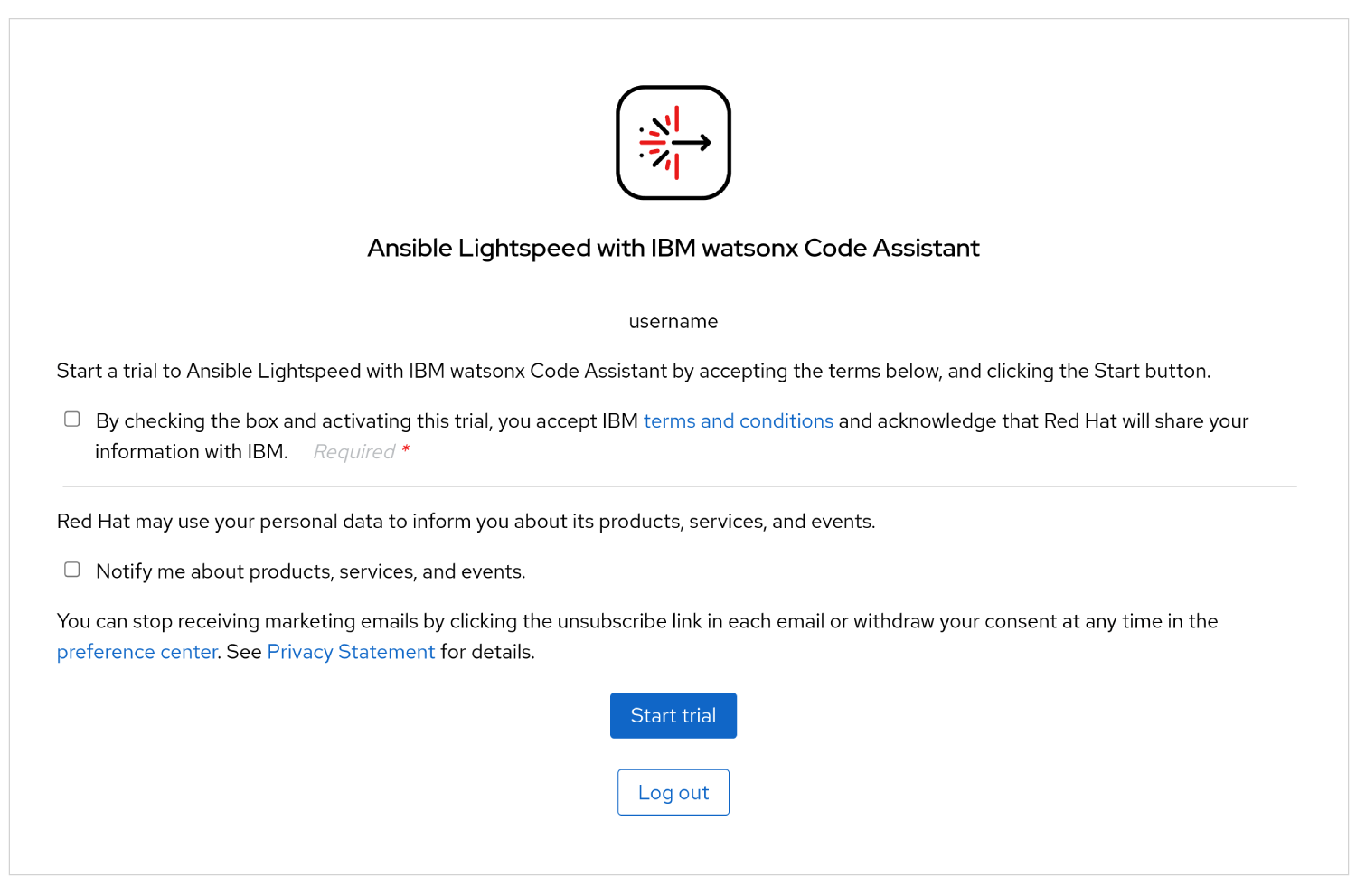
Agree to terms and conditions, indicate your marketing preferences, then select "Start trial."
Step 5
In VS Code, confirm your activated subscription in the left-hand navigation. Happy prompting!